PSU Calculator: How to Choose the Right Wattage for Your Build
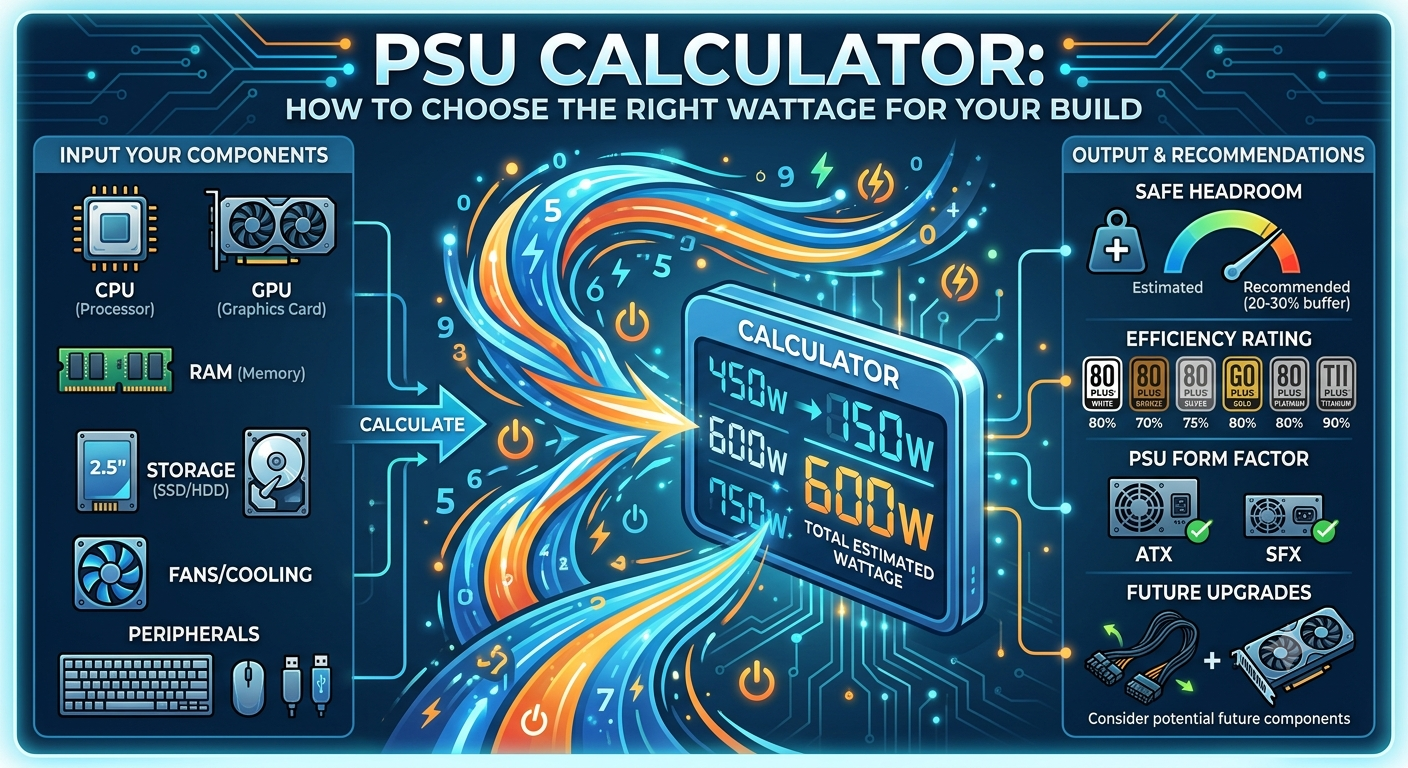
A PSU calculator estimates the correct power supply wattage for your PC by adding up the power draw of all your components CPU, GPU, RAM, storage, fans, and peripherals and applying a headroom buffer so the PSU runs efficiently and safely under peak load. To use one correctly, always enter your CPU's maximum power figure (PL2 for Intel chips, not base TDP), your exact GPU model, and your planned RAM and storage count. The result tells you the minimum recommended PSU wattage and ideally which efficiency tier to buy.
Use the PSU calculator to get a precise wattage recommendation for your exact component combination in under a minute.
What a PSU Calculator Does and What It Doesn't Do
A PSU calculator performs a straightforward aggregation:
- Pulls the power draw figures for your selected components from a hardware database
- Adds them together into a total system draw estimate
- Applies a 20–25% efficiency and headroom buffer on top
- Returns a minimum recommended wattage and often a "recommended comfortable" wattage above that
What it does not do: measure your actual system's real-time power consumption (that requires a hardware power meter) or account for overclocking beyond the rated TDP you specify. If you plan to overclock aggressively, add an extra 50–100W on top of the calculator's recommendation.
How to Use the PSU Calculator Step by Step
Step 1: Select Your CPU
Choose your exact processor model from the dropdown. This matters more than people expect Intel's K-series chips have a base TDP (e.g., 125W for i9-14900K) and a significantly higher PL2 maximum (253W for the same chip). A good PSU calculator uses the PL2 figure for Intel CPUs and the listed TDP for AMD chips, which better reflects real peak draw.
Step 2: Select Your GPU
The GPU is almost always the single largest power consumer in a gaming PC. Select your exact GPU model variants matter (RTX 4070 vs RTX 4070 Super vs RTX 4070 Ti Super all have different TDPs). The calculator pulls the TDP for your specific card.
- What a PSU Calculator Does and What It Doesn't Do
- How to Use the PSU Calculator Step by Step
- Step 1: Select Your CPU
- Step 2: Select Your GPU
- Step 3: Enter RAM Sticks
- Step 4: Enter Storage Drives
- Step 5: Enter Additional Components
- Step 6: Read the Output
- The Most Important Input: GPU TDP
- Common PSU Sizing Mistakes the Calculator Prevents
- What the Calculator Cannot Account For
- How to Pair PSU Research With Bottleneck Research
- Key Takeaways
Step 3: Enter RAM Sticks
Select how many RAM sticks you're installing. Each DDR5 stick draws roughly 5–8W; DDR4 slightly less. This is a small but real addition to total system draw.
Step 4: Enter Storage Drives
Each NVMe SSD adds roughly 5–10W under load; SATA SSDs add 2–4W; HDDs add 6–10W each. Enter your planned number of each type.
Step 5: Enter Additional Components
Fans, RGB lighting, and AIO cooler pumps each add a small amount (2–5W each). Enter your planned fan count for a complete picture.
Step 6: Read the Output
The calculator returns:
- Minimum recommended wattage the floor you should not go below
- Recommended comfortable wattage the PSU size that gives proper efficiency headroom (typically 20–25% above minimum)
Always buy at or above the "recommended comfortable" figure, not the bare minimum.
The Most Important Input: GPU TDP
Of all the inputs, your GPU TDP has the largest impact on PSU sizing by far. For reference:
| GPU | TDP | PSU Minimum (mid CPU) | PSU Recommended |
|---|---|---|---|
| RTX 4060 | 115W | 550W | 650W |
| RTX 4060 Ti | 165W | 600W | 700W |
| RTX 4070 | 200W | 650W | 750W |
| RTX 4070 Super | 220W | 650W | 750W |
| RTX 4070 Ti Super | 285W | 750W | 850W |
| RTX 4080 | 320W | 800W | 900W |
| RTX 4080 Super | 320W | 850W | 1000W |
| RTX 4090 | 450W | 900W | 1000–1200W |
| RX 7900 XTX | 355W | 850W | 1000W |
Confirm the exact recommendation for your GPU paired with your CPU in the PSU calculator.
Common PSU Sizing Mistakes the Calculator Prevents
- Using CPU base TDP instead of PL2 Intel K-series CPUs draw up to 2× their base TDP under sustained boost. The calculator automatically uses the correct figure.
- Forgetting peripheral and fan overhead 50–75W of overhead from motherboard, fans, and storage is easy to undercount manually.
- Buying exactly the calculated minimum the calculator's recommendation already includes a headroom buffer, so buying the minimum output figure is correct. Don't cut below it.
- Ignoring efficiency ratings he calculator can recommend efficiency tier (Bronze/Gold/Platinum); choosing a lower tier means more power wasted as heat, not more headroom.
What the Calculator Cannot Account For
- Overclocking if you plan to overclock your CPU or GPU beyond rated TDP, add 50–100W manually to the calculator's output
- Real-time transient spikes GPUs can spike 20–30% above rated TDP momentarily; the headroom buffer addresses this, but extremely aggressive overclocking may exceed it
- PSU quality variation a cheap off-brand 850W unit may not actually deliver 850W reliably; always buy from reputable PSU manufacturers regardless of what the calculator recommends
How to Pair PSU Research With Bottleneck Research
PSU sizing and CPU/GPU pairing are complementary checks. Before finalising a build:
- Check your CPU/GPU bottleneck in the bottleneck calculator to confirm your components are well-matched
- Check your PSU requirement in the PSU calculator to confirm your power supply can support those matched components
Both checks take under a minute each and prevent two of the most common and expensive PC building mistakes: hardware mismatches and undersized power supplies.
Key Takeaways
- A PSU calculator aggregates all component power draws and applies a 20–25% headroom buffer to recommend the correct wattage for safe, efficient operation.
- The GPU TDP is the single most important input always use the exact GPU model, not a close approximation.
- For Intel K-series CPUs, a good calculator uses PL2 (maximum boost power) rather than base TDP up to 2× higher for i9-class chips.
- Always buy the "recommended comfortable" wattage output, not the minimum the buffer ensures efficient operation and longevity.
- Overclocking adds power draw beyond rated TDP; add 50–100W manually to the calculator's output if overclocking is planned.
- Use the PSU calculator before every new build or major upgrade to avoid undersizing your power supply.