Is Your Motherboard Causing a Hidden Bottleneck? (Symptoms & Fixes)
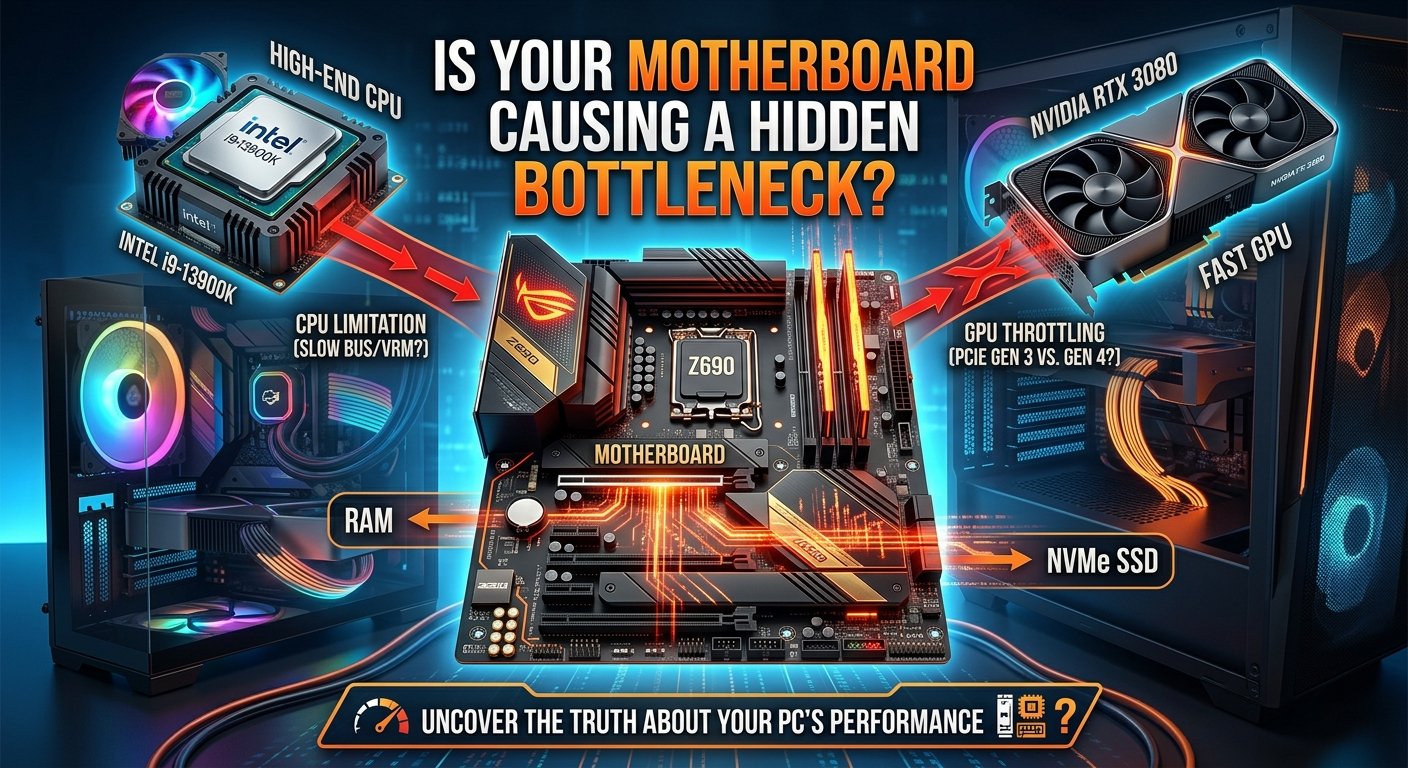
A motherboard cannot directly bottleneck your CPU or GPU in the way a mismatched component pair does — it doesn't process game logic or render pixels. But it can create three types of indirect performance limitations: RAM speed restriction (most common), VRM-induced CPU power throttling, and PCIe bandwidth constraints. These are "hidden" bottlenecks because they don't show up as a CPU/GPU usage imbalance on a monitoring overlay, yet they cap performance below what your components are rated for.
Use the bottleneck calculator to confirm whether your CPU/GPU relationship is the primary bottleneck — if the pairing looks well-matched but performance is still lower than expected, the motherboard is worth investigating.
Hidden Bottleneck Type 1: RAM Speed Restriction (Most Common)
What it is: Your motherboard has a maximum supported memory frequency. If your RAM kit is rated for a speed higher than what the board supports, your RAM runs at the board's maximum — not the kit's rated speed.
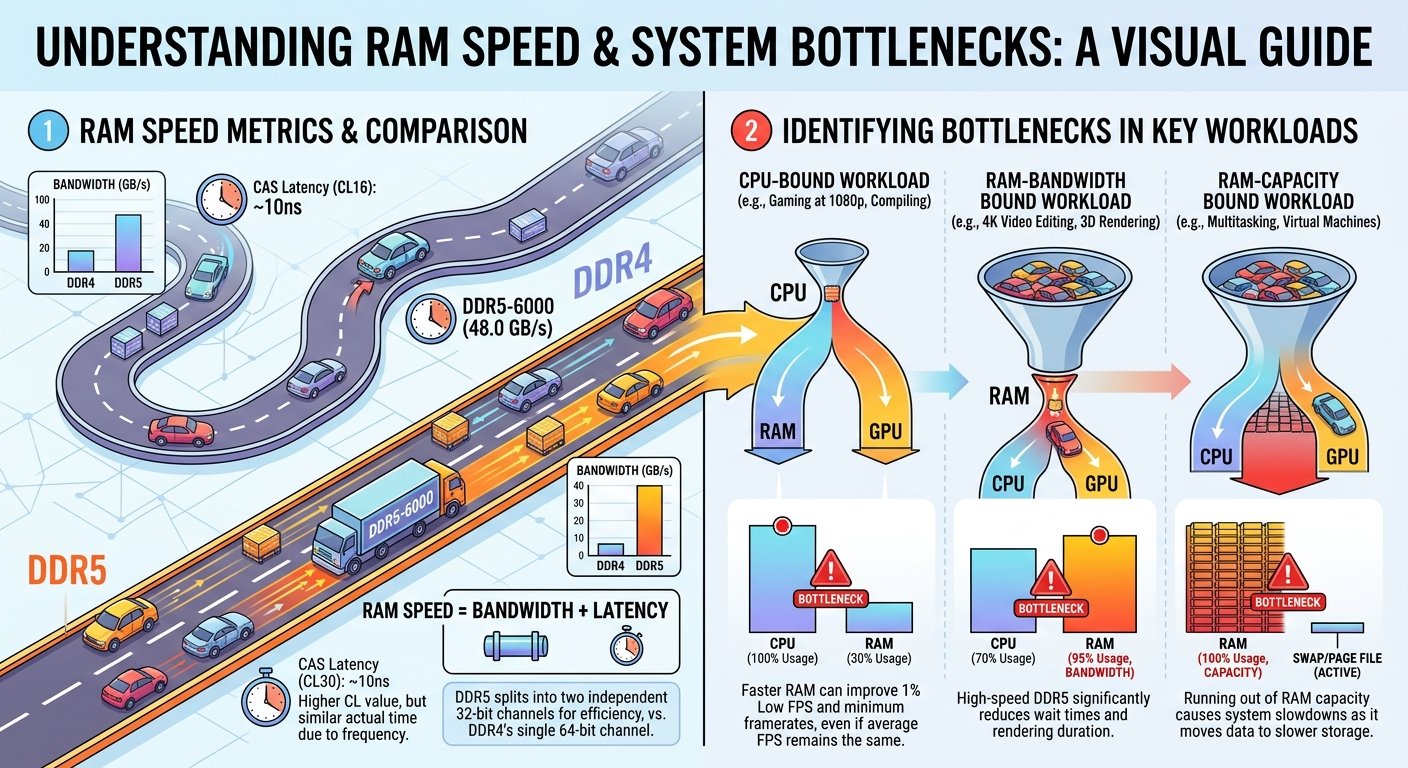
How it creates a bottleneck: As covered in the RAM speed guide, slower RAM increases the latency of the CPU instruction loop — the processor waits longer for data, reducing how efficiently it can feed the GPU. This adds to any existing CPU/GPU bottleneck.
Symptoms:
- FPS is lower than benchmarks suggest for your CPU/GPU pairing, with no obvious CPU or GPU overload
- CPU-Z → Memory tab shows your RAM running below its rated frequency
- FPS improves notably after enabling XMP/EXPO — indicating the board wasn't running RAM at rated speed previously
How to check:
- Open CPU-Z → Memory tab → DRAM Frequency (multiply by 2 for actual speed)
- Compare to your RAM kit's rated speed on the packaging or product page
- Check your motherboard's QVL (Qualified Vendor List) and maximum supported memory speed in its specifications
How to fix:
- Enable XMP (Intel) or EXPO (AMD) in BIOS — this is always the first step
- If XMP/EXPO still doesn't reach the kit's rated speed, your motherboard may genuinely have a lower maximum than your RAM supports
- In this case, set the highest stable speed the board supports manually in BIOS with appropriate CL timing
Real-world impact: Running DDR5 at 4800MHz instead of 6000MHz on AM5 (because XMP isn't enabled or the board doesn't support 6000MHz) can reduce gaming FPS by 5–12% in CPU-sensitive titles — a meaningful, hidden performance loss.
Hidden Bottleneck Type 2: VRM-Induced CPU Power Throttling
What it is: The Voltage Regulator Module (VRM) on your motherboard converts and delivers power to the CPU. Budget or entry-level boards often have fewer VRM phases and lower-rated power components — which limits how much sustained power they can deliver to high-TDP CPUs.
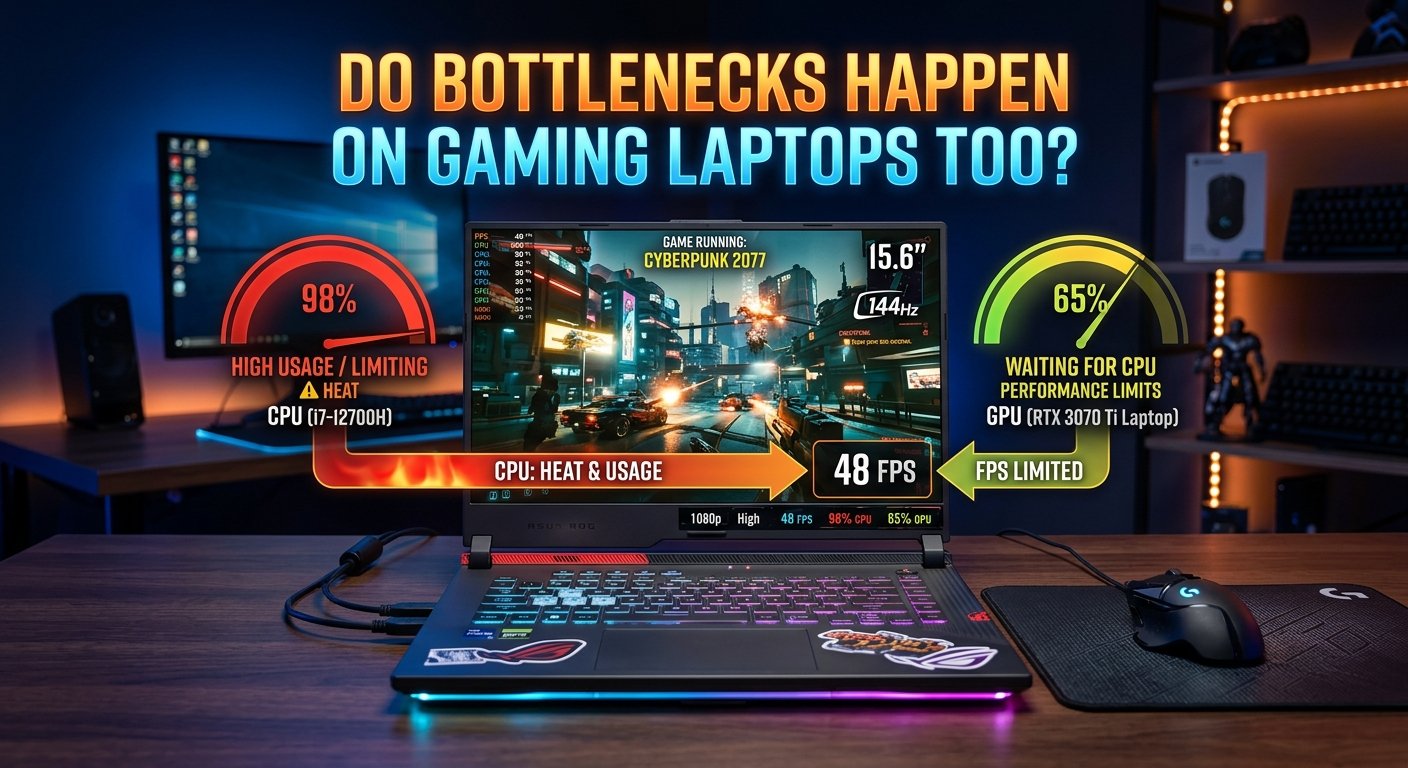
How it creates a bottleneck: When a VRM can't sustain the CPU's power demands, the system reduces the CPU's power limit — effectively running a 253W PL2 processor at 150–180W sustained load. The CPU boosts to full speed briefly, then throttles back as the VRM thermal limits are reached. This appears as:
- Hidden Bottleneck Type 1: RAM Speed Restriction (Most Common)
- Hidden Bottleneck Type 2: VRM-Induced CPU Power Throttling
- Hidden Bottleneck Type 3: PCIe Bandwidth Limitation
- Hidden Bottleneck Type 4: BIOS Configuration and Outdated Firmware
- Ruling Out the Motherboard as the Bottleneck Source
- Key Takeaways
- CPU clock speeds that peak normally but don't sustain during extended gaming sessions
- CPU temperatures that appear acceptable while motherboard VRM temperatures (reported by some software) are very high
- Performance that decreases over the first 5–10 minutes of a demanding game
Most at risk: High-TDP CPUs (i9-14900K, Ryzen 9 7950X, Ryzen 9 7900X) on budget B-series boards with entry-level VRM designs. The i9-14900K draws up to 253W PL2 — far exceeding what a poorly-specced VRM can deliver continuously.
Symptoms:
- HWiNFO shows CPU package power fluctuating lower than rated PL2 during gaming
- CPU clock speeds are below rated maximum during sustained load (visible in HWiNFO or CPU-Z)
- Performance in extended benchmark runs is noticeably lower than short burst benchmarks
How to check:
- Use HWiNFO to monitor CPU package power during gaming — if it's consistently below the CPU's rated PL2, VRM throttling is occurring
- Check HWiNFO for VRM temperature sensors (motherboard-dependent availability)
How to fix:
- Enable Power Limits in BIOS if they're being artificially restricted (some boards default to lower PL2 values)
- Improve case airflow to help the VRM run cooler
- As a last resort, downgrade to a less power-hungry CPU that the VRM can sustain (a Ryzen 5 7600 instead of a Ryzen 9 7900X on a budget B650 board)
- For permanent fix: upgrade to a board with more robust VRM design
Hidden Bottleneck Type 3: PCIe Bandwidth Limitation
What it is: The GPU connects to the motherboard via a PCIe slot. Older boards may offer PCIe 3.0 x8 rather than PCIe 4.0 x16 — providing roughly 25% of the bandwidth of a full PCIe 5.0 x16 connection.
How it creates a bottleneck: For current gaming workloads, PCIe 3.0 x16 provides adequate bandwidth for all current gaming GPUs — the limitation is rarely noticeable. However, PCIe 3.0 x8 (which appears on some multi-GPU or budget boards that split lanes) can produce a measurable performance reduction in GPU-intensive scenarios, particularly at very high resolutions with high-bandwidth textures.
Who is actually affected:
- Users with a board that runs the GPU slot at x8 rather than x16
- Professional workloads (AI inference, GPU compute) where PCIe bandwidth is more frequently saturated than in gaming
How to check: GPU-Z → Bus Interface (under the main graphics card tab) — this shows the actual PCIe generation and lane width currently in use.
How to fix:
- Ensure the GPU is in the primary PCIe slot (typically the top x16 slot) — some boards reduce bandwidth when the GPU is in a secondary slot
- Verify nothing else is installed that forces lane-splitting on the primary slot
Hidden Bottleneck Type 4: BIOS Configuration and Outdated Firmware
What it is: An outdated BIOS or incorrect BIOS settings can create unnecessary performance restrictions:
- CPU scheduler inefficiencies — fixed in newer BIOS versions, particularly for Intel hybrid architectures and AMD's preferred-core algorithms
- Memory compatibility issues — BIOS updates frequently improve RAM compatibility and stability at higher XMP/EXPO speeds
- Power delivery settings — some boards ship with conservative power limits that prevent the CPU from reaching its full boost potential
Symptoms: Performance inconsistency; FPS that doesn't match expected results for your hardware; instability at XMP speeds resolved after a BIOS update.
Fix: Check your motherboard manufacturer's website for BIOS updates regularly — particularly after major CPU/game releases where compatibility fixes are commonly included.
Ruling Out the Motherboard as the Bottleneck Source
If you're experiencing lower-than-expected gaming performance and the bottleneck calculator shows a well-matched CPU/GPU pairing, work through this checklist:
- ✅ RAM running at rated speed? (CPU-Z → Memory → DRAM Frequency × 2)
- ✅ XMP/EXPO enabled in BIOS?
- ✅ BIOS updated to latest version?
- ✅ GPU in primary PCIe slot at full x16 lanes? (GPU-Z → Bus Interface)
- ✅ CPU clock speeds at rated maximum under sustained load? (HWiNFO during gaming)
- ✅ VRM temperatures acceptable? (HWiNFO if sensors available)
If all six are confirmed, the motherboard is not causing a hidden bottleneck — the performance limit lies elsewhere.
Key Takeaways
- A motherboard cannot directly bottleneck CPU/GPU performance, but it can indirectly cap performance through RAM speed restriction, VRM throttling, and PCIe bandwidth limits.
- RAM speed restriction from a board with a lower maximum than your kit is the most common hidden motherboard bottleneck — and enabling XMP/EXPO is the free fix.
- VRM-induced CPU power throttling affects high-TDP CPUs (i9/Ryzen 9 class) on budget boards — check CPU clock speeds with HWiNFO during sustained gaming to detect it.
- Keeping BIOS updated resolves scheduler inefficiencies, RAM compatibility issues, and power delivery settings that can create subtle performance gaps.
- If the bottleneck calculator shows a well-matched pairing but performance is below expectations, run through the 6-item motherboard checklist before assuming a hardware problem.