How to Maximize FPS in Warzone Without Upgrading Your PC (2026 Guide)
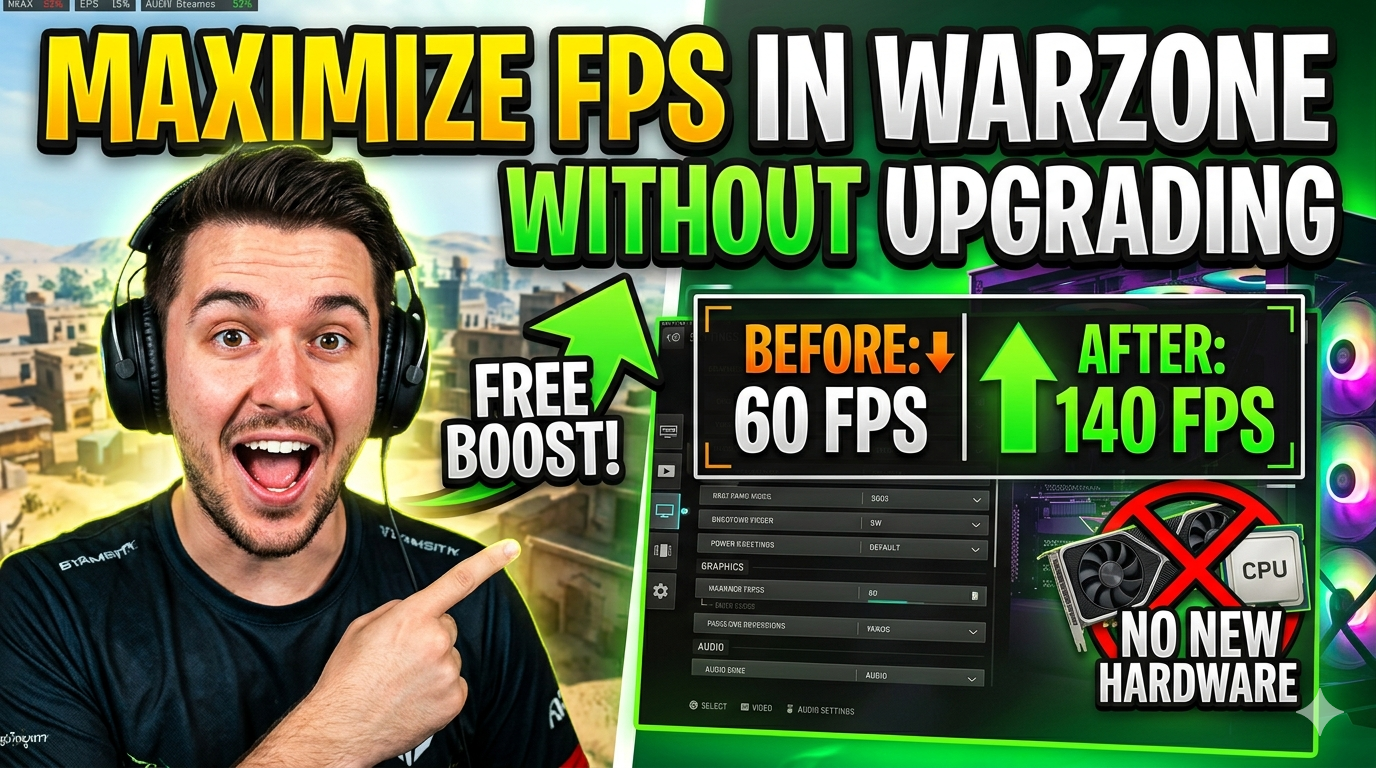
Call of Duty: Warzone is one of the most hardware-demanding battle royale games on the market. Maintaining a smooth high frame rate is critical not just for visual comfort but because higher FPS directly translates to faster input response times sharper motion clarity and a genuine competitive advantage. The good news? You don't need to spend hundreds on a new graphics card to feel the difference.
This guide covers every software level optimization you can make right now from in game settings to Windows configuration to squeeze every last frame out of your existing hardware.
Why FPS Matters in Warzone
Before diving into the fixes it is worth understanding why frame rate is so important in a fast-paced shooter like Warzone. At 60 FPS each frame lasts about 16.7 milliseconds. At 144 FPS that drops to under 7ms. The result is dramatically sharper target tracking during quick movements reduced motion blur and a perception of speed that gives high-FPS players a measurable edge over those running lower frame rates.
The goal of this guide is simple: maximize your FPS without touching your hardware budget.
Optimize In Game Graphics Settings
The single fastest way to boost FPS is to tune Warzone's own settings menu. Not all graphics options carry equal performance cost knowing which ones hurt FPS the most lets you cut them strategically while preserving visual clarity where it matters.
Settings to Lower or Disable Immediately
Render Resolution Set to 100%. Going below this blurs the image and makes spotting enemies harder.
- Why FPS Matters in Warzone
- Optimize In Game Graphics Settings
- Settings to Lower or Disable Immediately
- Settings to Keep High
- Update and Configure Your GPU Drivers
- Optimize Windows for Gaming Performance
- Manage Background Processes and Startup Programs
- Optimize Storage and Virtual Memory
- Network and Texture Streaming Settings
- Display and Monitor Configuration
- Wrapping Up
Shadow Quality Drop to Low or Medium. Shadows are extremely GPU-intensive and rarely aid gameplay awareness
Anti-Aliasing Use SMAA T1X or disable entirely. MSAA is a major FPS drain with minimal benefit in a competitive context.
Ambient Occlusion Set to Disabled. This effect adds subtle contact shadows that are nearly invisible during gameplay but cost significant performance.
Screen Space Reflections Disable. Beautiful in screenshots irrelevant in battle.
Tessellation Set to Near or Disabled.
Depth of Field & Motion Blur Disable both. Motion blur actively hurts your ability to track targets and wastes GPU cycles.
|
Pro Tip: Enable NVIDIA DLSS (if you have an RTX card) or AMD FSR. These AI/algorithmic upscaling technologies render at a lower internal resolution and upscale to your display resolution often improving FPS by 30-60% with minimal visual quality loss. |
Settings to Keep High
Texture Resolution Keep at High. Low textures degrade visual clarity without meaningfully boosting FPS.
Bullet Impacts & Sprays Keep Enabled for gameplay awareness.
Field of View Set to your preference (100-110 is popular). Higher FOV gives more situational awareness.
Update and Configure Your GPU Drivers
Outdated drivers are one of the most common and overlooked causes of poor FPS. NVIDIA and AMD regularly release driver updates that include game specific optimizations Warzone patches sometimes coincide with driver improvements.
For NVIDIA users open GeForce Experience and update to the latest driver. In the NVIDIA Control Panel navigate to Manage 3D Settings > Program Settings select Warzone and apply these settings:
Power Management Mode: Prefer Maximum Performance
Texture Filtering Quality: Performance
Vertical Sync: Off (use in-game setting instead)
Low Latency Mode: Ultra (reduces input lag significantly)
AMD users should use the Radeon Software Adrenalin interface and enable Radeon Anti-Lag and Radeon Image Sharpening while disabling Enhanced Sync and Radeon Boost for Warzone (these can cause frame pacing issues).
Optimize Windows for Gaming Performance
Windows 10 and 11 include several background processes and power settings that throttle gaming performance by default. Fixing these takes under five minutes and can yield a noticeable FPS improvement.
Set Power Plan to High Performance or Ultimate Performance in Windows Power Options.
Enable Hardware-Accelerated GPU Scheduling (HAGS) in Display Settings > Graphics Settings.
Enable Game Mode via Settings > Gaming > Game Mode and toggle it On.
Disable Xbox Game Bar (Settings > Gaming > Xbox Game Bar) to stop background capture overhead.
Additionally open Task Manager navigate to the Details tab right click on the Warzone process (cod.exe or modernwarfare.exe) and set Priority to High. This allocates more CPU time to the game over background applications.
Manage Background Processes and Startup Programs
Every background application running while you play Warzone consumes RAM and CPU cycles. Browsers Discord video encoding cloud sync clients and antivirus scans are common culprits that silently steal performance.
Before launching Warzone use Task Manager to close non-essential applications. For a deeper clean press Win + R type msconfig and navigate to the Startup tab to disable unnecessary startup programs permanently. Discord can stay open but right-click its system tray icon and disable hardware acceleration under User Settings > Advanced.
|
Quick Win: Set your antivirus software to add a Warzone exclusion for the game folder. Some antivirus programs scan game files in real time causing micro-stutters and FPS drops mid-game. |
Optimize Storage and Virtual Memory
If Warzone is installed on a traditional HDD rather than an SSD you are experiencing slower texture streaming longer load times and potential mid-game hitching. If upgrading storage is not an option ensure there is at least 20-30 GB of free space available for Windows' paging file and game caching.
To manually increase virtual memory go to Control Panel > System > Advanced System Settings > Performance Settings > Advanced > Virtual Memory. Set a custom size of 1.5x your physical RAM as the minimum and 3x as the maximum. This prevents Windows from dynamically resizing the paging file during gameplay which can cause stutters.
Network and Texture Streaming Settings
Warzone uses an on-demand texture streaming system that downloads assets in real time during a match. If your internet connection is unstable or slow this causes visible pop-in and can indirectly cause performance hitches as the CPU waits for texture data.
In Warzone's settings under Graphics > Quality locate Streaming Quality and set it to Normal or Low if you experience stutter. Alternatively download all texture packs upfront via the game client to eliminate streaming-related hitching entirely.
Display and Monitor Configuration
Ensure your monitor is actually running at its maximum refresh rate. Right-click the Desktop > Display Settings > Advanced Display Settings and confirm the refresh rate matches your monitor's spec (144Hz 165Hz 240Hz etc.). Running a 144Hz monitor at 60Hz is a surprisingly common and easily fixed issue.
Turn off V-Sync in both Warzone and your GPU control panel unless you experience screen tearing. V-Sync caps your FPS to your refresh rate and introduces input lag. Instead if you have a FreeSync or G-Sync monitor enable it this eliminates tearing without the latency penalty of V Sync.
Wrapping Up
Maximizing FPS in Warzone without upgrading your hardware is entirely achievable through a systematic approach to software optimization. By tuning your in game graphics settings keeping drivers current configuring Windows for gaming and eliminating background performance drains most players can achieve a 20-60% improvement in frame rate.
The competitive advantage gained from smoother more responsive gameplay is real and it is waiting for you right now without spending a single dollar on new hardware. Work through this guide step by step test your FPS after each change and find the configuration that gives you the edge you have been looking for.