How Much Bottleneck Is Acceptable for Gaming?
How Much Bottleneck Is Acceptable for Gaming? The Complete 2026 Guide
If you've ever built a gaming PC or upgraded your components, you've probably heard the word "bottleneck" thrown around in forums and YouTube comments. Everyone seems terrified of it but is it really as catastrophic as people make it sound? The truth is, a little bottleneck is not only normal but completely unavoidable. The real question isn't whether you have a bottleneck it's how much is actually acceptable for gaming without hurting your experience.
In this guide, we'll break down everything you need to know: what bottlenecking means, what percentage is safe, how it affects different types of games, and how to minimize it without rebuilding your entire rig.
What Is a Bottleneck in PC Gaming?
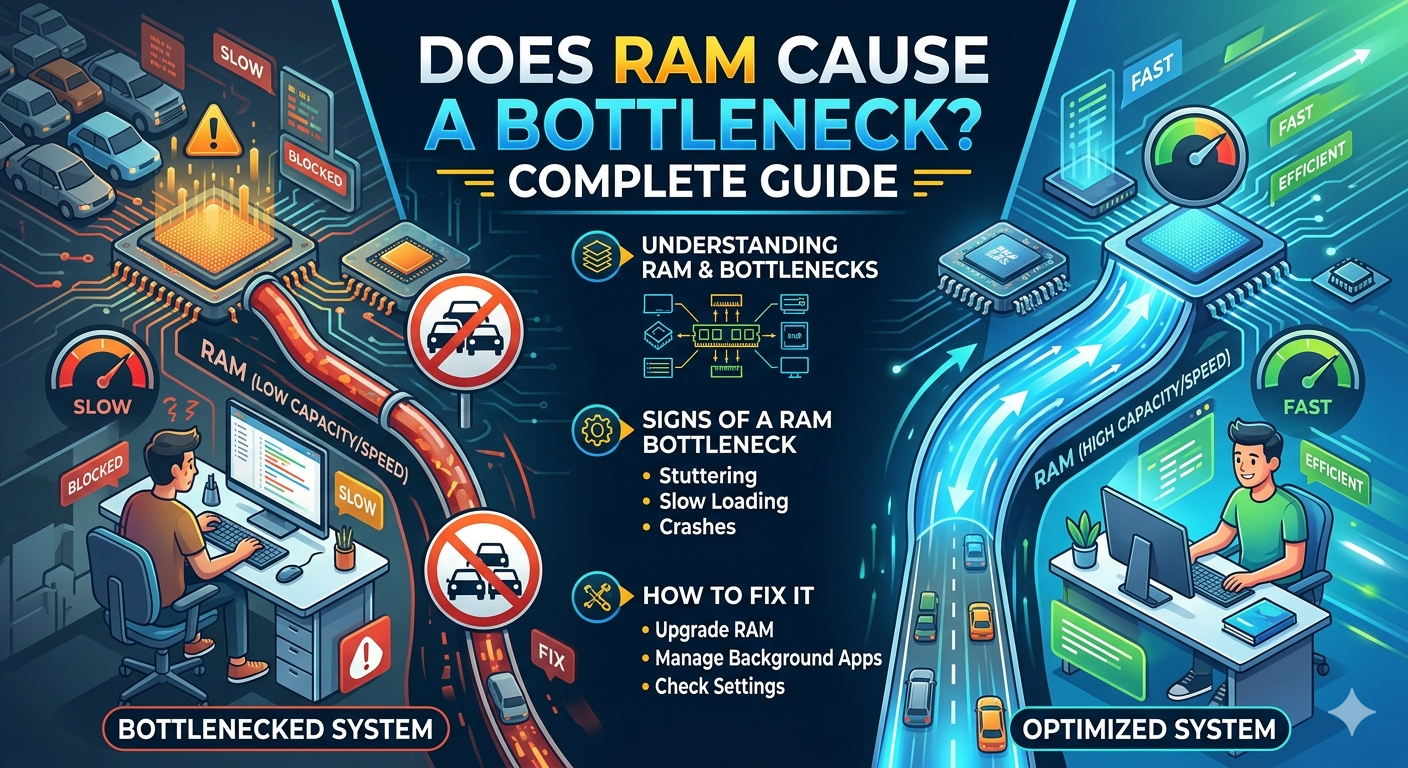
A bottleneck occurs when one component in your system is significantly slower than another, causing the faster component to sit idle and wait. Think of it like a highway with five lanes merging into one traffic backs up regardless of how fast the cars are moving.
In gaming, the most common bottleneck occurs between the CPU (processor) and the GPU (graphics card). Your GPU is responsible for rendering visuals, while your CPU handles game logic, AI, physics, and feeding data to the GPU. If your CPU is too slow to keep up with your GPU or vice versa one ends up waiting on the other.
There are two main types:
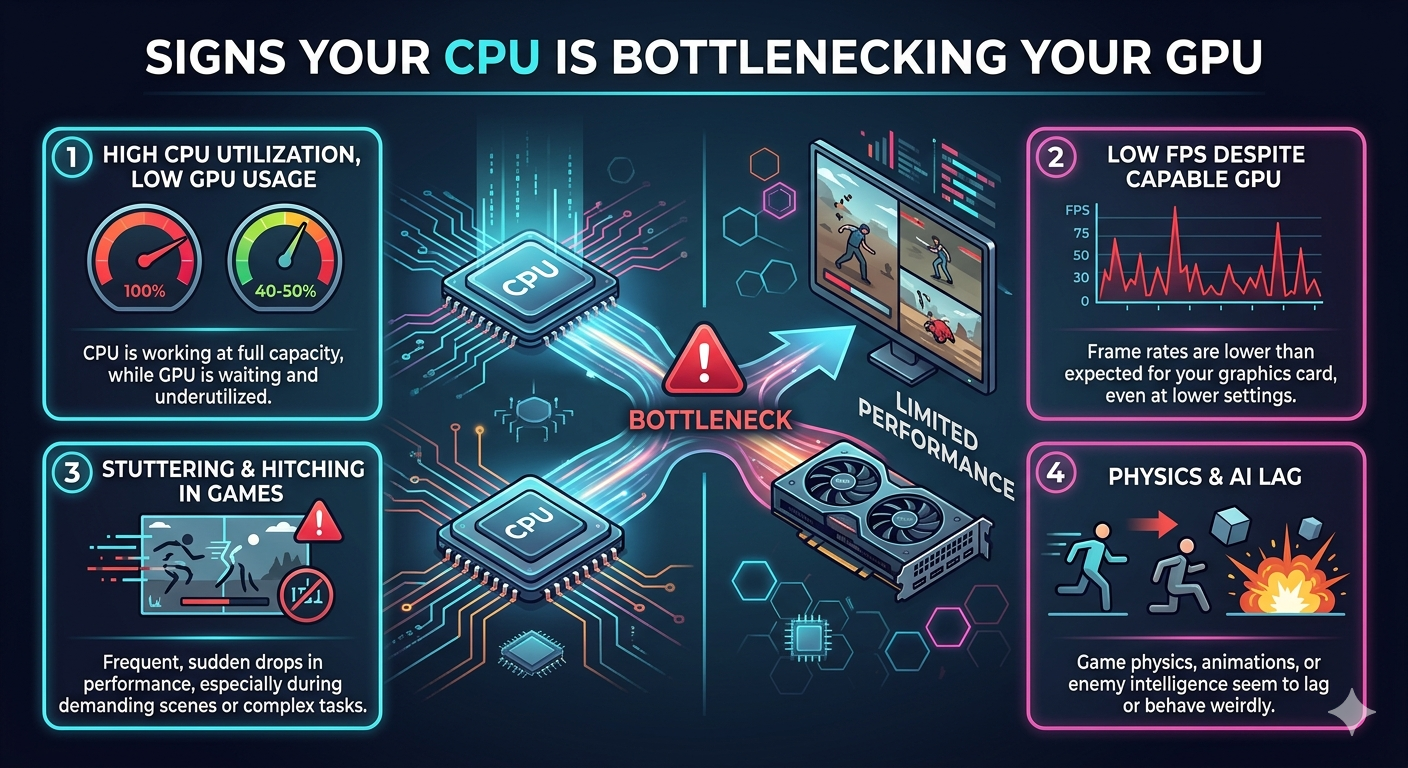
· CPU Bottleneck: The CPU can't process data fast enough, leaving the GPU underutilized. This typically shows as low FPS despite the GPU not running at full load.
· GPU Bottleneck: The GPU is the limiting factor it can't render frames fast enough, causing the CPU to wait. This is actually the preferred scenario for most gamers, as it means you're getting full value out of your CPU.
How Is Bottleneck Measured?
Bottleneck is typically expressed as a percentage. A 0% bottleneck theoretically means both your CPU and GPU are perfectly matched. In practice, this is nearly impossible.
You can estimate bottleneck using tools like:
- What Is a Bottleneck in PC Gaming?
- How Is Bottleneck Measured?
- How Much Bottleneck Is Acceptable for Gaming?
- ✅ 0% – 10% Bottleneck (Excellent)
- ✅ 10% – 20% Bottleneck (Acceptable)
- ⚠️ 20% – 30% Bottleneck (Noticeable but Tolerable)
- ❌ 30%+ Bottleneck (Problematic)
- Does Bottleneck Affect All Games Equally?
- Real World Examples of Acceptable Bottleneck Pairings
- How to Reduce Bottleneck Without Upgrading Hardware
- Increase Your Resolution
- Enable Higher Graphical Settings
- Close Background Applications
- Update Drivers and BIOS
- Enable XMP/EXPO for RAM
- Adjust In-Game CPU-Heavy Settings
- When Should You Upgrade to Fix a Bottleneck?
- The GPU Bottleneck Myth
- Final Verdict: What Bottleneck Percentage Is Safe for Gaming?
MSI Afterburner + RivaTuner – Monitor real-time CPU and GPU usage while gaming.
Task Manager (Performance Tab) – Check CPU utilization during gameplay.
Online Bottleneck Calculators – Sites like PC-Builds.com offer rough percentage estimates based on your component specs.
The general rule: if your GPU usage is consistently at 95–100% and your CPU usage is below 80%, you have a GPU bottleneck — which is generally healthy. If your CPU is maxed out at 100% and your GPU is sitting at 50–60%, you have a CPU bottleneck — which is more problematic for consistent frame delivery.
How Much Bottleneck Is Acceptable for Gaming?
Here's the answer most people are looking for:
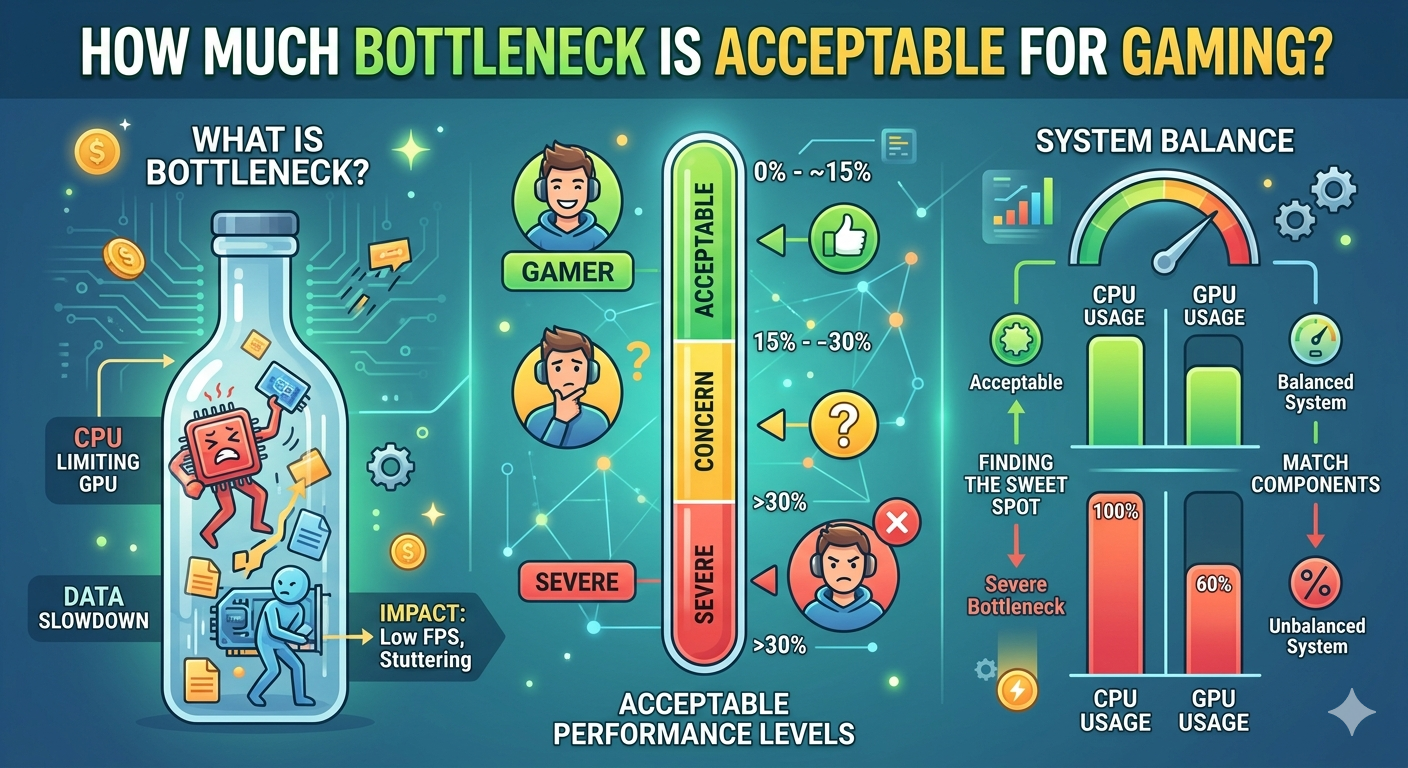
A bottleneck of 0–10% is ideal. Up to 15–20% is generally acceptable for most gamers. Anything above 20–30% may start to noticeably impact your gaming experience.
Let's break this down in detail:
✅ 0% – 10% Bottleneck (Excellent)
This is the sweet spot. Your CPU and GPU are closely matched, and neither component is being significantly wasted. You'll experience smooth, consistent frame rates and excellent overall performance.
✅ 10% – 20% Bottleneck (Acceptable)
Most real-world gaming setups fall in this range. You might leave a small amount of performance on the table, but you'll still enjoy smooth gameplay, especially if you're gaming at 1080p or 1440p. For casual and even competitive gamers, this range is perfectly fine.
⚠️ 20% – 30% Bottleneck (Noticeable but Tolerable)
You'll begin to notice the mismatch here, particularly in CPU-intensive games like open-world titles or strategy games. Frame rate dips and micro-stutters may appear. Upgrading one component should be considered if budget allows.
❌ 30%+ Bottleneck (Problematic)
At this level, you're wasting significant performance. If your CPU is the bottleneck, expect inconsistent frame rates, stuttering, and poor 1% low FPS — even if your average FPS looks okay. This range calls for a hardware upgrade.
Does Bottleneck Affect All Games Equally?
No and this is a critical point most bottleneck calculators fail to address.
CPU-heavy games (where bottlenecking hurts the most):
Open-world games: GTA V, Cyberpunk 2077, Red Dead Redemption 2
Strategy games: Civilization VI, Total War series
Simulation games: Microsoft Flight Simulator, Cities: Skylines
Competitive shooters at high frame rates: CS2, Valorant, Rainbow Six Siege
GPU-heavy games (where CPU bottleneck matters less):
Graphically intense titles: Hogwarts Legacy, The Witcher 3 (ray tracing), Alan Wake 2
Games run at 4K resolution
When gaming at 4K, the GPU becomes the dominant factor, so a slight CPU bottleneck becomes much less noticeable. At 1080p, however, the GPU completes frames so quickly that CPU speed becomes the limiting factor — making CPU bottlenecks far more impactful.
Real World Examples of Acceptable Bottleneck Pairings
|
CPU |
GPU |
Resolution |
Bottleneck Level |
|
Intel Core i5-12400F |
RTX 3070 |
1080p |
~10–15% (acceptable) |
|
AMD Ryzen 5 5600 |
RTX 4070 |
1440p |
~12–18% (acceptable) |
|
Intel Core i7-13700K |
4K |
~5–10% (excellent) |
|
|
Intel Core i3-10100 |
RTX 3080 |
1080p |
~35–45% (problematic) |
|
AMD Ryzen 9 7950X |
GTX 1660 Super |
1080p |
~30%+ GPU bottleneck |
As you can see, pairing a budget CPU with a high-end GPU — or vice versa — creates extreme imbalances that waste money and hurt performance.
How to Reduce Bottleneck Without Upgrading Hardware
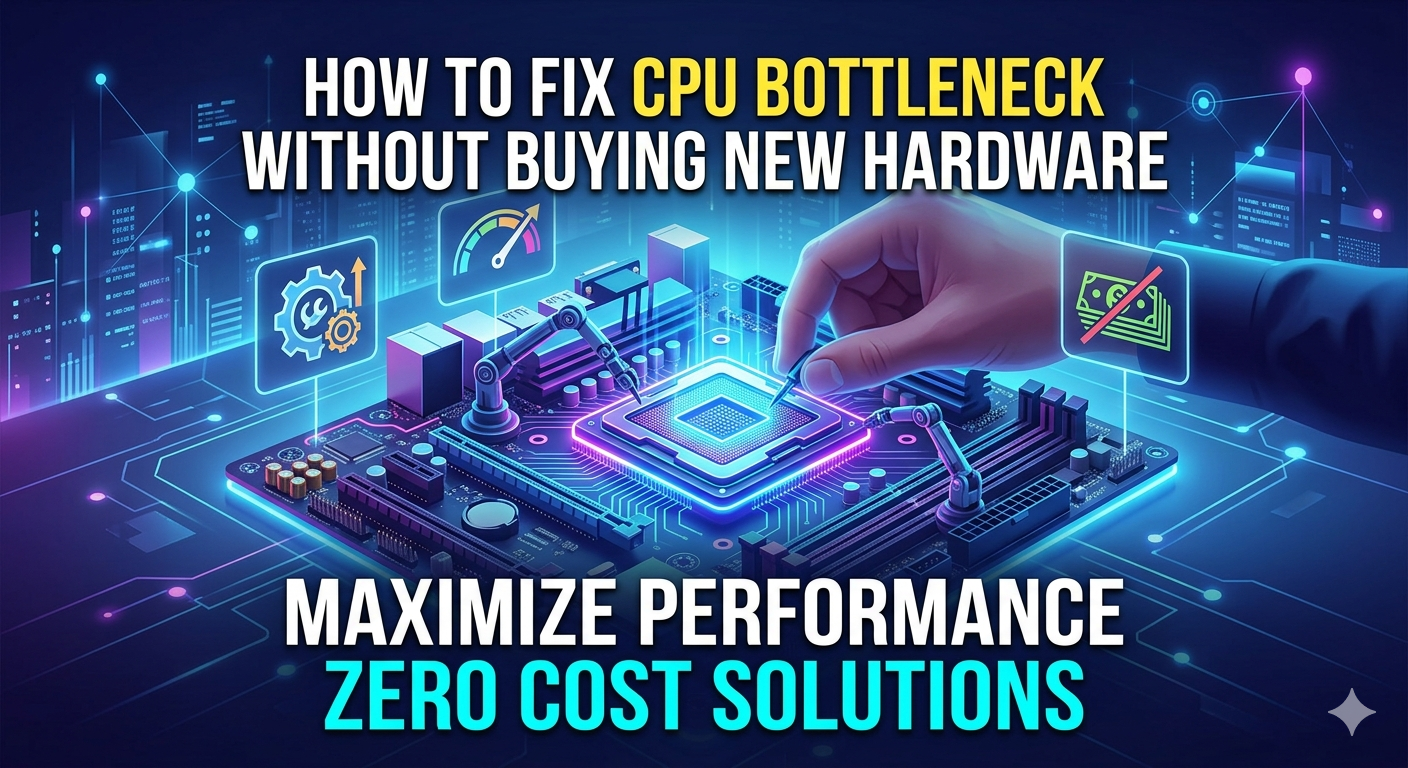
Not ready to buy new components? Here are practical tips to reduce the impact of bottlenecking:
Increase Your Resolution
Moving from 1080p to 1440p or 4K shifts more workload onto the GPU, reducing the burden on your CPU and minimizing a CPU bottleneck's impact.
Enable Higher Graphical Settings
Turning up shadow quality, ambient occlusion, and texture resolution makes the GPU work harder — balancing the load more evenly.
Close Background Applications
CPU bottlenecks are worsened when background apps like browsers, Discord, and streaming software compete for processing power. Close unnecessary programs before gaming.
Update Drivers and BIOS
Outdated drivers can cause artificial performance throttling. Keep your GPU drivers and motherboard BIOS up to date for optimal communication between components.
Enable XMP/EXPO for RAM
Slow RAM dramatically worsens CPU bottlenecks. Enable XMP (Intel) or EXPO (AMD) profiles in BIOS to run your RAM at its rated speed.
Adjust In-Game CPU-Heavy Settings
Lower settings like draw distance, NPC density, and simulation complexity in CPU-heavy games to reduce the load on your processor.
When Should You Upgrade to Fix a Bottleneck?
Consider upgrading when:
Your CPU usage hits 95–100% consistently during gaming while GPU usage is below 70%
You experience micro-stutters and frame pacing issues even at acceptable average FPS
You're gaming at 1080p with a high-refresh-rate monitor (144Hz, 240Hz) and struggling to hit consistent frame targets
A bottleneck calculator shows 30% or more mismatch between your components
If upgrading, always prioritize the bottlenecking component. If your CPU is the problem, a new GPU will do almost nothing to help.
The GPU Bottleneck Myth
Here's something many beginners don't realize: a GPU bottleneck is actually what you want. If your GPU is the limiting factor sitting at 99% usage while your CPU has headroom it means you're extracting maximum value from your processor. Your GPU is simply working as hard as it can to push frames.
The only concern with a GPU bottleneck is if you're not hitting your target frame rate. In that case, lowering graphical settings or upgrading your GPU resolves it.
Final Verdict: What Bottleneck Percentage Is Safe for Gaming?
To summarize everything in one clean answer:
Under 10% Perfect balance, aim for this
10–20% Totally acceptable for most gamers
20–30% Noticeable in demanding scenarios; upgrade when possible
30%+ Significant performance loss; hardware change recommended
The most important takeaway is this: stop obsessing over zero bottleneck. No PC build achieves perfect balance. Focus on whether your system delivers the frame rates and smoothness you need for your games and upgrade strategically when it no longer does.