Does RAM Cause a Bottleneck? Complete Guide
If your PC feels sluggish, stutters during gaming, or crawls through heavy workloads, there's a good chance RAM is the silent culprit. Most people spend hours debating CPU versus GPU performance while completely ignoring one of the most impactful components in the entire system memory. So, does RAM cause a bottleneck? The short answer is yes, absolutely. The longer answer involves understanding how, when, and why which is exactly what this guide covers.
What Is a Bottleneck in a PC?
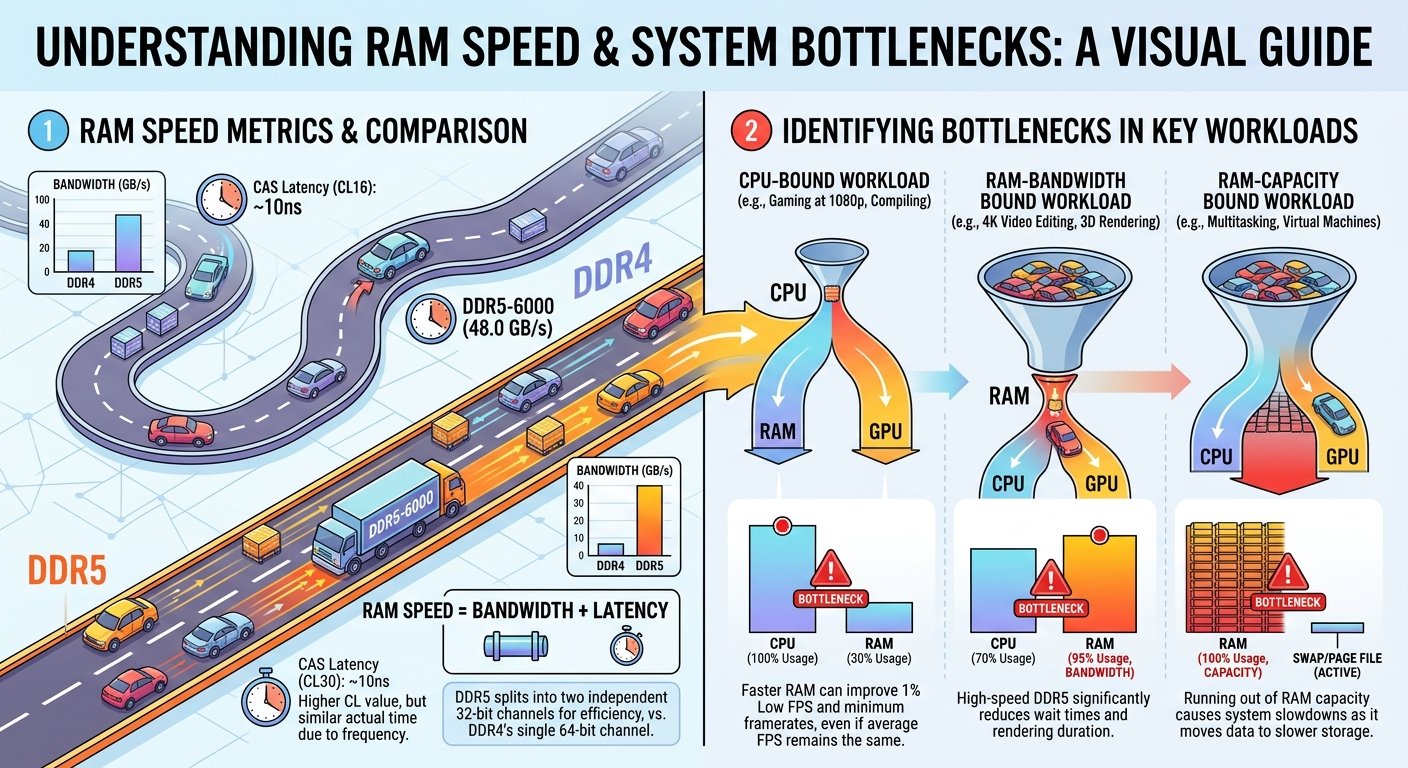
A bottleneck occurs when one component in your system cannot keep up with the demands placed on it by the others, causing the entire pipeline to slow down to match the pace of that weakest link. Think of it like a highway with six lanes merging into one no matter how fast the traffic is moving before the merge, the output is limited by that single lane.
In a computer, the most common bottlenecks are discussed in terms of CPU and GPU balance. However, RAM creates bottlenecks in ways that are just as severe, and often far more difficult to diagnose because the symptoms can mimic other hardware problems entirely.
How RAM Causes a Bottleneck
RAM can create a bottleneck in several distinct ways. Understanding each one helps you diagnose the problem accurately and apply the right fix.
Insufficient RAM Capacity
When your system doesn't have enough RAM, it begins using the page file a section of your storage drive that acts as overflow memory. Hard drives are thousands of times slower than RAM, and even the fastest NVMe SSDs can't match RAM bandwidth. The result is aggressive stuttering, long load times, and an overall sluggish experience. For general desktop use, 8 GB is the bare minimum today. For gaming, 16 GB is the sweet spot, and for content creation or video editing, 32 GB or more is strongly recommended.
- What Is a Bottleneck in a PC?
- How RAM Causes a Bottleneck
- Insufficient RAM Capacity
- Slow RAM Speed (MHz / MT/s)
- Tight vs. Loose Timings
- Running in Single-Channel Mode
- RAM Bottleneck vs. CPU & GPU Bottleneck
- Does RAM Speed Matter for Gaming?
- Does RAM Bottleneck GPU Performance?
- How to Fix a RAM Bottleneck
- Enable XMP or EXPO in BIOS
- Install RAM in the Correct Slots
- Upgrade to More RAM
- Upgrade to Faster RAM
- Conclusion
Slow RAM Speed (MHz / MT/s)
RAM speed, measured in MHz or MT/s (megatransfers per second), directly affects how quickly data can be read from and written to memory. For AMD Ryzen processors in particular, RAM speed has a dramatic effect on performance because the CPU's Infinity Fabric is tied directly to memory speed. Running slow RAM (like DDR4-2133) on a modern Ryzen system can result in measurable performance losses compared to running DDR4-3600, which is widely regarded as the optimal sweet spot for Ryzen.
Tight vs. Loose Timings
RAM timings (expressed as CL16-18-18-38, for example) describe the latency between commands and responses within the memory module. Lower timings mean lower latency and faster real-world response. Two RAM kits running at the same MHz can have noticeably different performance depending on their timings. When buying RAM, prioritize a balance of high speed and tight timings rather than chasing raw MHz alone.
Running in Single-Channel Mode
This is one of the most overlooked bottlenecks in PC building. When you install a single RAM stick, your system operates in single-channel mode. Switching to dual-channel (two matching sticks in the correct slots) effectively doubles the memory bandwidth available to your CPU and GPU. In gaming benchmarks, dual-channel setups consistently outperform single-channel configurations by 10–30%, even with the exact same total RAM capacity.
RAM Bottleneck vs. CPU & GPU Bottleneck
Here is a practical comparison to help you identify the root cause of performance issues:
|
Symptom |
Likely Cause |
RAM Related? |
|
Stuttering in games |
RAM capacity or speed |
Yes — Often |
|
Low FPS across all games |
GPU or CPU |
Sometimes |
|
Slow app load times |
RAM or SSD |
Yes — Often |
|
High disk usage (100%) |
RAM overflow to page file |
Yes |
|
CPU at 100% usage |
Rarely |
|
|
Low 1% / 0.1% FPS lows |
RAM speed / dual-channel |
Yes — Frequently |
Does RAM Speed Matter for Gaming?
Yes and the impact is far more significant than most people realize. Games rely heavily on the CPU to process physics, AI, world simulation, and draw calls. The CPU, in turn, fetches the data it needs from RAM. When RAM is slow, the CPU sits idle waiting for data a condition known as memory latency stalls. This directly translates to lower frame rates and worse frame pacing (those annoying micro-stutters that make a 60 FPS experience feel worse than it should).
In titles like Cyberpunk 2077, Microsoft Flight Simulator, and Hogwarts Legacy, switching from DDR4-2133 to DDR4-3600 in dual-channel has demonstrated frame rate improvements of up to 25% in CPU-bound scenarios. For DDR5 platforms, speeds around 6000–6400 MT/s are currently considered optimal on Intel and AMD systems.
Does RAM Bottleneck GPU Performance?
Indirectly, yes. The GPU relies on the CPU to feed it draw calls and scene data fast enough to keep the pipeline full. If the CPU is being bottlenecked by slow RAM, it cannot feed the GPU quickly enough causing GPU utilization to drop. You might open GPU monitoring software and see your graphics card sitting at 70–80% utilization when it should be at 98–100%. The GPU isn't underperforming it's starving because RAM is throttling the CPU above it.
Integrated graphics are even more RAM-dependent. Systems like AMD's APUs (Ryzen with Radeon Graphics) or Intel's Iris Xe graphics have no dedicated VRAM they borrow system RAM entirely. For these setups, fast, dual-channel RAM is not optional; it's essential.
How to Fix a RAM Bottleneck
Enable XMP or EXPO in BIOS
RAM ships at a default JEDEC speed (usually DDR4-2133 or DDR4-2400) regardless of its rated speed on the box. To run at the advertised speed (e.g., DDR4-3600), you must enable XMP (Intel) or EXPO (AMD) in your motherboard BIOS. This is the single easiest performance upgrade available — it is free and takes under two minutes.
Install RAM in the Correct Slots
Most motherboards require you to install two sticks in specific slots (often slots 2 and 4) to enable dual-channel mode. Check your motherboard manual. Installing sticks in the wrong slots forces single-channel operation and immediately halves your available memory bandwidth.
Upgrade to More RAM
If you are regularly hitting 90–100% memory usage, upgrade your capacity. Moving from 8 GB to 16 GB, or 16 GB to 32 GB, will eliminate page file usage in most scenarios and dramatically reduce stuttering in memory-heavy tasks.
Upgrade to Faster RAM
If your current RAM is slow (DDR4-2133 or lower), consider upgrading to a higher-speed kit. For DDR4 platforms, DDR4-3600 CL16 or DDR4-3200 CL14 are excellent targets. For DDR5 platforms, aim for 6000–6400 MT/s.
Conclusion
RAM is one of the most underestimated performance variables in PC building. Whether you are gaming, streaming, editing video, or running virtual machines, your system's memory in terms of capacity, speed, channel configuration, and timings can make or break performance. The good news is that RAM bottlenecks are among the cheapest and easiest problems to fix once you understand them.
Before you spend money on a new GPU or CPU, check your RAM first. Enable XMP, verify dual-channel, ensure adequate capacity, and confirm your speeds are appropriate for your platform. You may be amazed at how much performance was already sitting in your system, just waiting to be unlocked.