How Resolution Affects CPU and GPU Bottleneck
Whether you are building a gaming PC upgrading your monitor or trying to push higher frame rates understanding how resolution affects the CPU and GPU bottleneck is one of the most important concepts in PC performance. Getting this right means fewer wasted dollars and a smoother faster experience at whatever screen resolution you choose.
What Is a CPU or GPU Bottleneck
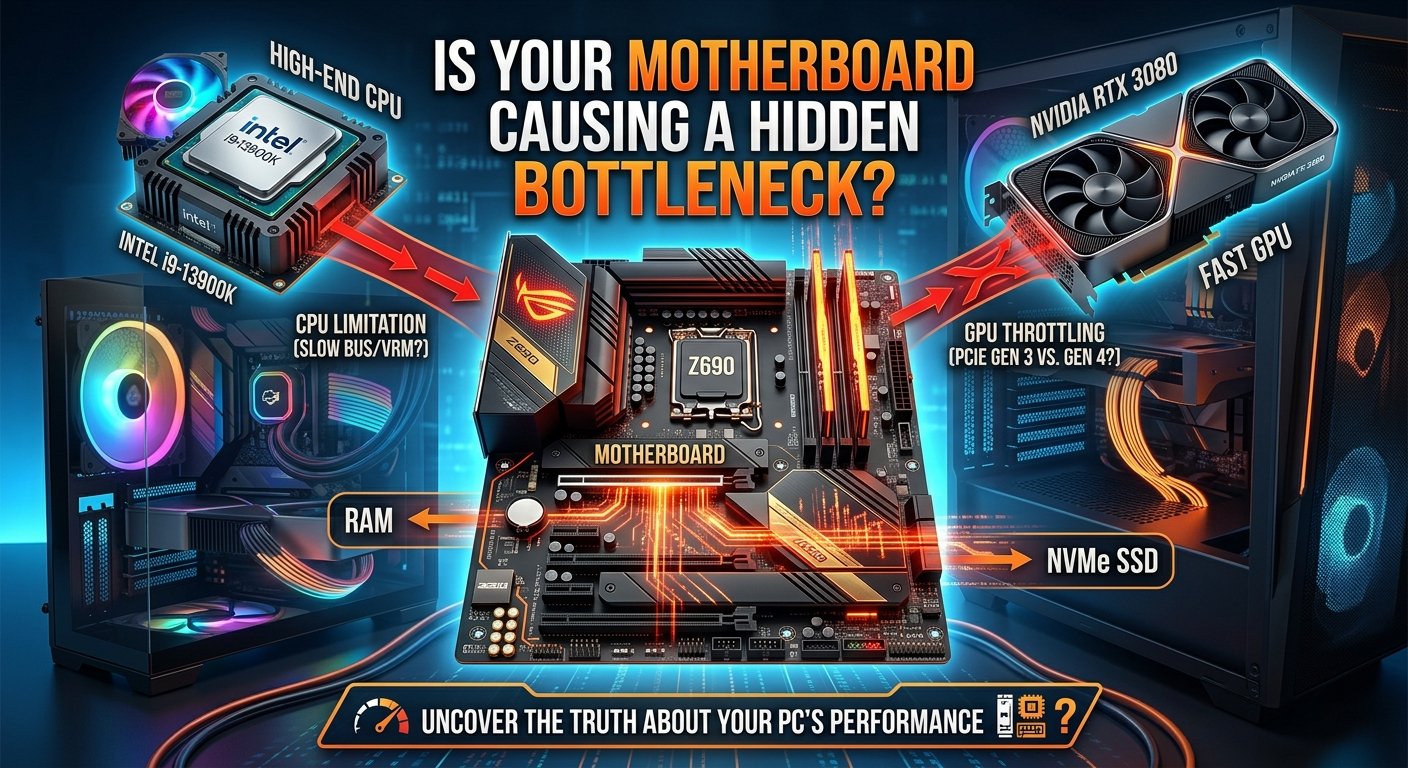
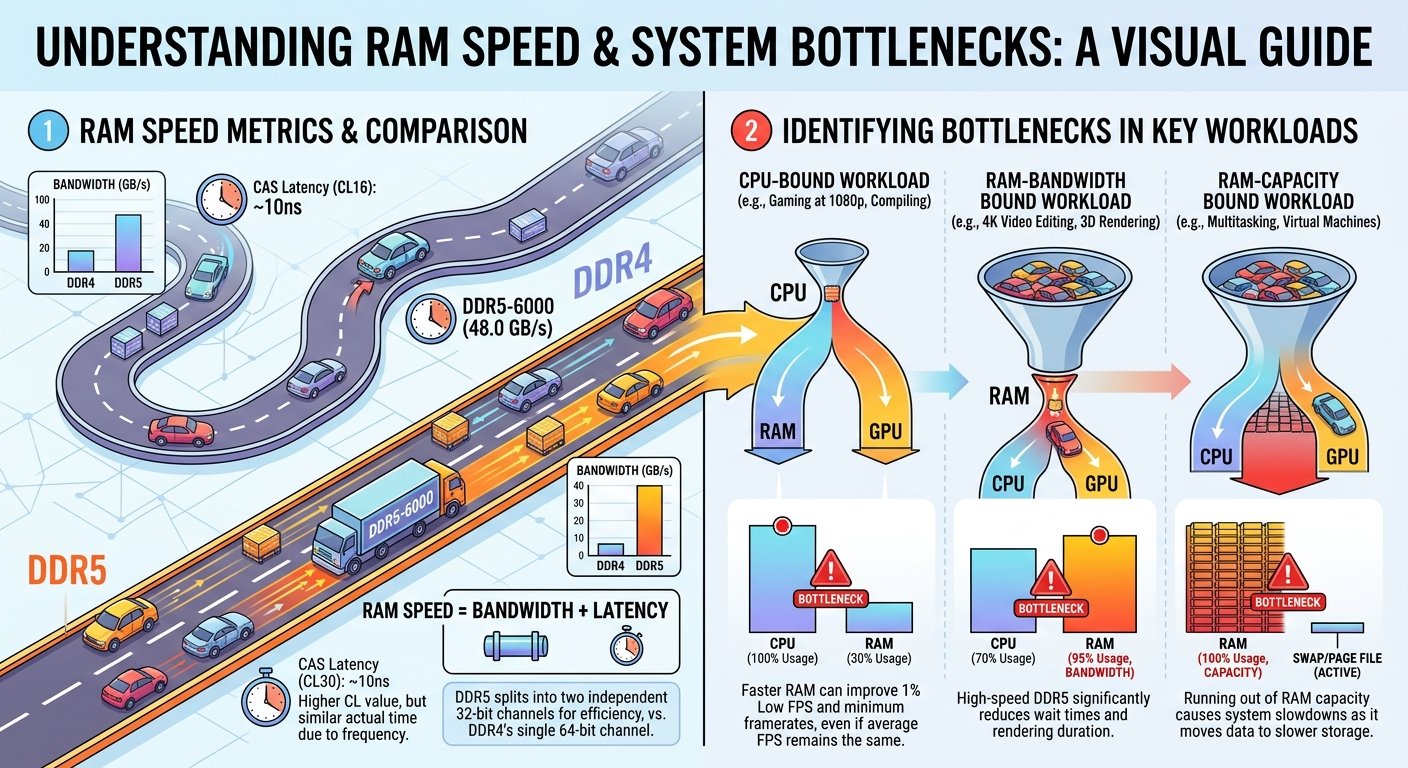
Before diving into how resolution plays its role it helps to understand what a bottleneck actually means in a PC system. A bottleneck occurs when one component in your setup cannot keep pace with the others causing the faster components to sit idle and wait. In gaming and intensive workloads the two components most frequently responsible for a bottleneck are the central processing unit (CPU) and the graphics processing unit (GPU).
A CPU bottleneck means your processor is the weakest link. It cannot feed the GPU with enough data instructions and draw calls to keep it fully occupied. The GPU finishes its work and waits leading to lower frame rates than your graphics card is actually capable of producing. A GPU bottleneck means the graphics card is the component being pushed to its limits. The CPU has already prepared everything the GPU needs but the GPU is so heavily loaded with rendering tasks that it becomes the ceiling for performance.
Neither situation is purely good or bad. In fact a mild GPU bottleneck is generally considered the ideal scenario in gaming because it means you are fully utilizing the most expensive part of your system while the CPU retains some headroom.
How Resolution Changes the Workload Balance
Resolution is the single most powerful variable you can change to shift the bottleneck from one component to another without spending a single dollar. The reason comes down to pixels. At a higher resolution your GPU must shade texture and calculate a dramatically larger number of pixels per frame. A 4K display at 3840x2160 holds more than eight times the pixels of a 720p screen. That exponential growth in pixel count places an enormous extra burden on the GPU.
Meanwhile the CPU workload in most games stays relatively consistent regardless of resolution. Game logic physics AI calculations audio processing and the preparation of draw calls are not resolution dependent tasks. This is the core reason why resolution is such a powerful tool for shifting the bottleneck in your system.
- What Is a CPU or GPU Bottleneck
- How Resolution Changes the Workload Balance
- Resolution Breakdown
- Resolution and CPU Bottleneck at 1080p
- Resolution and GPU Bottleneck at 1440p and 4K
- Why Frame Rate Targets Also Matter
- Real World Implications for PC Builds and Upgrades
- Key Tips for Builders
- Tools to Measure Your Bottleneck
- Conclusion
Resolution Breakdown
1080p (CPU Heavy Zone): Fewer pixels means the GPU finishes quickly. The CPU must work harder to keep up with high frame rates making it the more likely bottleneck.
1440p (Balanced Sweet Spot): Pixel load increases substantially. Most mid range and high end builds achieve a balanced split.
4K (GPU Dominant Zone): Massive pixel count pushes GPU usage to maximum. The CPU bottleneck nearly disappears.
Resolution and CPU Bottleneck at 1080p
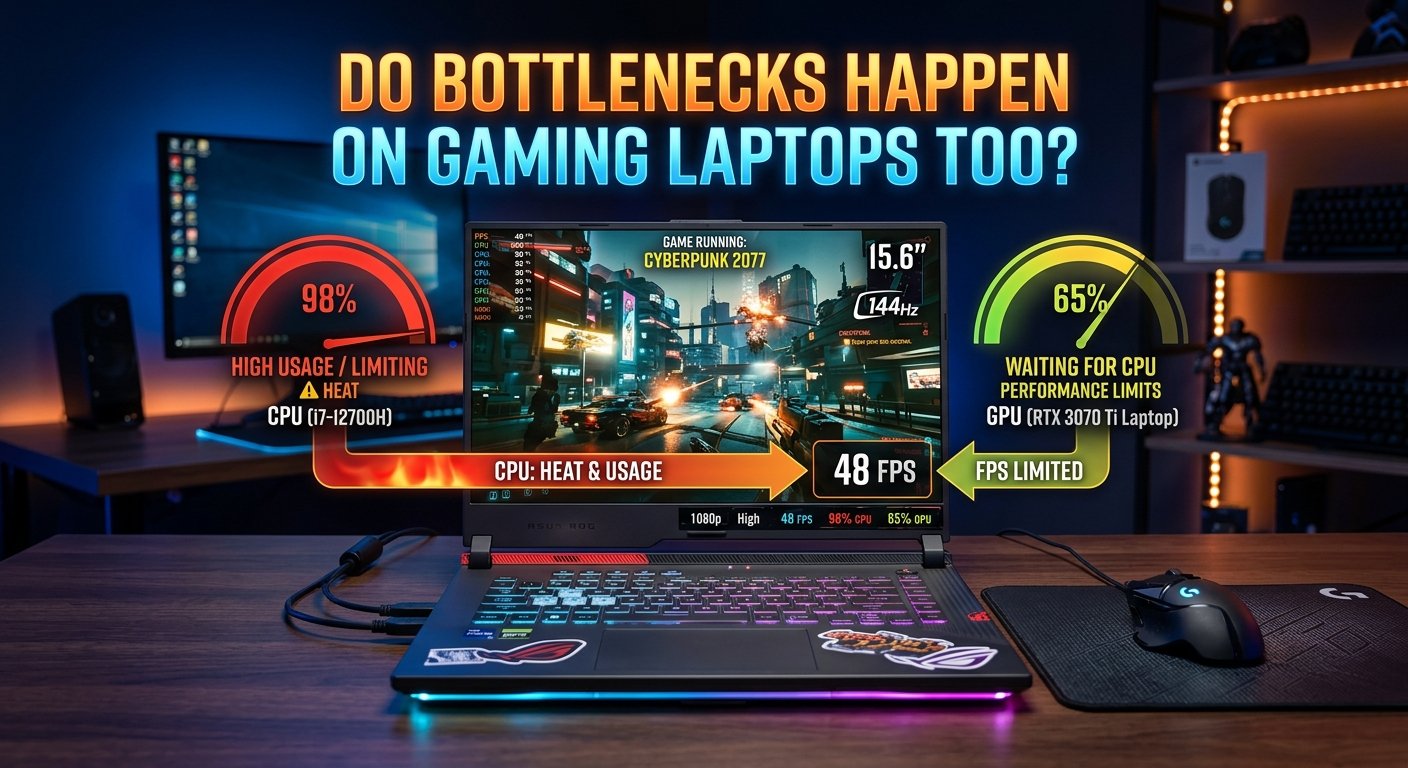
At 1080p especially when targeting high frame rates such as 144Hz 165Hz or 240Hz the CPU bottleneck is at its most visible. Because the GPU handles relatively few pixels at this resolution it can output frames extremely fast. The problem is that the CPU must also feed the GPU at that same pace. If you are running a powerful modern GPU like an RTX 4070 or RX 7800 XT paired with a mid range processor you may notice that your CPU usage hits 90 to 100 percent while your GPU sits at 60 to 70 percent utilization.
Competitive gamers who specifically target very high frame rates in esports titles are the most affected by this phenomenon. Games like Counter Strike 2 Valorant and Apex Legends are already lightweight on the GPU but extremely demanding on single thread CPU performance. Pushing past 240 frames per second at 1080p in these titles requires a very strong CPU or the GPU will be left waiting.
Resolution and GPU Bottleneck at 1440p and 4K
Moving to 1440p shifts the balance considerably. The pixel count jumps to 2560x1440 which is roughly 77 percent more pixels than 1080p. This forces the GPU to work noticeably harder on rendering while CPU workloads stay largely the same. For most systems 1440p is the resolution where a balanced system truly shines because both the CPU and GPU are working at meaningful utilization levels without one dramatically outpacing the other.
At 4K the GPU becomes the overwhelming dominant force in determining performance. With over 8 million pixels to process per frame even high end graphics cards like the RTX 4090 or RX 7900 XTX are pushed hard in demanding AAA titles. The CPU bottleneck essentially vanishes for most gaming workloads at 4K. You could pair a relatively modest modern CPU with a flagship GPU and see very little performance difference compared to pairing that same GPU with the fastest processor money can buy.
Why Frame Rate Targets Also Matter
Resolution alone does not tell the full story. Your target frame rate interacts with resolution to determine where the bottleneck lands. A 4K setup targeting 30 or 60 frames per second gives both the CPU and GPU generous time to complete their tasks each frame. But if you combine 4K with a 144Hz target the GPU is now under significantly more stress pushing it even further into bottleneck territory.
Similarly at 1080p targeting just 60 frames per second many modern mid range CPUs are more than capable of keeping the GPU fed. It is only when you push toward 240Hz and beyond that the CPU bottleneck becomes pronounced. Understanding the interplay between resolution and frame rate target is essential for making smart hardware purchasing decisions.
Real World Implications for PC Builds and Upgrades
This knowledge has direct practical consequences. If you currently own a strong GPU but a weaker CPU and you are playing at 1080p upgrading your CPU will likely give you a much more noticeable frame rate improvement than replacing your GPU. The GPU is already underutilized. Conversely if you are gaming at 4K and experiencing frame rate drops no amount of CPU upgrading will fix the problem.
Understanding this balance also helps when choosing a monitor resolution. If you have a mid tier CPU and a high end GPU simply switching from 1080p to 1440p can reduce your CPU bottleneck improve GPU utilization and actually result in a more consistent frame delivery even if the raw maximum frame rate dips slightly.
Key Tips for Builders
Targeting 1080p at high refresh rates invest in a strong CPU with high single core performance
Targeting 1440p balance your CPU and GPU investment roughly equally for best results
Targeting 4K prioritize GPU budget heavily as CPU performance matters far less at this
Tools to Measure Your Bottleneck
You do not need to guess about your system's bottleneck. Several tools help you monitor realtime CPU and GPU utilization while gaming. MSI Afterburner with RivaTuner Statistics Server is the most popular free option allowing you to display an ingame overlay showing CPU core usage GPU usage frame rate frame time and more.
If your GPU usage sits near 95 to 100 percent consistently while CPU cores are well below 80 percent you have a GPU bottleneck which is generally healthy. If your CPU cores are maxed out while GPU usage is low your processor is the constraint.
Conclusion
Resolution is one of the most powerful and most underappreciated tools for managing the CPU and GPU bottleneck in any PC setup. At 1080p especially at high frame rates the CPU is under the most pressure. At 4K the GPU shoulders almost all of the performance burden. The 1440p sweet spot offers the best balance for most modern builds.
Understanding this dynamic lets you make smarter upgrade decisions choose the right monitor resolution for your hardware and squeeze the best possible performance out of your existing components. Before you spend money on new hardware always check your CPU and GPU utilization at your current resolution. The numbers will tell you exactly where to invest next.