Signs Your CPU Is Bottlenecking Your GPU
Introduction
You invested in a powerful graphics card only to find your frame rates are sluggish, stuttery, or downright disappointing. Before blaming your GPU, consider this: the culprit may be sitting right next to it on your motherboard. A CPU bottleneck is one of the most misdiagnosed performance killers in PC building, and learning to spot it can save you hundreds of dollars in unnecessary upgrades.
What Is a CPU Bottleneck?
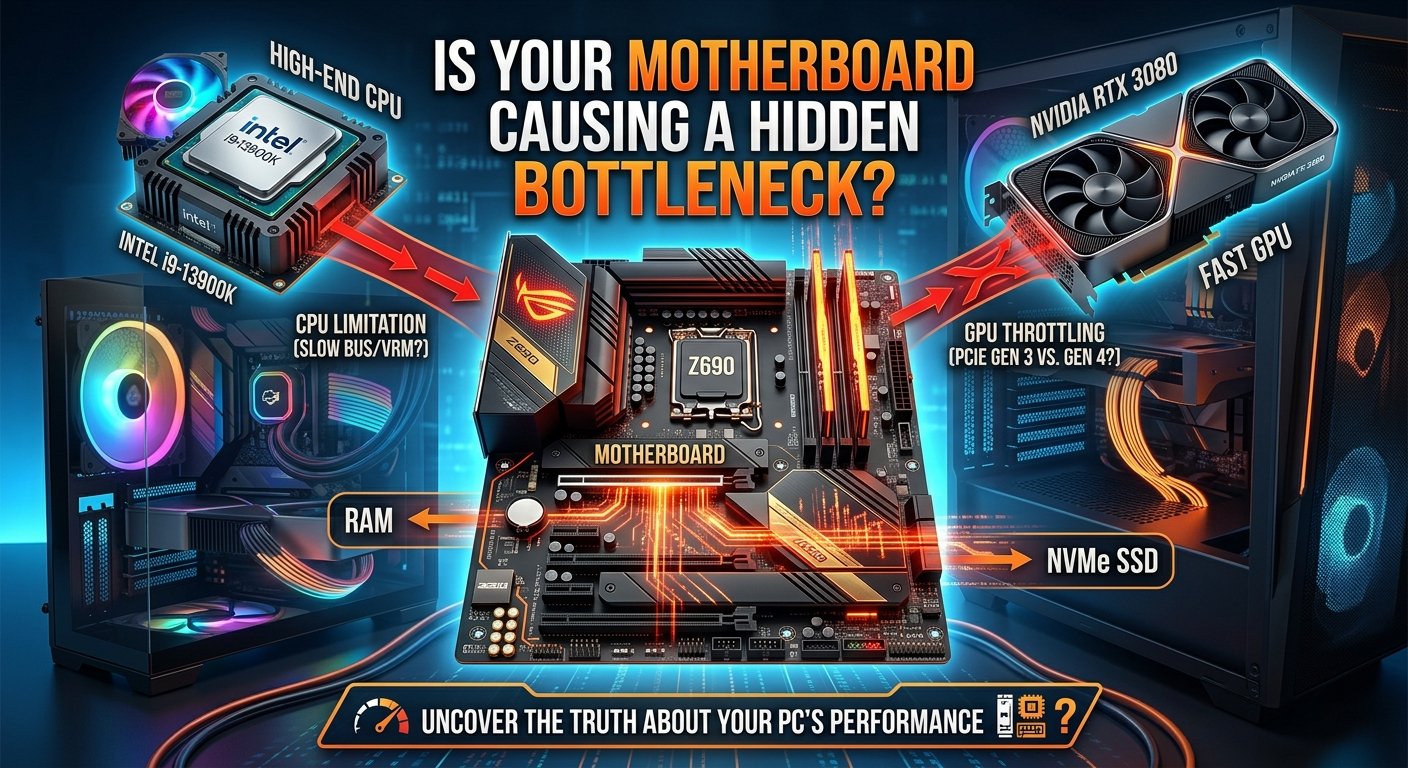
Every frame your PC renders is a team effort. Your CPU handles game logic, physics calculations, AI behavior, draw calls, and feeding data to your GPU. Your GPU takes that data and transforms it into the pixels you see on screen. When these two components are mismatched specifically when the CPU cannot prepare and deliver data fast enough to keep the GPU buy a bottleneck occurs.
Think of it like a highway. Your GPU is a ten-lane superhighway capable of moving thousands of cars per minute. If the on-ramp (your CPU) only allows two lanes, you end up with a traffic jam regardless of how wide the highway is. The GPU sits idle, waiting for instructions that have not arrived yet, and your frame rate tanks as a result.
Clear Signs Your CPU Is Bottlenecking Your GPU
Your GPU Utilization Sits Below 90% Under Full Load
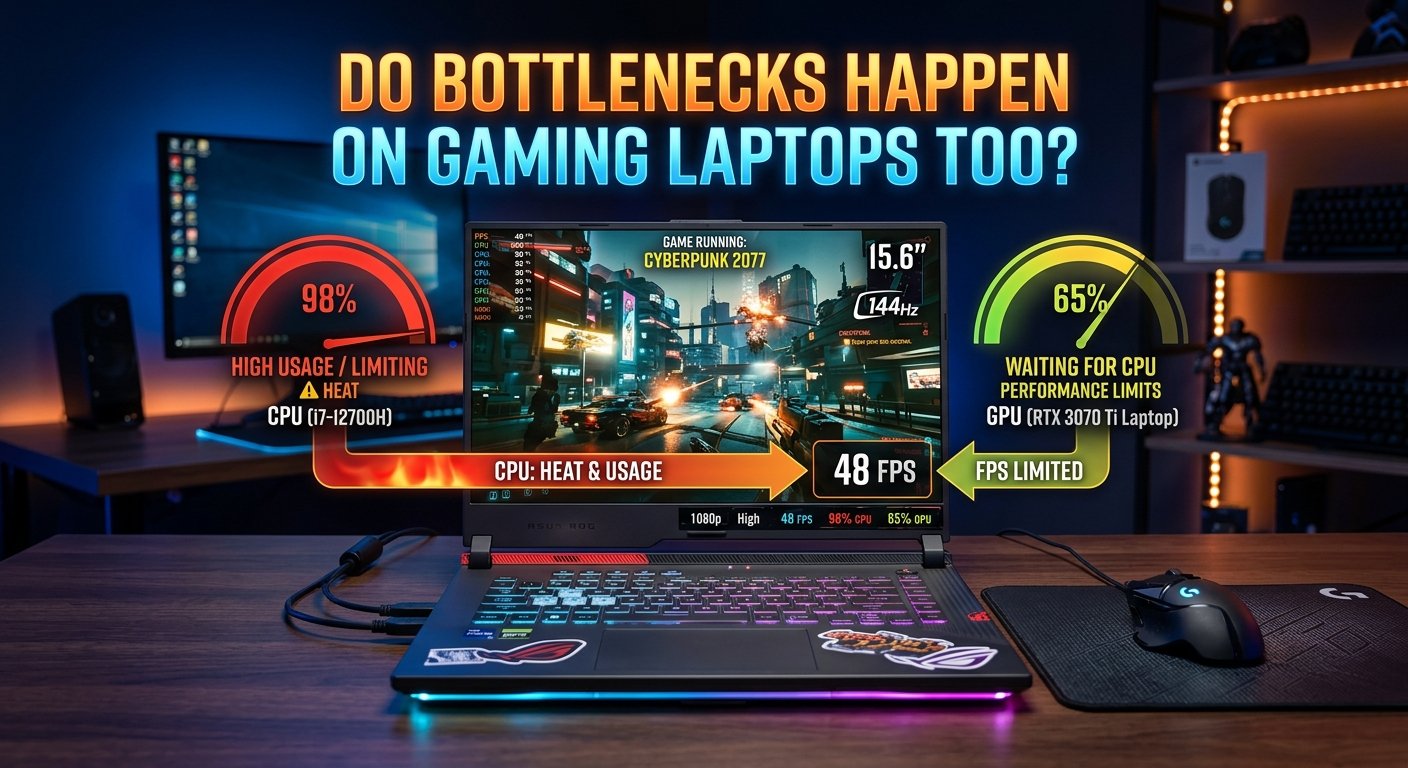
This is the most telling indicator. When your GPU is not the limiting factor, it should be working at near-maximum capacity during demanding scenes. Open a GPU monitoring tool MSI Afterburner, HWiNFO64, or GPU-Z and watch your GPU usage during gameplay. If it consistently hovers between 50% and 80% while your CPU is pinned at 95–100%, you have a classic CPU bottleneck.
High CPU Usage Paired With Low Frame Rates
If your CPU consistently runs at 90–100% usage while frame rates remain stubbornly low especially in CPU-intensive games like open-world RPGs, city builders, or real-time strategy titles the processor is the limiting factor. Monitor both CPU and GPU usage simultaneously. The telltale signature is high CPU, low GPU, low FPS.
- What Is a CPU Bottleneck?
- Clear Signs Your CPU Is Bottlenecking Your GPU
- Your GPU Utilization Sits Below 90% Under Full Load
- High CPU Usage Paired With Low Frame Rates
- Frame Rate Does Not Improve When You Lower Graphics Settings
- Frequent Frame Time Spikes and Micro-Stutters
- Performance Drops in CPU-Heavy Game Scenarios
- Performance Does Not Scale With Resolution Changes
- Single-Core CPU Speeds Are Low
- How to Properly Diagnose a CPU Bottleneck
- How to Fix a CPU Bottleneck
- Conclusion
Frame Rate Does Not Improve When You Lower Graphics Settings
Drop your in-game resolution or graphics quality settings significantly and see whether your frame rate improves meaningfully. If it does not budge much despite the GPU having far less to render, the GPU is already sitting idle, waiting for the CPU. In a GPU-limited scenario, lowering settings immediately produces a noticeable FPS jump. In a CPU-limited scenario, those gains are minimal.
Frequent Frame Time Spikes and Micro-Stutters
Raw FPS numbers only tell part of the story. Frame time the time elapsed between individual frames reveals consistency. A CPU bottleneck often manifests not as a uniformly low frame rate, but as irregular spikes in frame time that cause jarring micro-stutters, even when average FPS appears acceptable. Tools like CapFrameX or the frame time graph in MSI Afterburner can expose these inconsistencies.
Performance Drops in CPU-Heavy Game Scenarios
Some in-game situations are more CPU-demanding than others. A firefight with many AI opponents, a crowded city center in an open-world game, or a large-scale RTS battle all require significantly more CPU processing. If your performance specifically degrades in these complex scenarios while simpler environments run smoothly, your CPU is being overwhelmed.
Performance Does Not Scale With Resolution Changes
Increasing resolution dramatically increases GPU workload. If upgrading resolution produces little to no performance change, your CPU is the bottleneck. A properly balanced system sees FPS fall as resolution climbs because the GPU is working harder. Near-identical performance across wildly different resolutions confirms the CPU was already the limiting factor.
Single-Core CPU Speeds Are Low
Most game engines still rely heavily on single-core CPU performance rather than spreading work evenly across all cores. If your processor has a low single-core boost clock speed even if it has many cores it may struggle to feed a modern high-performance GPU. Check your CPU's single-core benchmark score on Cinebench or CPUBenchmark.net.
How to Properly Diagnose a CPU Bottleneck
Install Monitoring Software: Download MSI Afterburner with RivaTuner Statistics Server for GPU and CPU overlay monitoring during gameplay. HWiNFO64 provides deeper sensor data. CapFrameX is excellent for frame time analysis.
Run a Demanding Game or Benchmark: Choose a CPU-intensive title such as Microsoft Flight Simulator, Cyberpunk 2077 in a dense urban area, or use the 3DMark CPU Profile benchmark.
Record and Analyze: Watch GPU usage, CPU core usage, average FPS, and 1% low FPS simultaneously. A CPU bottleneck shows high CPU core utilization (90%+) with GPU usage never climbing above 80–85%.
How to Fix a CPU Bottleneck
Upgrade Your CPU: The most direct solution. Research the best CPU for your GPU tier and check socket compatibility with your motherboard.
Overclock Your Existing CPU: Push your processor's clock speed higher to reduce bottlenecking. Even a 10–15% frequency increase can yield noticeable FPS improvements.
Optimize In-Game Settings: Reduce NPC crowd density, draw distance, and disable CPU-heavy features like complex physics or advanced AI.
Increase Gaming Resolution: Playing at a higher resolution shifts more workload to the GPU, naturally balancing the load.
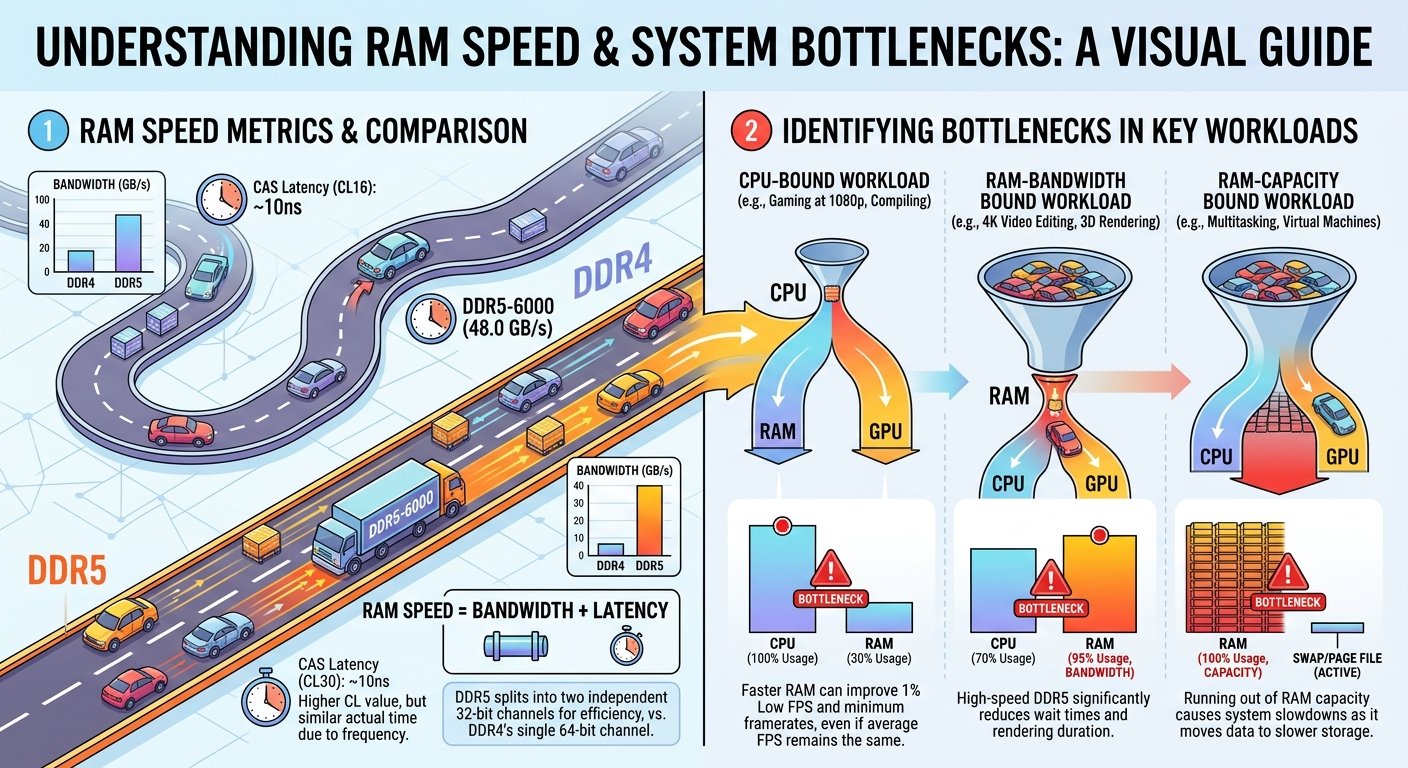
Upgrade RAM Speed and Configuration: Enable XMP/EXPO profiles in your BIOS or upgrade to faster DDR5 memory to reduce latency.
Conclusion
A CPU bottleneck is a silent performance thief. It lets your expensive GPU sit underutilized while your gaming experience suffers and worse, it is easy to misdiagnose as a GPU problem. By monitoring utilization metrics, running resolution scaling tests, and analyzing frame time data, you can confirm whether your processor is the limiting factor. A well-matched CPU and GPU is the foundation of any high-performance PC and now you have the knowledge to build exactly that.