How to Fix CPU Bottleneck Without Buying New Hardware
How to Fix CPU Bottleneck Without Buying New Hardware
A CPU bottleneck occurs when your processor cannot keep up with the rest of your system, causing poor performance, stuttering, and low frame rates. The good news is that you can fix it without spending money on new hardware. This guide covers eight proven methods to reduce or eliminate CPU bottleneck on your existing PC.
Diagnose the Bottleneck First
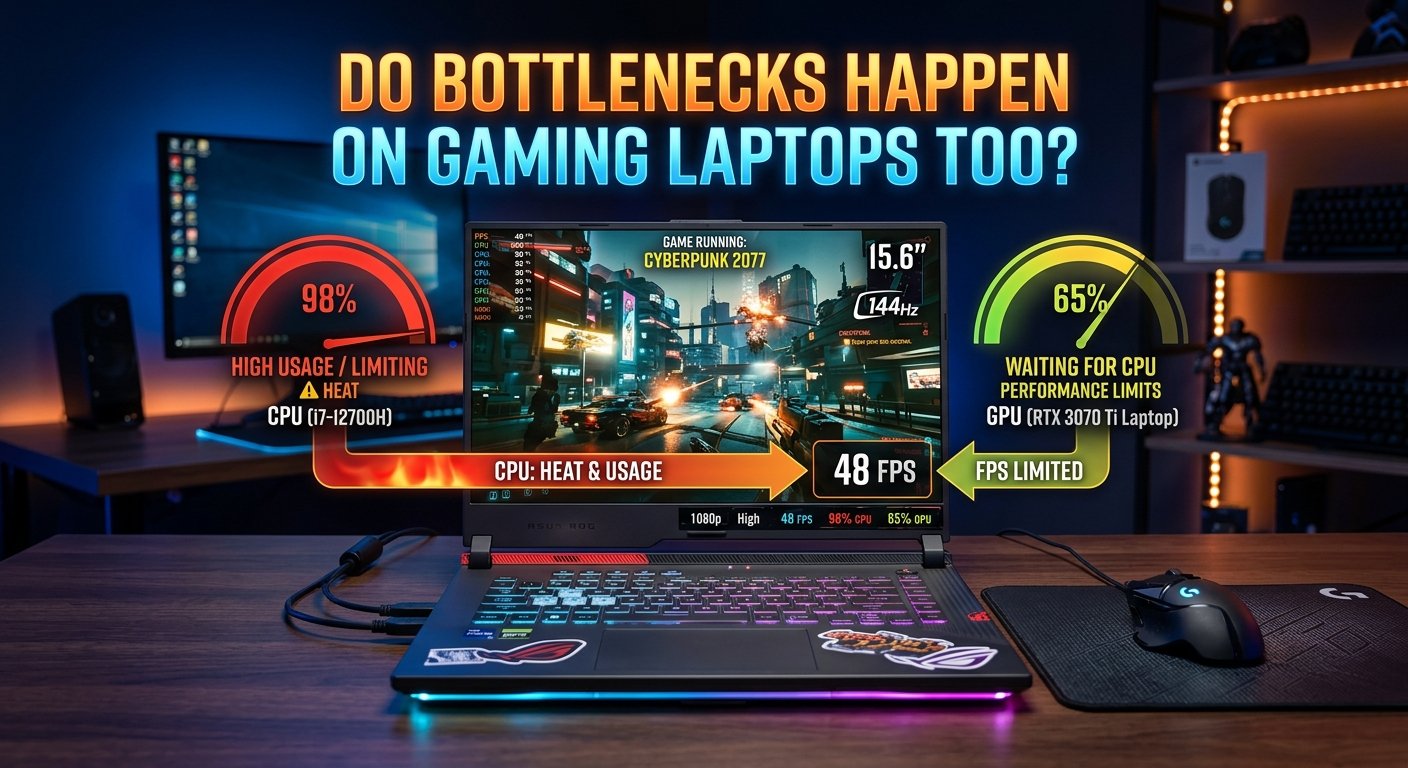
Before making changes, confirm the CPU is actually your bottleneck. Open Task Manager or a tool like MSI Afterburner while running a demanding application. Signs of a CPU bottleneck include
CPU usage is consistently at 95-100% while GPU usage is below 80%
Frame rates are low even when lowering graphics quality
Inconsistent frame times and frequent stutters
Kill Unnecessary Background Processes
Background apps like cloud sync, antivirus scans, and browser tabs silently consume CPU resources. Close all non-essential programs before gaming or rendering. Use Task Manager (Ctrl + Shift + Esc) to end high-CPU background tasks, and disable unwanted startup programs from the Startup tab.
Overclock Your CPU
If your CPU is unlocked (Intel K-series or AMD Ryzen), overclocking can boost performance by 10-20% for free. Use Intel XTU or AMD Ryzen Master to safely increase clock speeds. Always stress-test after each change using Cinebench or Prime95, and monitor temperatures to stay below 90 degrees Celsius.
Change Your Windows Power Plan
The default Balanced power plan throttles CPU speed to save energy. Switch to High Performance or Ultimate Performance to keep your processor running at maximum clock speed at all times. To unlock Ultimate Performance, open Command Prompt as Administrator and run:
powercfg -duplicatescheme e9a42b02-d5df-448d-aa00-03f14749eb61
Adjust In Game Settings
Certain settings are more CPU-intensive than others. To reduce CPU load, lower NPC density, view distance, and simulation quality. Increasing your render resolution or enabling DLSS/FSR shifts more work to the GPU, which reduces bottleneck pressure on the CPU.
Set Process Priority and Affinity
You can instruct Windows to prioritize your main application above background tasks. In Task Manager, right-click your game under the Details tab and select Set Priority > High. You can also use Set Affinity to pin the application to specific CPU cores for more consistent performance.
Improve Thermal Performance
When a CPU overheats, it automatically reduces its clock speed to protect itself a process called thermal throttling. Fix this by:
Replacing old, dried-out thermal paste with a fresh application
Cleaning dust from your CPU cooler and case fans
Undervolting your CPU using Intel XTU or AMD PBO to reduce heat
Improving case airflow by reorganizing cables and fans
Update Drivers and BIOS
Outdated chipset drivers and BIOS firmware can limit CPU performance. Download the latest chipset drivers directly from Intel or AMD's website. Check your motherboard manufacturer's site for BIOS updates, which often include CPU boost algorithm improvements and bug fixes that directly affect performance.
Read More: CPU vs GPU Bottleneck
Conclusion
A CPU bottleneck does not always mean you need a new processor. In many cases, background bloat, thermal throttling, wrong power settings, and outdated software are the real culprits. By working through the eight methods in this guide, you can significantly reduce bottleneck severity and unlock the performance your hardware is already capable of delivering at zero cost.