FPS Calculator: Predict Your Gaming Performance Accurately
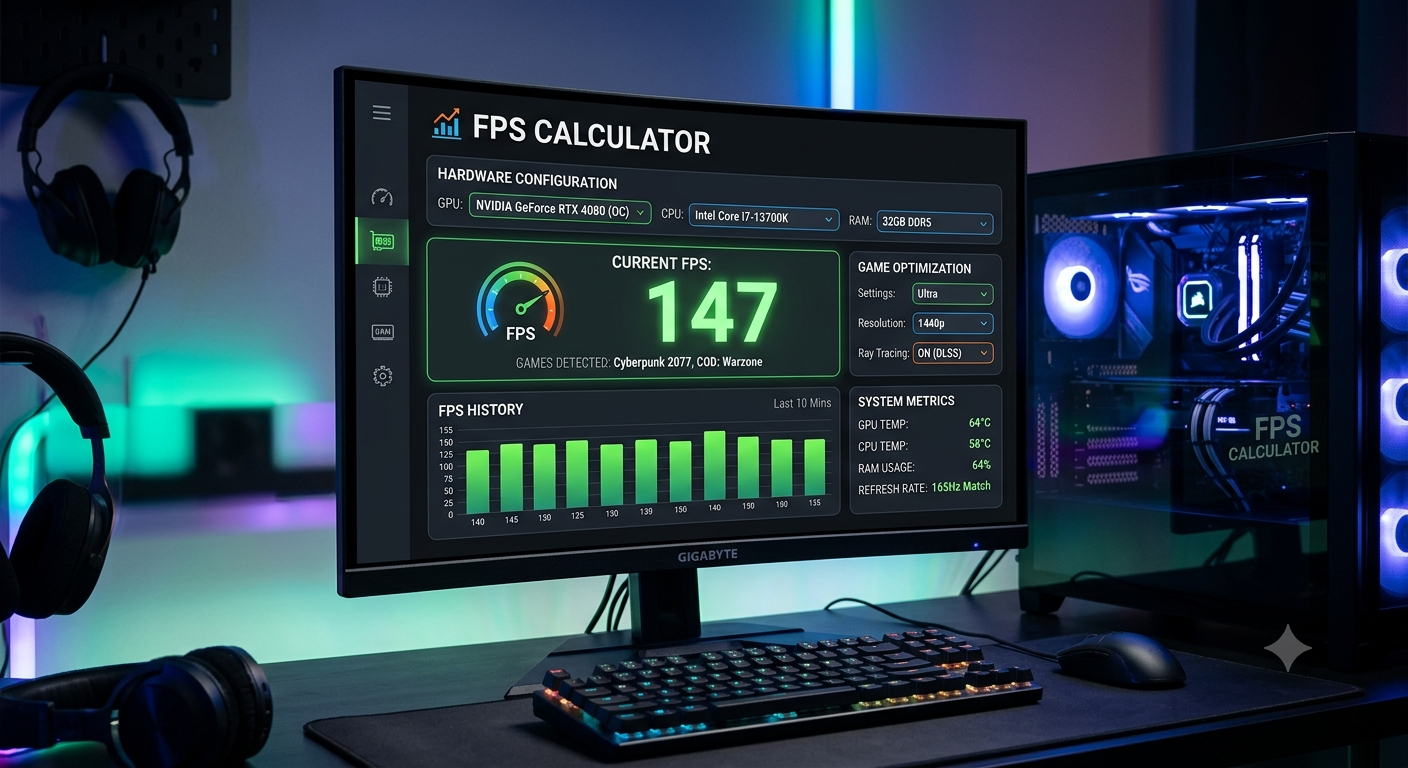
An FPS calculator predicts your gaming frame rate by combining normalized benchmark performance scores for your CPU and GPU at your selected resolution, then returning an estimated frames-per-second range based on typical real-world gaming workloads. Unlike GPU-only benchmarks, it accounts for your CPU's contribution giving a more realistic result than review site numbers that assume a high-end test platform.
Use the FPS calculator to get an estimate for your exact CPU and GPU combination in under a minute.
What an FPS Calculator Actually Does
When you enter your components into an FPS calculator, it performs three operations behind the scenes:
- Retrieves benchmark scores — pulls normalized performance scores for your specific CPU and GPU from its database, derived from aggregated real-world game benchmarks and synthetic tests
- Applies resolution weighting — adjusts the contribution of each component based on your selected resolution (GPU performance matters more at 4K; CPU performance matters more at 1080p)
- Calculates a blended estimate — combines both components' weighted scores and maps the result to a realistic FPS range based on typical gaming workload distribution
The output is an estimated FPS range rather than a single number, which honestly reflects the variation across different games and settings within the same resolution tier.
How to Use the FPS Calculator: Step by Step
Step 1: Select Your CPU
Choose your exact processor model from the dropdown. CPU selection significantly affects the estimate at 1080p and in CPU-heavy game genres. Even small generational differences (e.g., Ryzen 5 5600X vs Ryzen 5 7600X) can produce noticeably different FPS estimates at 1080p, because newer architectures deliver more game logic per clock cycle.
Step 2: Select Your GPU
Choose your exact GPU model, including variant (RTX 4070 vs RTX 4070 Super vs RTX 4070 Ti these are different calculations). GPU selection is the dominant factor in the FPS estimate at 1440p and 4K.
- What an FPS Calculator Actually Does
- How to Use the FPS Calculator: Step by Step
- Step 1: Select Your CPU
- Step 2: Select Your GPU
- Step 3: Select Your Target Resolution
- Step 4: Select Your Use Case (if available)
- Step 5: Read and Interpret the Output
- What Factors the Calculator Factors In vs What It Doesn't
- What It Accounts For
- What It Doesn't Account For
- FPS Targets and What They Mean for Hardware Selection
- Using FPS and Bottleneck Calculators Together
- Practical Examples of FPS Calculator Use
- Key Takeaways
Step 3: Select Your Target Resolution
Choose 1080p, 1440p, or 4K. This is the most important single input for shaping the estimate because it determines how much of the total performance load falls on the CPU vs the GPU. The same hardware pair returns very different FPS estimates across resolutions.
Step 4: Select Your Use Case (if available)
Some FPS calculators allow you to specify gaming genre or quality preset. CPU-heavy genres (strategy, open-world RPGs) produce lower FPS for the same hardware than GPU-heavy genres (racing, sports games). If your primary game is known to be CPU-intensive, the estimate for that genre will be lower than a general average.
Step 5: Read and Interpret the Output
The calculator returns an estimated FPS range (e.g., 85–115 FPS at 1440p). Read this as:
- The lower end — what to expect in CPU-heavy scenes, less optimised titles, or with higher background software load
- The upper end — what to expect in GPU-heavy scenarios, optimised games, or with background apps closed
- The midpoint — the most useful single figure for planning; expect average FPS in typical mixed workloads to land around here
What Factors the Calculator Factors In vs What It Doesn't
What It Accounts For
- CPU benchmark tier and architecture generation
- GPU benchmark tier and architecture
- Resolution workload distribution between CPU and GPU
- General performance scaling across game types (via aggregated benchmark data)
What It Doesn't Account For
- Specific game-to-game variation some games are 40% CPU-bound; others are almost entirely GPU-bound. The estimate reflects an average.
- Driver and patch updates — new GPU drivers can change FPS by 5–15% in specific games; the database reflects historical averages
- Overclocking — if your CPU or GPU is overclocked, actual results may be higher than estimated
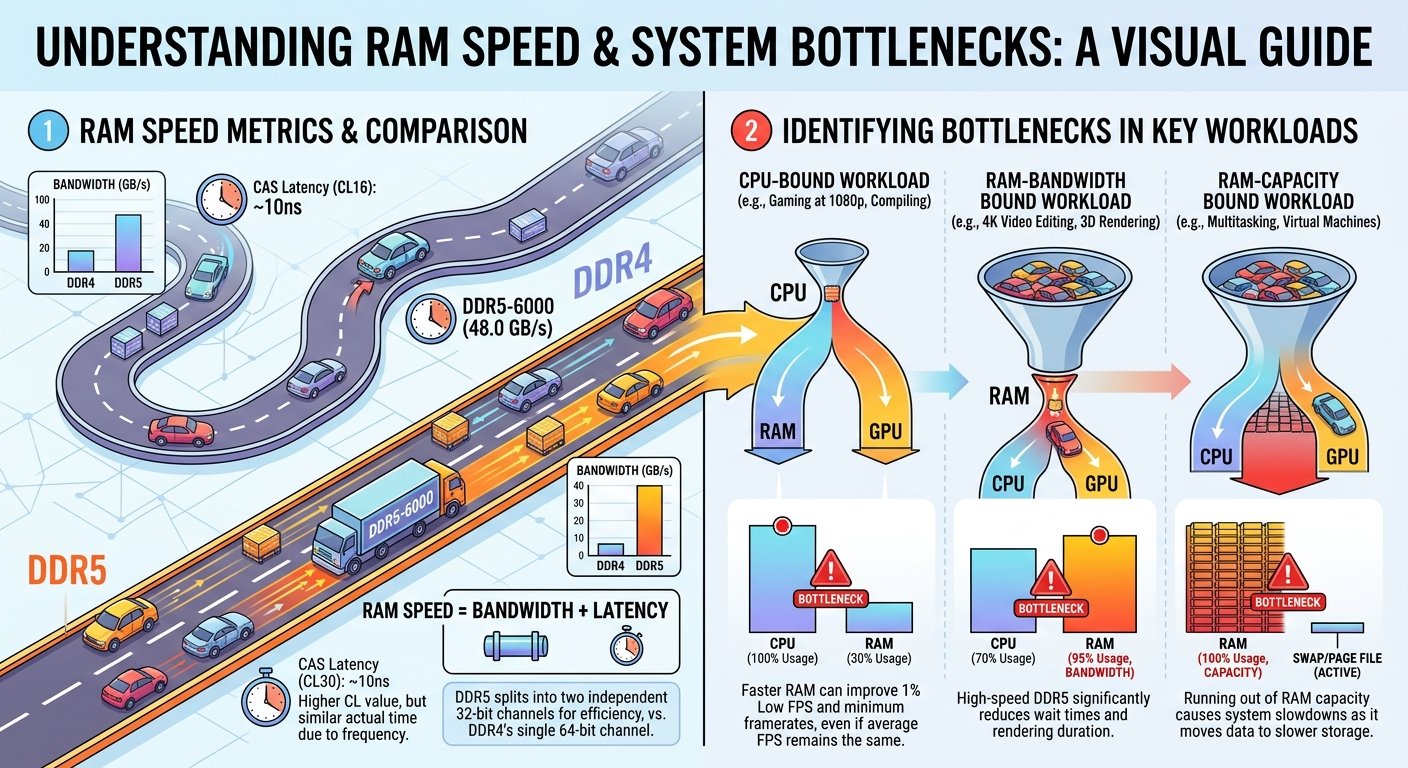
- RAM speed — running RAM below rated speed (XMP/EXPO not enabled) can reduce FPS by 5–10% compared to the estimate, which assumes rated-speed memory
FPS Targets and What They Mean for Hardware Selection
Different use cases have different FPS requirements:
| FPS Target | Use Case | Monitor Requirement |
|---|---|---|
| 30–60 FPS | Casual single-player, cinematic titles | 60Hz |
| 60 FPS | Comfortable baseline, most game genres | 60Hz |
| 100–144 FPS | Fast-paced gaming, action titles | 120–144Hz |
| 144–240 FPS | Competitive FPS (CS2, Valorant, Apex) | 144–240Hz |
| 240+ FPS | Pro-level competitive | 240–360Hz |
Use the FPS calculator to check whether your hardware meets the FPS target for your specific use case then cross-reference with the bottleneck calculator to confirm whether your CPU or GPU is the constraint preventing you from reaching that target.
Using FPS and Bottleneck Calculators Together
The FPS calculator and bottleneck calculator are complementary tools that answer different questions:
- FPS Calculator asks: "How many frames per second will I get?"
- Bottleneck Calculator asks: "Which component is limiting my frame rate, and by how much?"
Use them together when making upgrade decisions:
- Run the FPS calculator with your current CPU + prospective GPU → see the estimated FPS improvement
- Run the bottleneck calculator with the same pairing → see what percentage of the GPU's performance your CPU lets through
- If the bottleneck is above 20%, the GPU upgrade will underdeliver relative to reviews consider a CPU upgrade first or simultaneously
Practical Examples of FPS Calculator Use
Example 1: Checking if RTX 4070 is enough for 1440p 144fps Enter: Ryzen 5 7600X + RTX 4070 + 1440p → FPS Calculator returns estimated range If the midpoint is 130–150 FPS in the game category, you're on the border the GPU hits 144fps in some titles but misses in others. This informs whether you step up to the RTX 4070 Super or optimise settings.
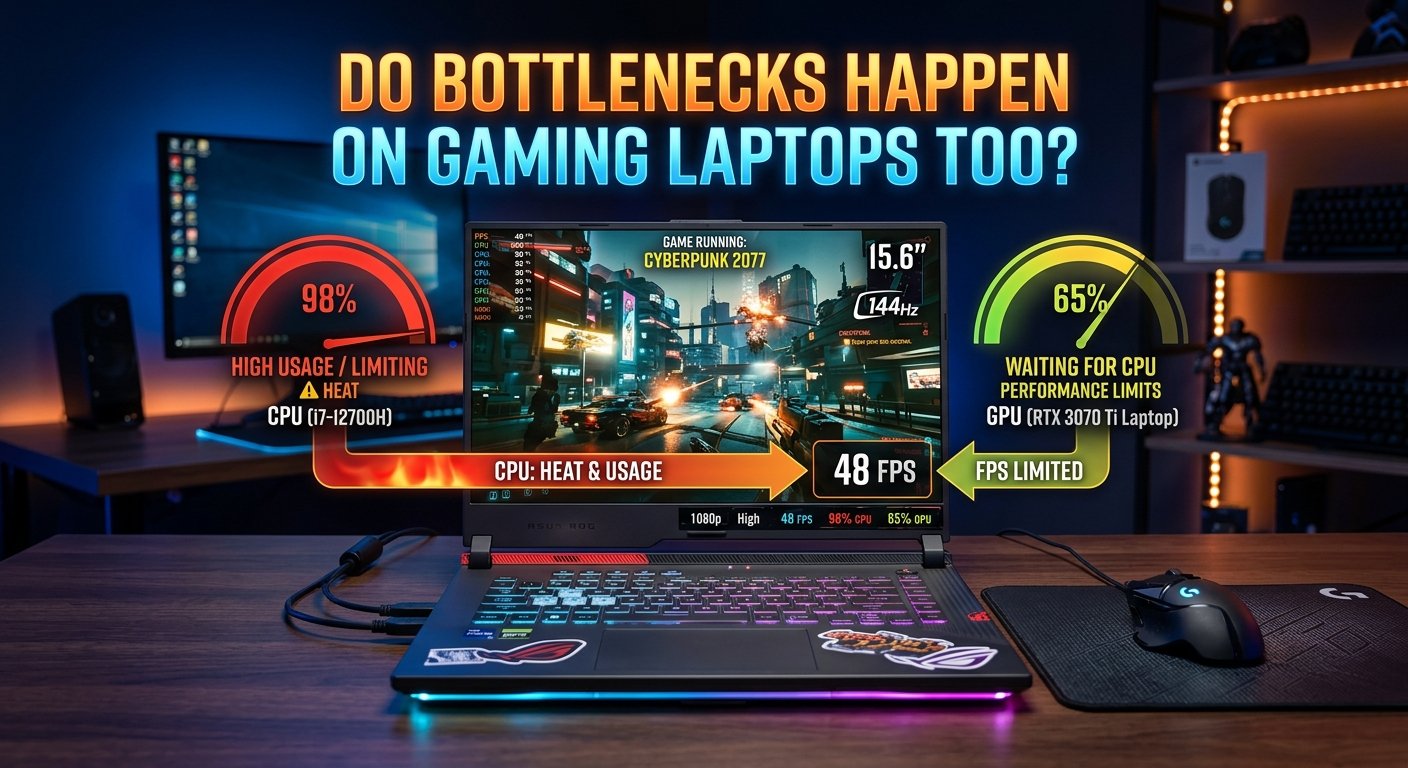
Example 2: Deciding between CPU and GPU upgrade Enter: Core i5-10400F + RTX 4070 Ti Super + 1080p → Low FPS estimate despite powerful GPU Cross-check with bottleneck calculator → 25%+ CPU bottleneck confirms the CPU is severely limiting the GPU Conclusion: CPU upgrade delivers more FPS per dollar than an even more powerful GPU would.
Example 3: Pre-purchase comparison Enter: Ryzen 7 7800X3D + RTX 4080 + 4K → High FPS estimate Enter: Ryzen 7 7800X3D + RTX 4070 Ti Super + 4K → Compare result If the FPS difference is 15% but the price difference is 40%, the RTX 4070 Ti Super is the better value for this use case.
Key Takeaways
- An FPS calculator returns a CPU-adjusted frame rate estimate more realistic than GPU-only review benchmarks that assume high-end test platforms.
- Resolution is the most important single input; it determines how much of the estimate is driven by GPU performance vs CPU performance.
- The FPS estimate is a range, not an exact number the midpoint is the most useful planning figure.
- DLSS and FSR Frame Generation can add 30–60% effective FPS on top of native calculator estimates in supported titles factor this in for RTX 40-series and RDNA 3 GPU plans.
- Always pair the FPS calculator with a bottleneck calculator check together they tell you both how fast your system will go and what's limiting it from going faster.