Bottleneck Calculator for Gaming vs Professional Workloads
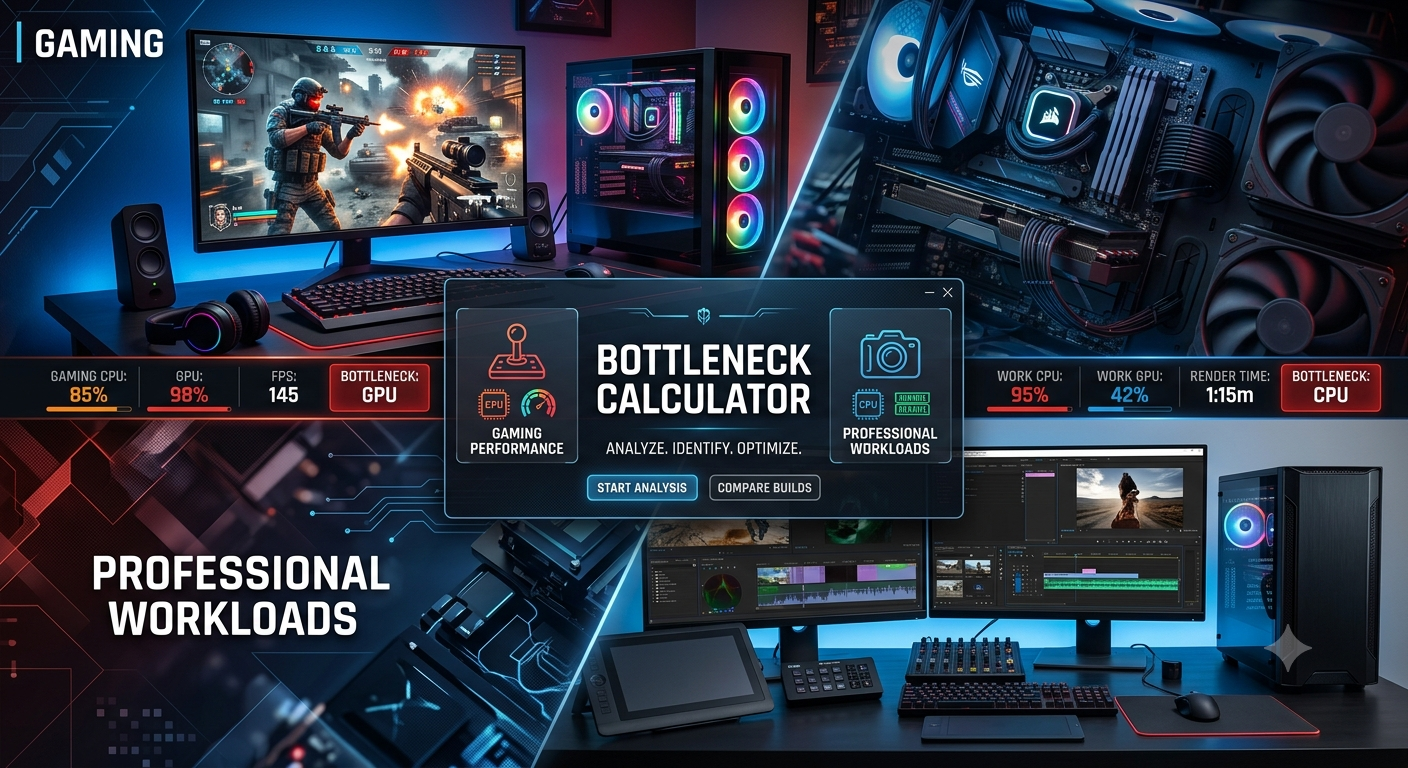
A bottleneck calculator gives different, equally valid results for gaming and professional workloads because the two use CPU and GPU resources in fundamentally different ways. For gaming, the GPU typically carries most of the load; for video editing, 3D rendering, and streaming, the CPU often matters as much or more. Always select the correct use case when running a check the same hardware pairing can show a CPU bottleneck for gaming and a GPU bottleneck for rendering on the same calculator.
Why Workload Type Changes the Bottleneck Result
In gaming, the workload splits roughly between the CPU (game logic, physics, draw call preparation) and the GPU (actual pixel rendering). At higher resolutions, the GPU portion dominates which is why GPU bottlenecks are common and expected at 4K.
Professional workloads distribute that load very differently:
- Video editing (Premiere Pro, DaVinci Resolve) leans heavily on the CPU for timeline processing but increasingly offloads effects, color grading, and export encoding to the GPU
- 3D rendering (Blender, Cinema 4D, V-Ray) can be entirely CPU-bound (CPU rendering) or GPU-bound (GPU rendering), depending on the render engine selected
- Streaming while gaming splits CPU resources between game logic and encoding simultaneously, making CPU performance even more critical than in standalone gaming
- Machine learning / AI workflows are almost entirely GPU-bound, with the CPU primarily managing data preparation
Selecting the wrong use case in a bottleneck calculator means the result reflects a workload you're not actually running giving you a less useful picture of your real situation.
Gaming Workloads: What the Calculator Prioritizes
For gaming, the calculator weights GPU performance more heavily at higher resolutions and CPU performance more heavily at lower resolutions. The primary question it answers is: can your CPU supply draw calls and game logic fast enough to keep your GPU fully occupied at your target resolution?
Key factors for gaming results:
- Resolution matters enormously the same pairing reads very differently at 1080p vs 4K
- GPU benchmark tier is the dominant factor at 1440p/4K
- CPU single-threaded performance matters more than core count for most game genres
- RAM speed has a secondary but real effect on gaming CPU performance
Professional Workloads: What Changes
For professional use, the balance shifts significantly. Most creative and production software is more CPU-intensive than games in specific ways:
- High core count matters more video encoding, rendering, and compilation tasks scale across multiple CPU cores far more effectively than most games do
- GPU VRAM becomes a critical factor in GPU-rendered 3D work and high-resolution video editing
- RAM capacity matters far more professional workflows routinely need 32–64GB, versus 16GB for gaming
- Storage throughput becomes a direct performance factor, since these workflows move large files continuously
When a professional user runs a bottleneck calculator check, the result reflects this different distribution — a CPU that looks well-matched for gaming might show a bottleneck for multi-threaded rendering work, because the workload demands more from the processor.
Streaming While Gaming: The Double CPU Load
Streaming is the scenario where CPU performance matters most, because the CPU has to handle both game logic and video encoding simultaneously. A processor that's perfectly adequate for gaming alone can become a severe bottleneck the moment a streaming encoder is added to its workload.
If your primary use case involves streaming while gaming, check your pairing specifically with that use case in mind — a result that looks fine for standalone gaming may show a meaningful CPU bottleneck the moment you factor in the encoding overhead.
Which Use Case Should You Select?
| Primary Activity | Use Case Setting to Select |
|---|---|
| Gaming only | Gaming, at your target resolution |
| Gaming + streaming | Gaming (CPU needs extra headroom) |
| Video editing (CPU-heavy workflows) | Professional / Productivity |
| 3D rendering on CPU (Blender Cycles CPU) | Professional / Productivity |
| 3D rendering on GPU (Blender Cycles GPU, Octane) | Gaming (GPU-bound workloads behave similarly) |
| Machine learning / AI inference | Professional / Productivity, GPU-focused |
| General productivity (office, browsing) | Professional / Productivity |
If you use your PC for both gaming and professional work, run two separate checks one per use case to see whether your hardware is well-matched for both or whether it favors one over the other. The Compare Systems tool is also useful here, since you can see how two different build configurations stack up across use cases.
Real-World Difference: Same Hardware, Two Use Cases
Consider a system with a high-core-count CPU and a mid-range GPU:
- For gaming at 1440p: The GPU is likely the limiting factor, which is expected and fine
- For 3D CPU rendering: The CPU has plenty of cores to utilize, and the GPU is largely idle no meaningful bottleneck since the GPU isn't involved in CPU rendering
- For GPU-accelerated video export: The mid-range GPU may now be the bottleneck, as encoding at high resolutions with effects demands significant GPU throughput
This illustrates why a single bottleneck check can't describe a multi-use system accurately you need to check each workload separately.
Key Takeaways
- Gaming and professional workloads use CPU and GPU resources very differently always select the correct use case in a bottleneck calculator for an accurate result.
- Gaming weights GPU performance more heavily at higher resolutions; professional workloads often weight CPU core count, RAM capacity, and GPU VRAM more heavily.
- Streaming while gaming adds significant CPU overhead a CPU that's fine for gaming alone can bottleneck when encoding is added.
- Run separate checks for each use case if your PC serves multiple roles.
- Use the Compare Systems tool to evaluate build configurations across different use cases before committing to a hardware decision.