What is a GPU bottleneck and is it bad?
What is a GPU bottleneck and is it bad?
You've built your gaming PC, launched your favourite title, and something feels… off. Frame rates dip unexpectedly. Your GPU is sitting at 99% usage while your CPU barely breaks a sweat. Sound familiar? You're experiencing a GPU bottleneck and this guide explains exactly what that means, whether you should worry about it, and what you can do to fix it using a bottleneck calculator.
What is a GPU bottleneck?
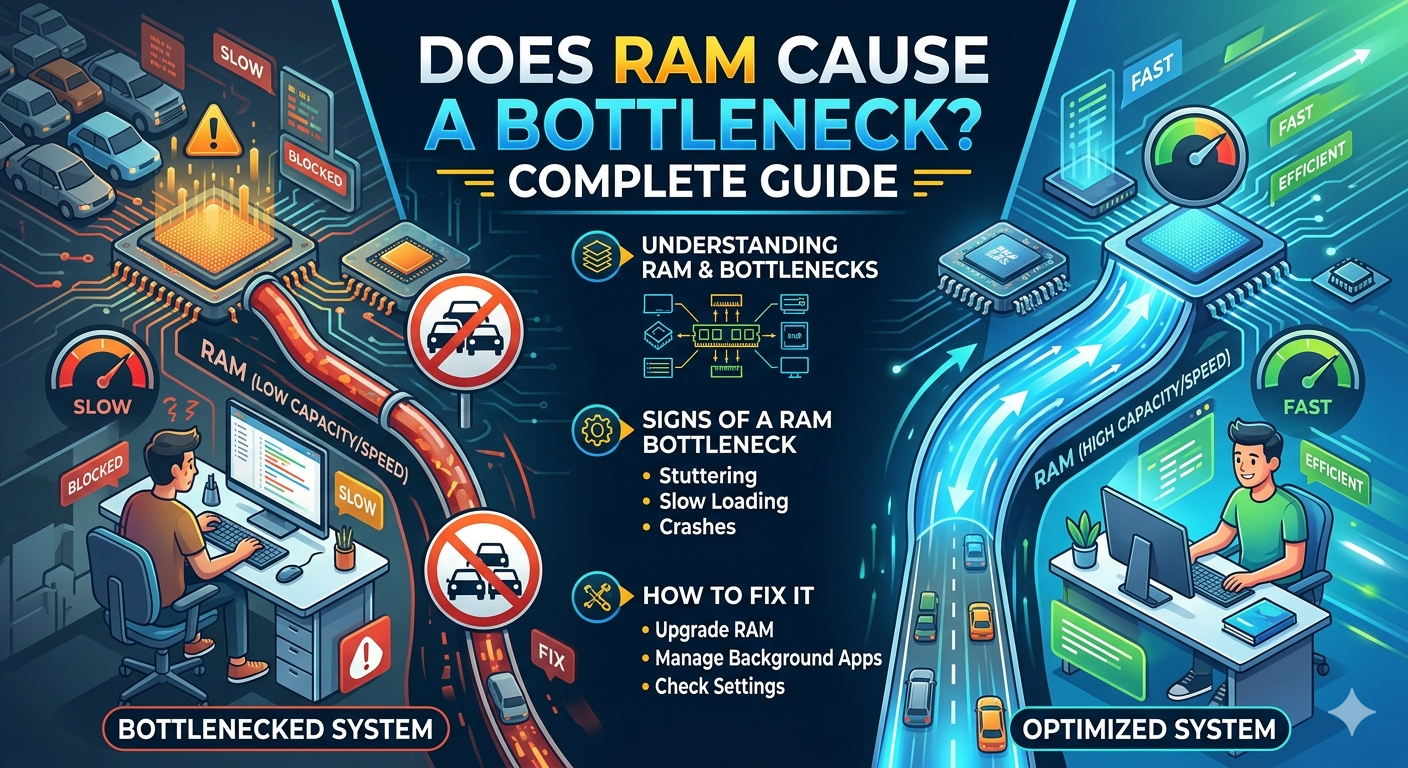
A bottleneck occurs when one component in your PC is working at maximum capacity while another is left idle, effectively limiting the overall system performance. A GPU bottleneck specifically happens when your graphics card is the weakest link it's processing frames as fast as it can while your CPU is sitting at low usage, waiting for the GPU to keep up.
Think of it like a highway with a toll booth. Your CPU is the open highway capable of handling thousands of cars per minute, but the toll booth (your GPU) can only process a few hundred at a time. Traffic backs up, and the whole system slows down.
GPU bottleneck vs CPU bottleneck what's the difference?
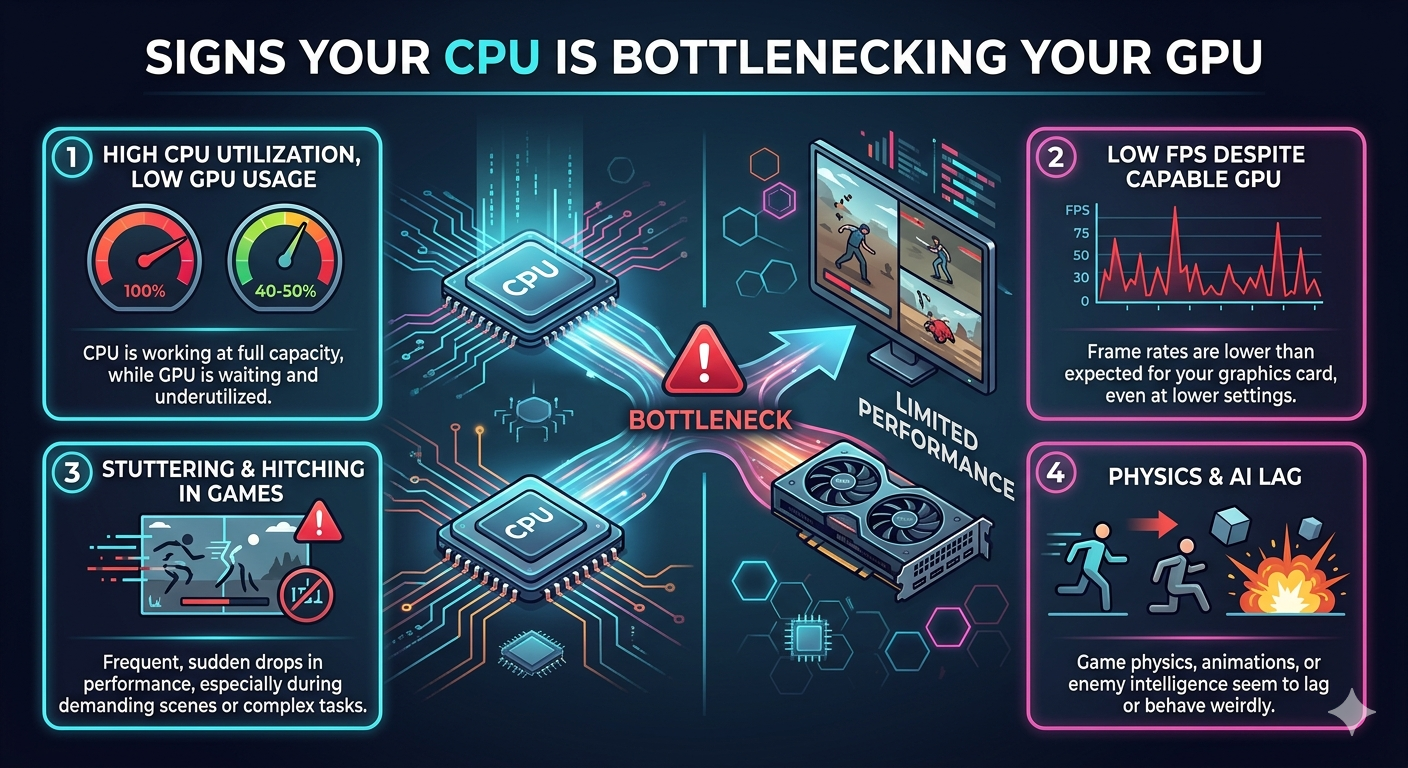
These two types of bottlenecks are opposites. A CPU bottleneck happens when your processor can't feed data to the GPU fast enough your GPU sits idle, and frame rates suffer because of slow physics calculations, AI, or game logic. A GPU bottleneck is the reverse: the GPU can't render frames fast enough for the CPU to serve up.
Scenario: RTX 3060 paired with an Intel Core i9-13900K
You're playing Cyberpunk 2077 at 4K Ultra settings. Your i9-13900K is a powerhouse processor, but the RTX 3060 struggles at 4K. Result: GPU usage at 99%, CPU usage at 35%. This is a textbook GPU bottleneck the GPU is the limiting factor, not the CPU.
- What is a GPU bottleneck?
- GPU bottleneck vs CPU bottleneck what's the difference?
- Scenario: RTX 3060 paired with an Intel Core i9-13900K
- Scenario: RTX 4090 paired with an Intel Core i3-10100
- Is a GPU bottleneck actually bad?
- How to detect a GPU bottleneck with a bottleneck calculator
- Identify your components
- Enter your resolution and use case
- Read the bottleneck percentage
- How to fix a GPU bottleneck gaming tips that actually work
- Lower your graphics settings
- Reduce your monitor resolution
- Upgrade your GPU
- Enable upscaling technologies
- Overclock your GPU
Scenario: RTX 4090 paired with an Intel Core i3-10100
At 1080p in an open-world game with lots of NPC AI, your RTX 4090 is barely working but your i3 is maxed out handling game logic. GPU usage sits at 40%, CPU at 100%. This is a CPU bottleneck the GPU is being held back by the weak processor.
Is a GPU bottleneck actually bad?
Here's the nuanced truth: a GPU bottleneck is not always a problem. In fact, for many gamers it's the preferred scenario.
When your GPU is the bottleneck, it means your GPU is being fully utilised you're getting every last frame it can produce. This is acceptable and expected in graphically demanding situations like 4K gaming or maxed-out settings. The question is whether the resulting performance meets your expectations.
A GPU bottleneck becomes a real problem when you're not hitting your target frame rate. If you're aiming for 144 fps on a 144Hz monitor and you're only getting 60 fps because your GPU can't keep up, that's when the bottleneck is genuinely hurting your experience.
How to detect a GPU bottleneck with a bottleneck calculator
Guesswork is inefficient. A bottleneck calculator lets you input your CPU and GPU models and instantly see whether your components are well-matched and which one is limiting performance. Here's how to use one effectively:
Identify your components
Open Task Manager (Windows) or GPU-Z and note your exact CPU and GPU model names. Accuracy matters here "RTX 3070" and "RTX 3070 Ti" have meaningfully different performance profiles.
Enter your resolution and use case
A bottleneck at 1080p looks very different from one at 4K. Enter your monitor's resolution and whether you're gaming, video editing, or doing 3D rendering. A calculator tuned for gaming will weight GPU workloads more heavily.
Read the bottleneck percentage
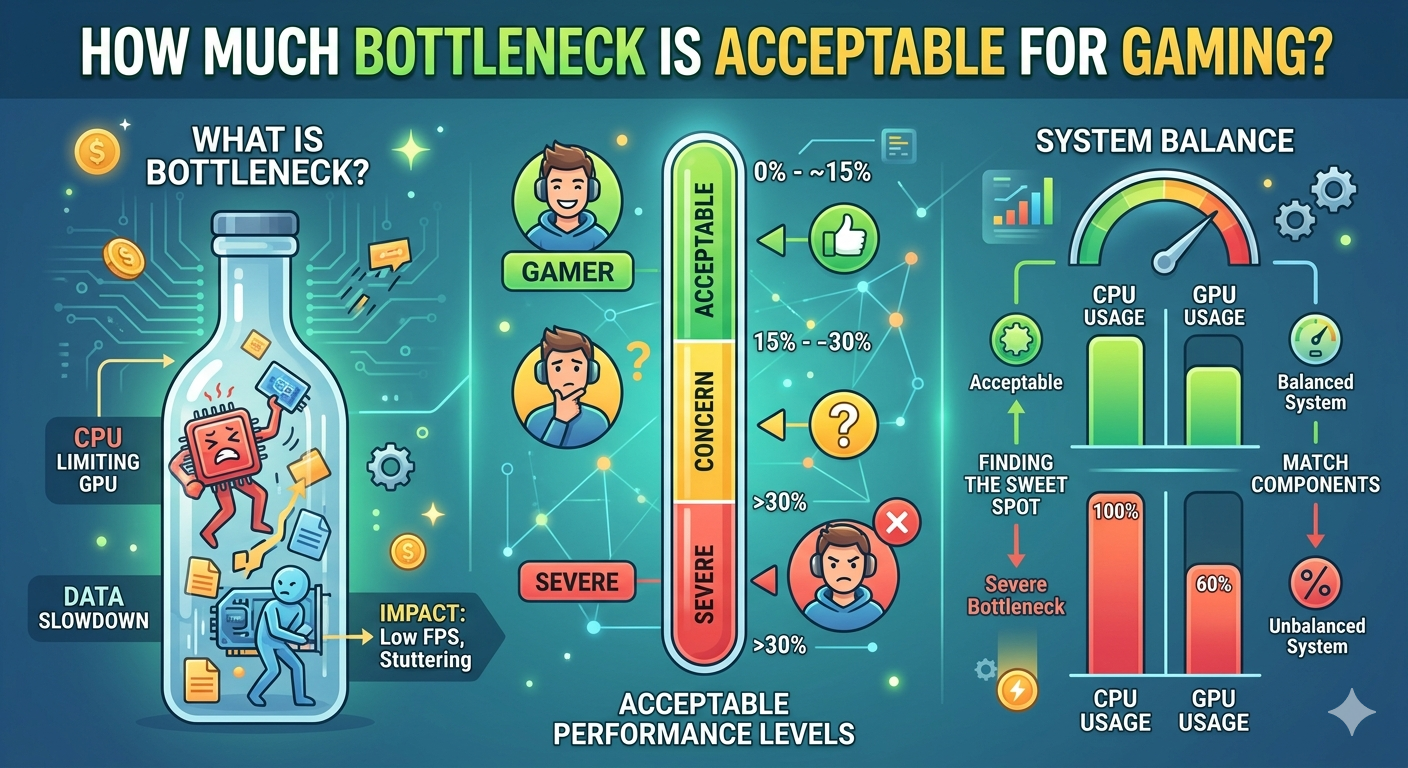
Most calculators return a percentage indicating how mismatched your components are. A bottleneck under 10% is generally considered negligible. 10–20% is noticeable in demanding games. Anything above 30% suggests a significant hardware mismatch worth addressing.
How to fix a GPU bottleneck gaming tips that actually work
Once you've identified a GPU bottleneck, you have several options depending on your budget and goals:
Lower your graphics settings
The zero-cost fix. Reduce resolution scaling, turn off ray tracing, lower shadow quality, and disable anti-aliasing. These settings are the biggest GPU consumers. Reducing from Ultra to High often saves 20–30% GPU load with barely noticeable visual difference.
Reduce your monitor resolution
Rendering at 1440p instead of 4K cuts pixel count by more than 55%. If you have a 4K monitor but a mid-tier GPU, rendering at 1440p and upscaling with DLSS (NVIDIA) or FSR (AMD) can dramatically improve frame rates with minimal visual loss.
Upgrade your GPU
The definitive solution. If your CPU is already strong but your GPU can't hit your target frame rates, a GPU upgrade is the right move. Use a bottleneck calculator to confirm your CPU won't bottleneck the new GPU before purchasing otherwise you may create a CPU bottleneck instead.
Enable upscaling technologies
NVIDIA DLSS 3, AMD FSR 3, and Intel XeSS allow your GPU to render at a lower internal resolution and upscale intelligently. This can effectively double your frame rates in supported games with surprisingly high visual quality retention.
Overclock your GPU
A modest GPU overclock of 5 15% using tools like MSI Afterburner can meaningfully reduce a bottleneck without any hardware cost. Ensure your cooling is adequate before overclocking to avoid thermal throttling, which would negate any gains.
High resolution or graphics settings 4K and ultra settings put enormous strain on the GPU
GPU-intensive games some titles are inherently more demanding on graphics hardware
An aging GPU a card that was once capable may struggle with newer, more demanding titles
Upgrade your GPU the most direct fix for a hardware mismatch
Enable upscaling tech like DLSS, FSR, or XeSS these render at a lower resolution and upscale, easing GPU strain significantly
Close background apps frees up VRAM and system resources
Check for driver updates outdated GPU drivers can hurt performance unnecessarily