How to Use a Bottleneck Calculator: Step-by-Step Tutorial
To use a bottleneck calculator, select your exact CPU model, GPU model, RAM size, storage type, and target resolution, then run the check the tool compares benchmark-based performance scores for your components and returns a bottleneck percentage along with which part is the limiting factor. The whole process takes under a minute.
What You'll Need Before You Start
Getting an accurate result depends entirely on the information you provide. Before opening the calculator, have these details ready:
· Exact CPU model (e.g., AMD Ryzen 7 7800X3D, Intel Core i5-13600K) not just "Ryzen 7" or "i5"
· Exact GPU model, including the variant (e.g., RTX 4070 vs RTX 4070 Super these are scored differently)
· RAM capacity (8GB, 16GB, 32GB, 64GB)
· Storage type (HDD, SSD, NVMe SSD)
· Target resolution (1080p, 1440p, or 4K) and primary use case (gaming or productivity)
Step-by-Step: How to Use the Bottleneck Calculator
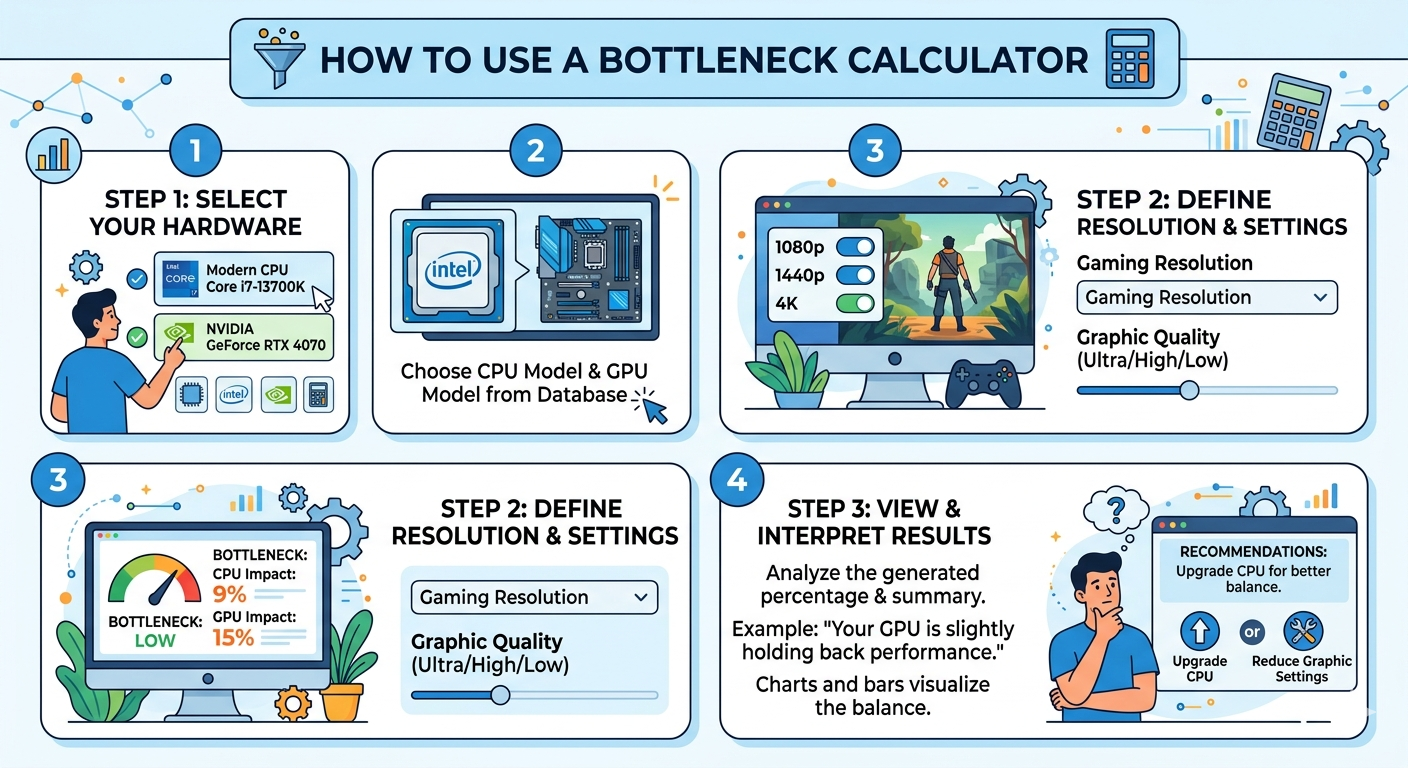
Step 1: Select Your CPU
Open the Bottleneck Calculator and use the CPU dropdown to find your exact processor model. The database covers current and recent-generation Intel Core and AMD Ryzen chips. Selecting the precise model — rather than a similar one — matters because even small clock speed or core-count differences change the benchmark score.
Step 2: Select Your GPU
Repeat the process for your graphics card. Pay attention to variant naming (Ti, Super, XT, XTX) since these can represent meaningfully different performance tiers within the same product family.
- What You'll Need Before You Start
- Step-by-Step: How to Use the Bottleneck Calculator
- Step 1: Select Your CPU
- Step 2: Select Your GPU
- Step 3: Set Your RAM Size
- Step 4: Choose Your Storage Type
- Step 5: Set Your Target Resolution
- Step 6: Click "Check Bottleneck"
- How to Interpret Your Results
- Tips for Getting Accurate Results
- Common Mistakes When Using a Bottleneck Calculator
- Key Takeaways
Step 3: Set Your RAM Size
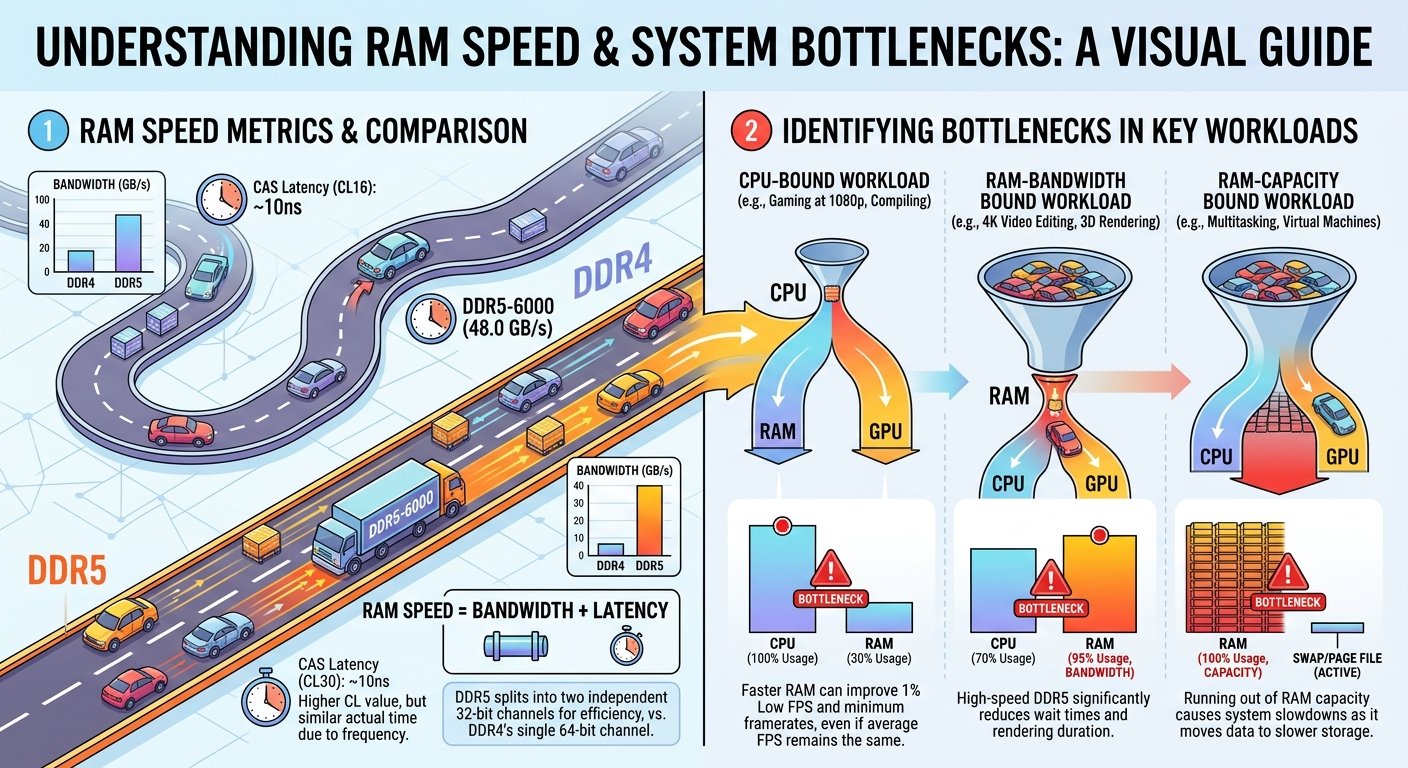
Choose your installed RAM capacity from the dropdown. This affects results because insufficient memory (8GB in 2026) can introduce its own bottleneck on top of any CPU/GPU imbalance.
Step 4: Choose Your Storage Type
Select HDD, SSD, or NVMe SSD. While storage has a smaller direct effect on bottleneck percentage than CPU/GPU pairing, it's factored in because slow storage can cause stutter that mimics a hardware bottleneck.
Step 5: Set Your Target Resolution
This is the step most people skip — and it's one of the most important. Select 1080p, 1440p, or 4K based on what you actually play at. The same CPU/GPU pair can show a significant CPU bottleneck at 1080p and almost no bottleneck at 4K, because resolution changes how much of the workload falls on each component.
Step 6: Click "Check Bottleneck"
The calculator processes your inputs and returns:
· A bottleneck percentage
· The limiting component (CPU or GPU)
· A recommendation on which part to consider upgrading, if any
How to Interpret Your Results
|
Result |
Meaning |
Recommended Action |
|
0–9% |
Excellent balance |
No action needed |
|
10–19% |
Mild imbalance |
Usually safe to ignore for casual use |
|
20–30% |
Noticeable bottleneck |
Consider upgrading the limiting component |
|
30%+ |
Severe bottleneck |
Upgrade strongly recommended |
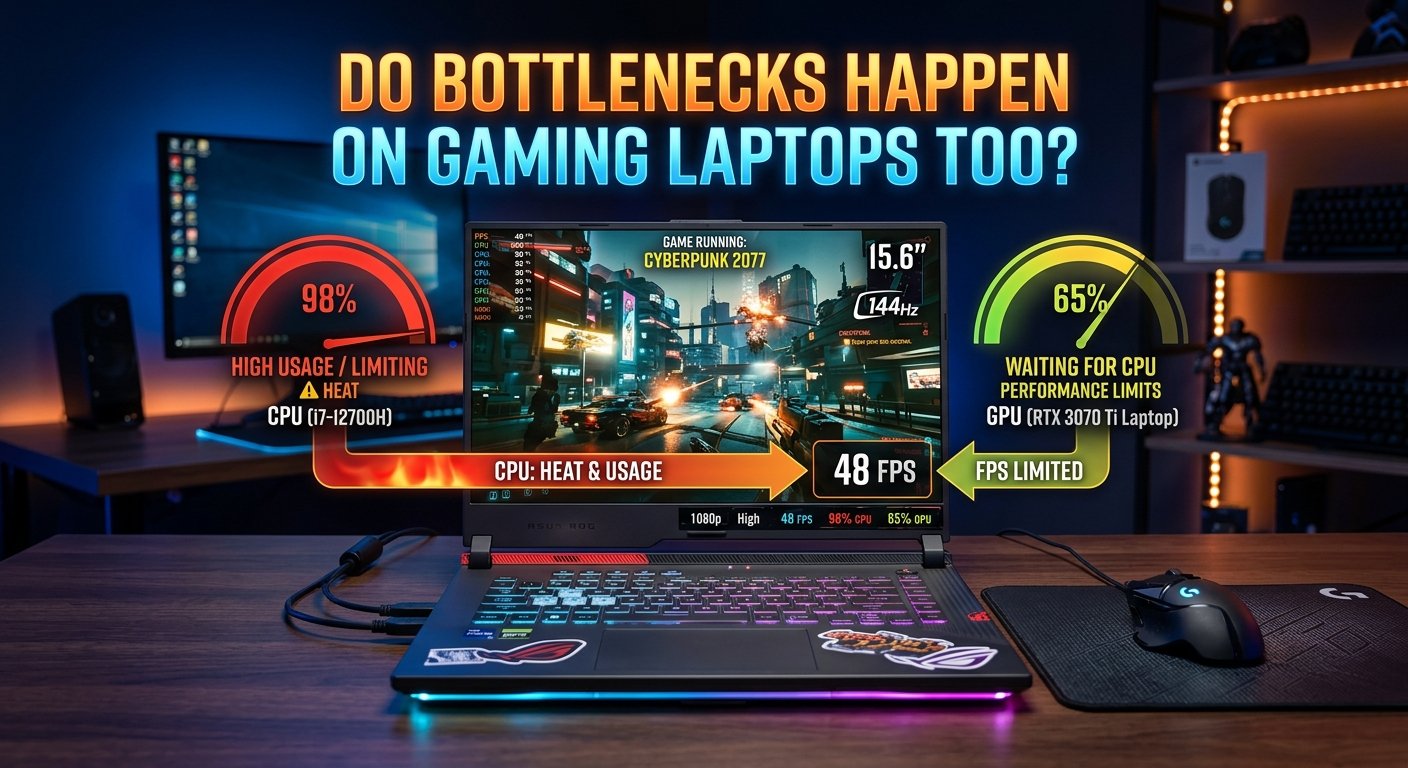
If the calculator flags a CPU bottleneck, your GPU has more to give than your processor can currently use — a CPU upgrade (or settings adjustment) would help more than a GPU upgrade. If it flags a GPU bottleneck, your CPU has headroom, and a GPU upgrade is the more effective move.
Tips for Getting Accurate Results
· Always select the exact model, not the closest match — model variants can carry very different benchmark scores.
· Match your real-world resolution, not your monitor's maximum supported resolution, if you typically play at a lower setting.
· Re-run the check for any prospective upgrade before buying — enter your current component alongside the new one you're considering to confirm it won't be held back.
· Use the Compare Systems tool if you want to see two entire builds side by side rather than a single bottleneck percentage.
· Treat the result as a directional guide, not an absolute lab measurement real-world results can vary slightly based on RAM speed, thermals, and background software.
Common Mistakes When Using a Bottleneck Calculator
1. Selecting a similar but incorrect model (e.g., choosing RTX 4070 when you actually own the RTX 4070 Super)
2. Ignoring resolution and assuming the result applies the same way at every resolution you play at
3. Treating any non-zero bottleneck as a problem — a 5–10% result is normal and not worth chasing
4. Forgetting to check use case — gaming and productivity workloads stress hardware differently, so always select the one that matches your primary activity
Key Takeaways
· Using a bottleneck calculator takes five inputs: CPU, GPU, RAM, storage, and resolution.
· Selecting the exact model for your CPU and GPU is the single biggest factor in result accuracy.
· Resolution changes where the bottleneck falls always match it to how you actually use your PC.
· A result under 10% needs no action; above 20–30% is worth addressing with an upgrade.
· Run the Bottleneck Calculator before any hardware purchase to confirm the upgrade will actually deliver the performance you're paying for.