How to Fix a GPU Bottleneck: Settings, Drivers and Upgrades
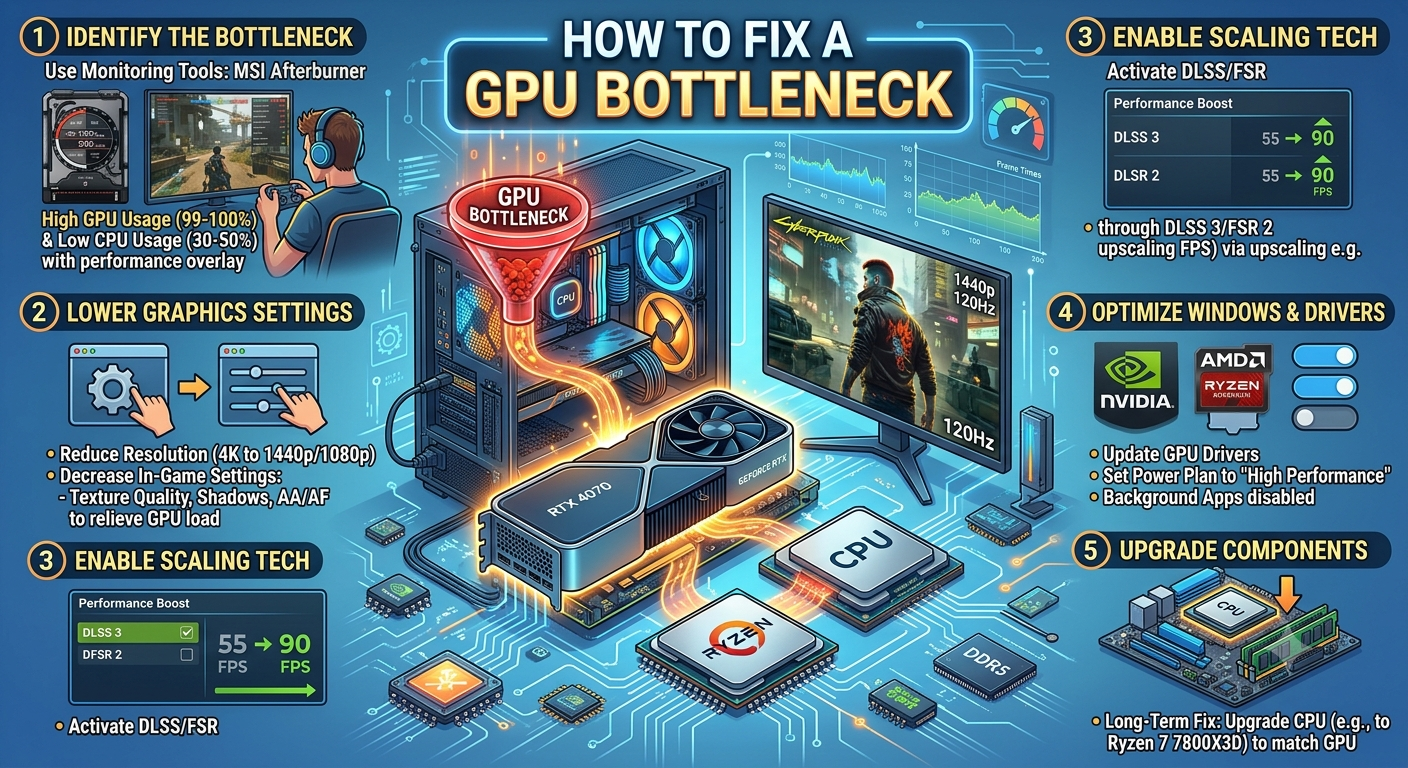
To fix a GPU bottleneck, first confirm the resulting frame rate is actually too low for your needs since a GPU bottleneck is often a good sign, not a problem. If it is too low, start with free fixes: lower GPU-intensive settings, update your drivers, and consider undervolting for extra headroom. If those aren't enough, upgrading the GPU is the correct and most direct fix, since it's the component actually limiting your performance.
Step 1: Confirm It's Actually a Problem
As covered in our GPU bottleneck guide, a GPU bottleneck simply means your graphics card is the limiting component which is usually desirable, since it means your most expensive part is being fully used. Before making any changes, ask: is my current frame rate actually too low for what I'm trying to do? If your frame rate already meets your needs, there's nothing to fix.
Settings-Based Fixes (Free)
If your frame rate is genuinely too low, start with settings changes that ease the GPU's workload without spending anything:
Lower Resolution Scale
Many games offer a resolution scale slider independent of your display resolution. Reducing it slightly (e.g., to 90%) eases GPU load while keeping most of your display's native sharpness.
- Step 1: Confirm It's Actually a Problem
- Settings-Based Fixes (Free)
- Lower Resolution Scale
- Disable or Reduce Ray Tracing
- Reduce Anti-Aliasing Quality
- Lower Texture Quality (If VRAM-Limited)
- Use Upscaling Technology
- Driver and Software Fixes (Free)
- Update Your GPU Drivers
- Use the Manufacturer's Performance/Game Mode
- Try Undervolting
- Improve Case Airflow
- When to Upgrade Your GPU
- Choosing the Right GPU Upgrade
- Key Takeaways
Disable or Reduce Ray Tracing
Ray tracing is one of the most GPU-intensive features in modern games. Disabling it or reducing its quality level often recovers significant frame rate with a comparatively modest visual trade-off.
Reduce Anti-Aliasing Quality
High anti-aliasing settings (especially supersampling-based methods) are GPU-heavy. Switching to a lighter method, or reducing the quality level, can free up meaningful GPU headroom.
Lower Texture Quality (If VRAM-Limited)
If your GPU has limited VRAM, high texture settings can cause stutter on top of the raw rendering bottleneck. Dropping texture quality one level can resolve both issues simultaneously.
Use Upscaling Technology
Modern upscaling features let your GPU render at a lower internal resolution and intelligently scale up to your display resolution, often recovering significant frame rate with minimal visible quality loss.
Driver and Software Fixes (Free)
Update Your GPU Drivers
New driver releases frequently include game-specific performance optimizations. If you haven't updated in a while, this alone can recover measurable performance.
Use the Manufacturer's Performance/Game Mode
Most GPU control panels include game-specific or performance-oriented profiles that can apply automatic optimizations for your installed titles.
Try Undervolting
Undervolting reduces your GPU's voltage while maintaining or improving its clock speed and thermal headroom, which can allow it to sustain higher boost clocks for longer recovering some performance without spending money. This requires careful testing for stability.
Improve Case Airflow
A GPU running hot will throttle its clock speed to stay within safe thermal limits, which behaves like and can worsen a GPU bottleneck. Improving case airflow or cleaning dust from existing fans is a free fix that directly addresses this.
When to Upgrade Your GPU
If you've confirmed a genuine GPU bottleneck, tried the free fixes above, and your frame rate is still below what you need, upgrading the GPU is the correct and most direct solution this is the one bottleneck scenario where the standard advice ("just upgrade the part that's limiting you") is usually right rather than just a starting point.
Signs an upgrade is the right call:
· GPU usage consistently at or near 100% even after settings adjustments
· Frame rate still below your target after trying resolution scale, ray tracing, and anti-aliasing reductions
· You want to enable features (4K, ray tracing, higher refresh rates) your current GPU simply can't support, regardless of settings
Choosing the Right GPU Upgrade
Before buying, confirm your CPU can actually support the new GPU you're considering pairing a powerful new GPU with a CPU that can't feed it fast enough just shifts the bottleneck rather than solving it. Use the Compare Systems tool to test your current CPU against the GPU you're considering before purchasing.
Key Takeaways
· A GPU bottleneck only needs fixing if your resulting frame rate is actually too low for your needs.
· Free fixes — resolution scale, ray tracing, anti-aliasing, upscaling, driver updates, undervolting can meaningfully improve performance before you spend any money.
· Thermal throttling can mimic or worsen a GPU bottleneck; improving airflow is a free, often-overlooked fix.
· If free fixes aren't enough, upgrading the GPU is the correct, direct solution since it's the actual limiting component.
· Always confirm your CPU can support a prospective new GPU using the Compare Systems tool before buying.