How to Fix a CPU Bottleneck Without Buying New Hardware
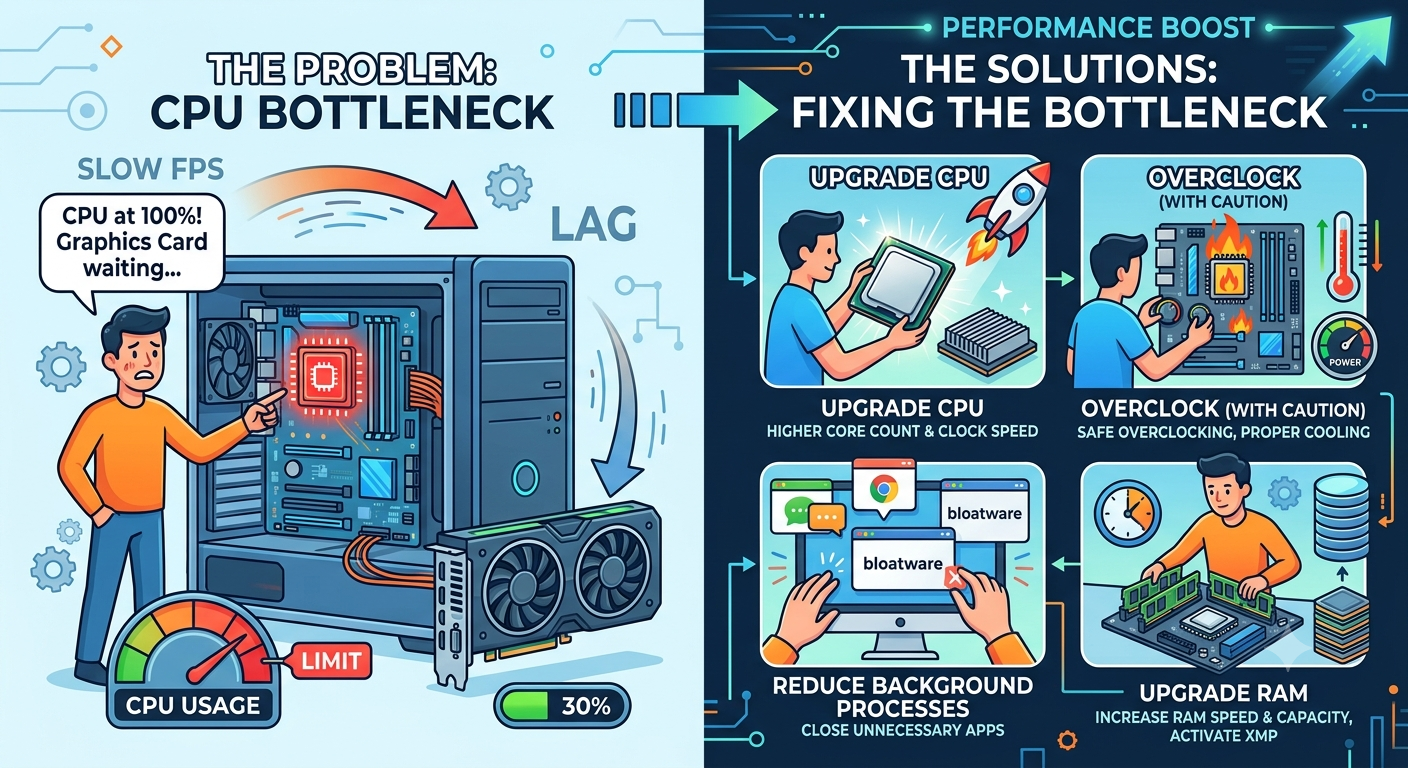
You can reduce a CPU bottleneck without spending any money by lowering CPU-dependent game settings, closing background processes, enabling XMP/EXPO for your RAM, updating drivers and chipset software, and raising your resolution or visual settings to shift more load onto the GPU. These changes won't eliminate a severe bottleneck, but they can meaningfully reduce a mild-to-moderate one.
Start by Confirming the Bottleneck
Before making changes, confirm you actually have a CPU bottleneck and roughly how severe it is using a bottleneck calculator. This tells you whether free fixes are likely to be enough, or whether you're dealing with a severe enough imbalance that a hardware upgrade is the more realistic path.
1. Lower CPU-Dependent Settings
Not all graphics settings stress the same component. Settings that primarily load the CPU include:
· Draw distance / view distance
- Start by Confirming the Bottleneck
- 1. Lower CPU-Dependent Settings
- 2. Close Background Processes and Overlays
- 3. Update GPU Drivers and Motherboard Chipset Drivers
- 4. Enable XMP or EXPO in Your BIOS
- 5. Adjust Windows Power Settings
- 6. Overclock Your Existing CPU (If Supported)
- 7. Raise Resolution or Visual Settings to Shift Load to the GPU
- When These Fixes Won't Be Enough
- Key Takeaways
· NPC and crowd density
· Physics simulation quality
· AI complexity settings (in games that expose this)
Lowering these specifically rather than blanket-reducing every setting argets the actual source of a CPU bottleneck without unnecessarily sacrificing visual quality that the GPU handles.
2. Close Background Processes and Overlays
Browser tabs, chat overlays, recording software, and launcher background processes all consume CPU cycles that could otherwise go to your game. Before a session where performance matters, close:
· Unused browser tabs and windows
· Discord overlay (or switch to a lighter overlay mode)
· Unnecessary startup applications running in the system tray
· Recording/streaming software you're not actively using
3. Update GPU Drivers and Motherboard Chipset Drivers
Driver updates frequently include CPU-GPU communication optimizations, not just GPU-specific fixes. An outdated chipset driver can introduce inefficiencies in how your CPU and motherboard handle data, indirectly worsening a bottleneck. Check both your GPU manufacturer's site and your motherboard manufacturer's site for the latest chipset drivers.
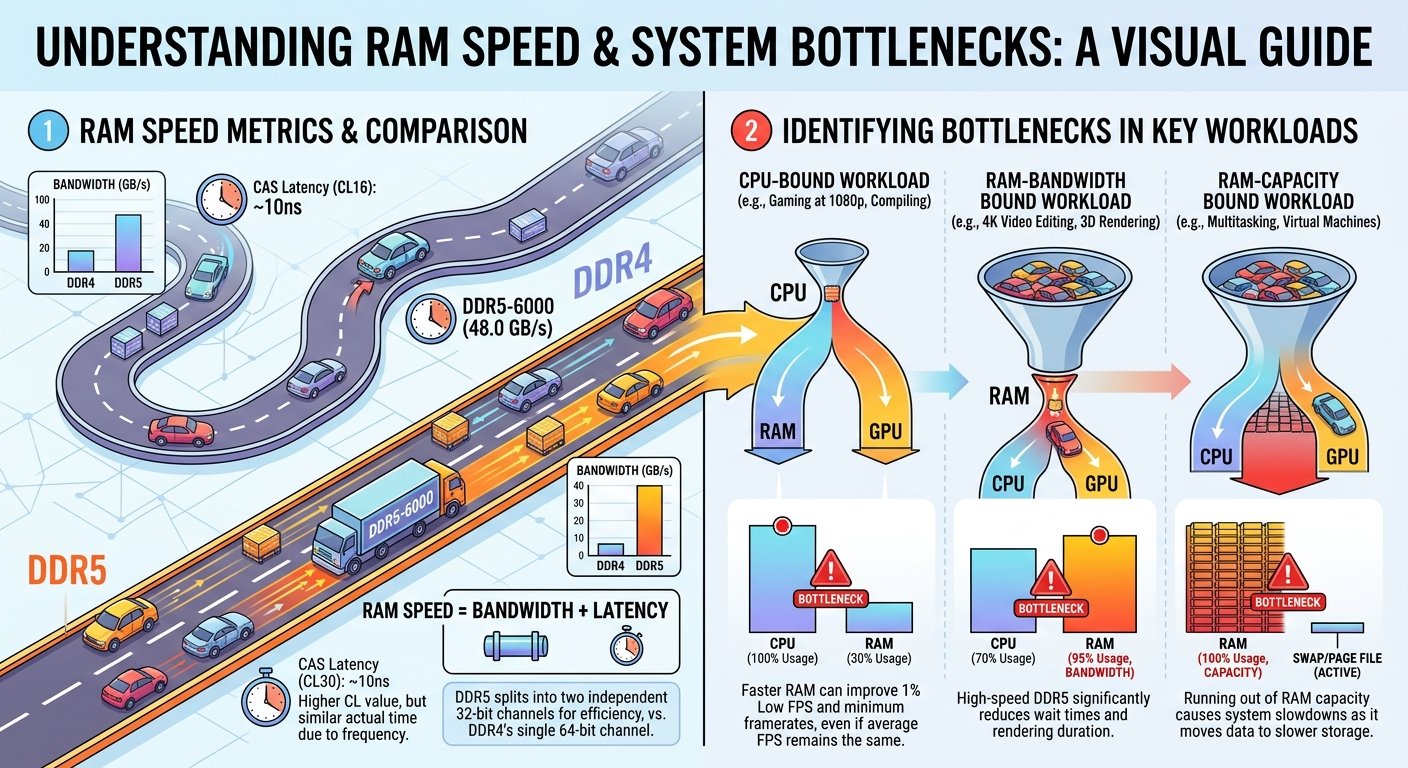
4. Enable XMP or EXPO in Your BIOS
Many systems run RAM below its rated speed by default. Enabling XMP (Intel) or EXPO (AMD) in your BIOS lets your RAM run at the speed it was actually sold for, which can meaningfully improve CPU performance in memory-sensitive titles at no cost, since you already own the hardware.
5. Adjust Windows Power Settings
Set your power plan to "High Performance" or "Balanced" rather than a power-saving mode, and enable Windows Game Mode. Power-saving settings can throttle CPU clock speeds during gameplay, worsening an existing bottleneck for no benefit.
6. Overclock Your Existing CPU (If Supported)
If your CPU and motherboard support overclocking, a modest, stable overclock can free up additional headroom without buying anything new. This requires some technical comfort and careful stability testing, but it's a genuine zero-cost way to narrow a CPU bottleneck using hardware you already own.
7. Raise Resolution or Visual Settings to Shift Load to the GPU
This sounds counterintuitive, but it works: increasing resolution or GPU-heavy settings (textures, shadows, ray tracing) shifts more of the per-frame workload onto the GPU, which can reduce the relative size of a CPU bottleneck. As explained in our resolution and bottleneck guide, the same CPU/GPU pairing often shows a smaller CPU bottleneck at 1440p or 4K than at 1080p.
If you're CPU-bottlenecked at 1080p but your GPU has spare capacity, this trade-off can actually improve your overall visual experience while reducing the bottleneck's impact.
When These Fixes Won't Be Enough
Free fixes are most effective on mild-to-moderate bottlenecks (roughly 10–25%). If your calculator result shows a severe bottleneck (30%+), these changes will help at the margins but won't fully resolve the imbalance at that point, a CPU upgrade is the realistic solution. Re-run your numbers in the bottleneck calculator after making these changes to see how much they've actually moved the needle before deciding whether a hardware upgrade is necessary.
Key Takeaways
· Settings, driver, and configuration changes can meaningfully reduce a mild-to-moderate CPU bottleneck without spending money.
· Enabling XMP/EXPO and closing background processes are two of the highest-impact, zero-cost fixes available.
· Raising resolution or GPU-heavy settings shifts workload toward the GPU, indirectly reducing a CPU bottleneck.
· Severe bottlenecks (30%+) generally still require a CPU upgrade for a complete fix.
· Re-check your result in the bottleneck calculator after making changes to confirm how much they actually helped.