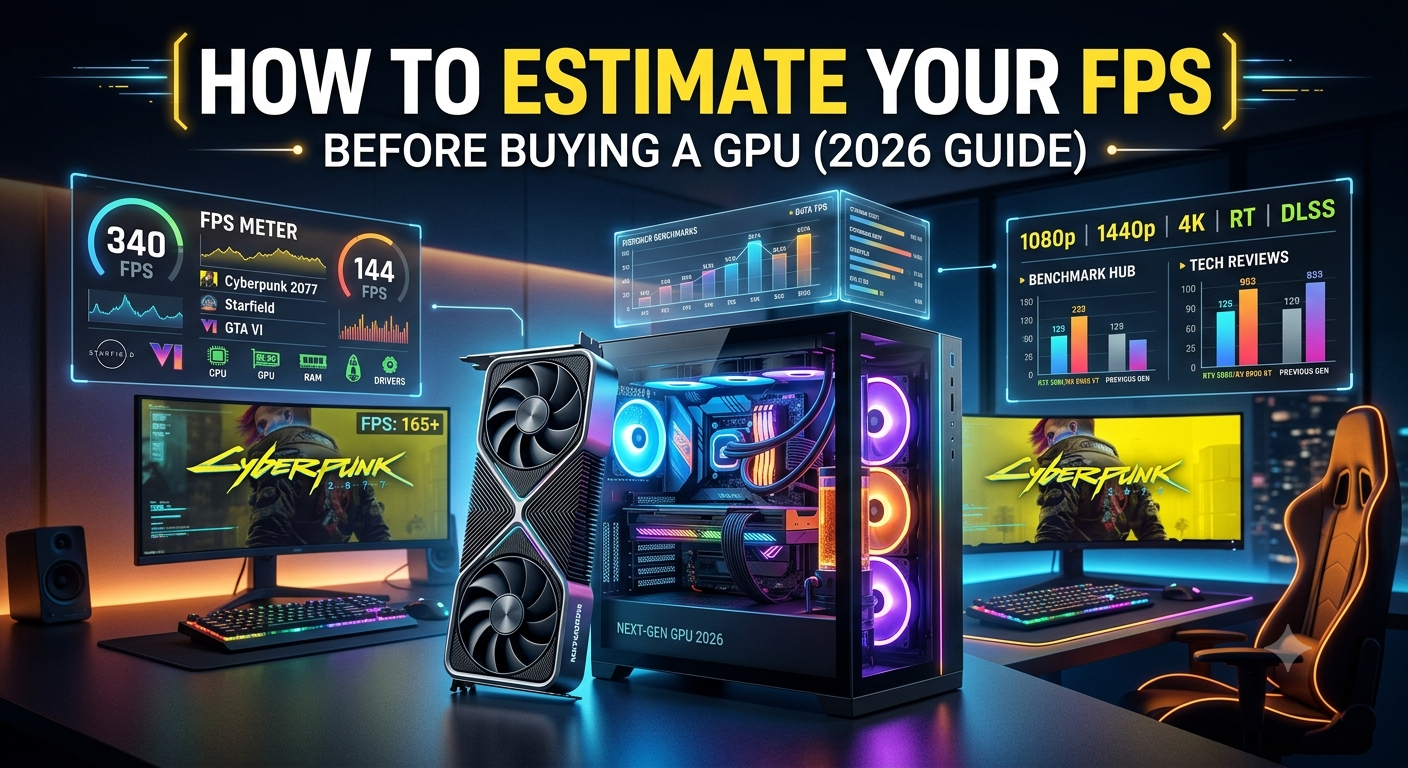
How to Estimate Your FPS Before Buying a GPU (2026 Guide)
You can estimate your FPS before buying a GPU by combining three sources: an FPS calculator (which factors in your specific CPU alongside the GPU), published review benchmarks for that GPU, and resolution scaling math to adjust published results for your target settings. The most reliable single tool for this is an FPS calculator, which returns an estimated frame rate for your exact CPU + prospective GPU pairing at your target resolution without requiring you to own the hardware first.
Why Estimating FPS Before Buying Matters
Most GPU buyers rely on review site benchmarks to set expectations. This approach has a significant flaw: reviewers test GPUs on high-end reference platforms typically flagship CPUs o eliminate CPU bottleneck from their results. If your CPU is a generation behind, or a tier below the reviewer's test setup, your real-world FPS with the same GPU will be noticeably lower than what the review shows.
An FPS calculator accounts for your actual CPU's contribution to the frame rate equation, giving you a more realistic estimate than GPU-only benchmarks provide.
Step 1: Use an FPS Calculator First
The FPS calculator is the fastest starting point. Enter:
- Your current CPU model
- The GPU you're considering buying
- Your target resolution (1080p, 1440p, or 4K)
- Your primary game genre or use case
The calculator combines the CPU's and GPU's benchmark performance data to return an estimated FPS range, factoring in the typical CPU/GPU interaction for your configuration. This gives you a CPU-adjusted estimate not just the GPU's theoretical ceiling.
- Why Estimating FPS Before Buying Matters
- Step 1: Use an FPS Calculator First
- Step 2: Find Review Benchmarks for Your Target Games
- Step 3: Apply Resolution Scaling Estimates
- Step 4: Check the Bottleneck Before Finalising
- Step 5: Compare Multiple GPU Options
- Practical Example: Estimating FPS for a Real Purchase Decision
- What FPS Estimates Can't Tell You
- Key Takeaways
Compare the result against your FPS target (60fps, 144fps, 240fps) to determine whether the GPU meets your needs with your existing CPU.
Step 2: Find Review Benchmarks for Your Target Games
FPS calculators return aggregate estimates across game categories. For game-specific expectations, cross-reference with published benchmarks:
- Search for "[GPU model] + [game title] + benchmark" in your target settings
- Note the reviewer's test CPU (usually listed in the methodology section) and compare it to yours if the review CPU is significantly stronger than yours, your real-world result will be lower
- Look for benchmarks at your exact resolution published 1440p results don't scale directly to 4K without adjustment
Published benchmarks at high-end CPUs give you the GPU's performance ceiling; the FPS calculator tells you what your CPU-constrained realistic result will be. Using both together gives the most complete picture.
Step 3: Apply Resolution Scaling Estimates
If you can't find benchmarks at your exact resolution, use approximate resolution scaling factors:
| Resolution Transition | Approximate FPS Change |
|---|---|
| 1080p → 1440p | ~20–30% FPS reduction |
| 1440p → 4K | ~35–45% FPS reduction |
| 1080p → 4K | ~50–60% FPS reduction |
These factors vary by game and GPU architecture, but provide a useful sanity check when only 1080p benchmarks are available for your target resolution. Always treat scaled estimates as directional rather than exact.
Step 4: Check the Bottleneck Before Finalising
Before committing to a GPU purchase, run a bottleneck calculator check on your CPU + prospective GPU at your gaming resolution. This tells you:
- Whether your CPU will significantly limit the GPU's performance
- The bottleneck percentage which is directly related to how much below the GPU's theoretical ceiling your FPS will land
- Whether a CPU upgrade might be more impactful than the GPU upgrade you're considering
If the bottleneck calculator shows 25%+ CPU limitation, your FPS estimate from reviews will be even further above what you'll actually experience and a CPU upgrade may deliver more gaming improvement per dollar than the GPU itself.
Step 5: Compare Multiple GPU Options
Don't lock in on a single GPU before comparing options. Use the Compare Systems tool to place two prospective GPUs alongside your current CPU simultaneously and see how the estimated FPS and bottleneck differ between them. This often reveals that:
- A GPU one tier down delivers 85–90% of the frame rate at significantly lower cost
- A GPU one tier up produces a larger CPU bottleneck percentage, meaning the extra spending doesn't translate proportionally into FPS gains
- The mid-tier option hits the sweet spot for your specific CPU
Practical Example: Estimating FPS for a Real Purchase Decision
Scenario: You own a Ryzen 5 7600X and want to know whether to buy an RTX 4070 or step up to an RTX 4070 Super for 1440p gaming targeting 144 FPS.
- FPS Calculator — Run the Ryzen 5 7600X + RTX 4070 at 1440p and then the 7600X + RTX 4070 Super at 1440p. Compare the estimated FPS for your primary game genre.
- Bottleneck check — The bottleneck calculator shows the 7600X + RTX 4070 Super at approximately 10–15% CPU bottleneck at 1440p — acceptable, but indicates the GPU has more headroom than the CPU fully unlocks.
- Review benchmarks — RTX 4070 Super reviews show roughly 10–15% more average FPS than the standard 4070. With your 7600X's mild bottleneck applied, the real-world difference at 1440p may be closer to 8–12%.
- Decision: If you're consistently hitting your 144 FPS target with the RTX 4070, the Super's 8–12% improvement doesn't change the experience. If you're at 130–135 FPS and want reliable 144Hz, the Super pushes you over the threshold.
This is the kind of nuanced, personalised conclusion that only CPU-adjusted FPS estimation provides.
What FPS Estimates Can't Tell You
No estimation method replaces hands-on benchmarking, and several factors affect real FPS that calculators and reviews can't fully capture:
- Background software load — antivirus, streaming software, browser tabs all consume CPU cycles
- Driver optimisation for specific games — new driver releases can change FPS significantly for specific titles
- Game version and patch updates — patches frequently change performance characteristics
- RAM speed configuration — XMP/EXPO enabled vs disabled can create a 5–10% FPS difference
- In-game settings granularity — small setting changes (ray tracing quality, shadow resolution) can change FPS significantly within the same general preset
For these variables, the FPS estimate is a starting point and planning tool the actual number will vary around it.
Key Takeaways
- The most reliable pre-purchase FPS estimate uses a CPU-adjusted FPS calculator rather than GPU-only review benchmarks, which assume a high-end test CPU.
- Combine the FPS calculator, review benchmarks for your target games, and resolution scaling math for the most complete estimate before buying.
- Always pair FPS estimation with a bottleneck calculator check a high CPU bottleneck percentage means your FPS will land further below the GPU's theoretical ceiling.
- Use the Compare Systems tool to compare two GPU candidates with your CPU simultaneously before making a final decision.
- FPS estimates are directional planning tools real-world results vary by 10–15% based on game, settings, drivers, and RAM configuration.