How to Check If Your PC Has a Bottleneck (No Software Needed)
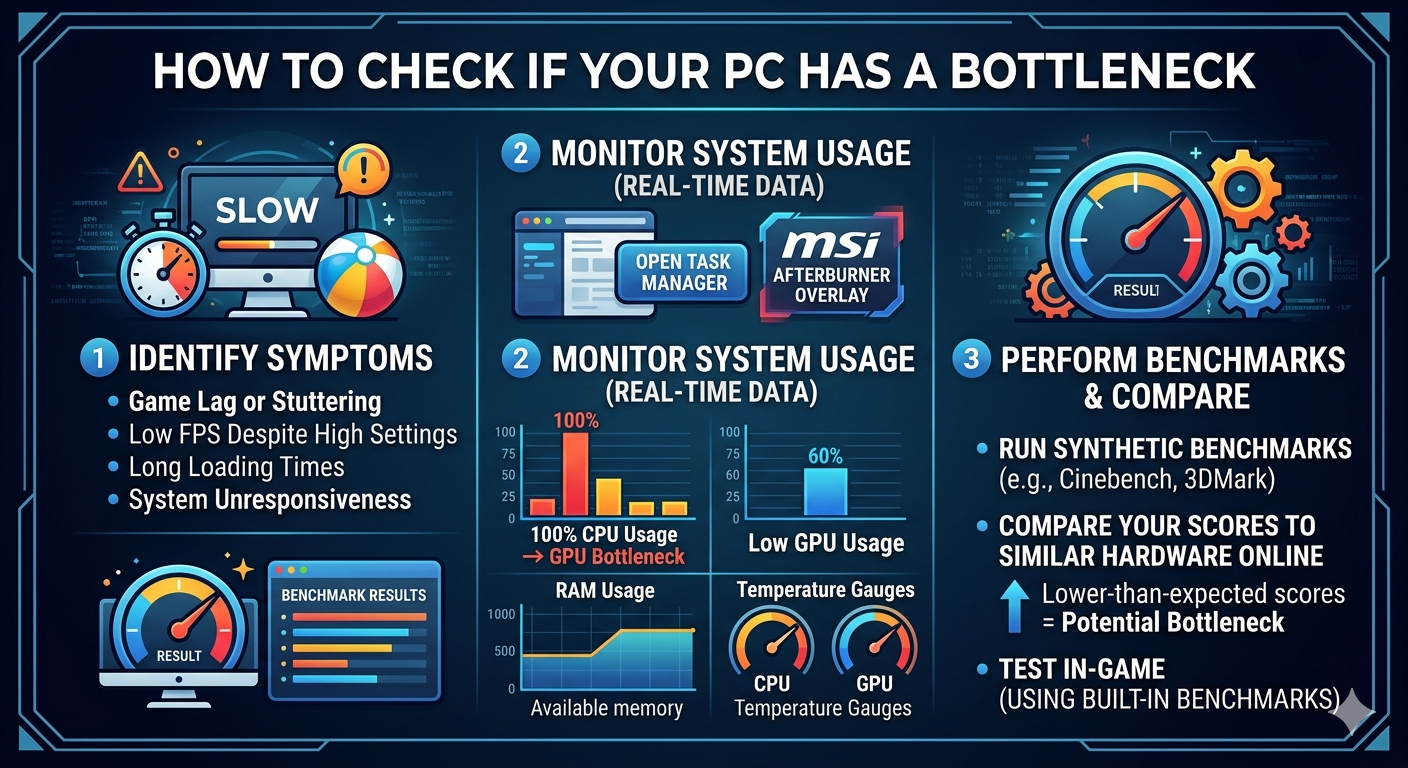
You can check for a PC bottleneck without installing any software by watching for specific in-game behavior: stuttering during CPU-heavy scenes, frame rates well below what your GPU is rated for, or fans on one component working much harder than the other. For an exact number, the fastest method is entering your CPU and GPU into a bottleneck calculator, which takes under a minute and requires no downloads.
Why You Don't Need Monitoring Software First
Most bottleneck symptoms are visible without ever opening a performance overlay. Software like task managers and hardware monitors are useful for confirming a bottleneck, but the underlying signs — stutter patterns, frame-rate dips, fan noise differences — are observable just by paying attention to how your PC behaves during normal use.
Behavioral Signs of a Bottleneck (No Tools Required)
1. Frame Rates That Don't Match Your GPU's Reputation
If review benchmarks show your exact GPU hitting a certain frame rate in a game, and your real-world result is noticeably lower at the same settings, something else in your system — usually the CPU — is holding it back.
2. Stutter in Specific Scenes, Not Everywhere
A bottleneck often shows up situationally. If your game runs smoothly in quiet areas but stutters during large battles, crowded cities, or physics-heavy moments, that's a strong sign of a CPU bottleneck, since those scenarios load the CPU disproportionately.
- Why You Don't Need Monitoring Software First
- Behavioral Signs of a Bottleneck (No Tools Required)
- 1. Frame Rates That Don't Match Your GPU's Reputation
- 2. Stutter in Specific Scenes, Not Everywhere
- 3. Fan Noise Imbalance
- 4. Little to No FPS Gain After a GPU Upgrade
- 5. High CPU Usage With Idle-Looking GPU Behavior
- The Fastest Way to Confirm a Bottleneck
- If You Want to Use Built-In Tools (Optional)
- Common Mistakes When Checking for a Bottleneck
- Key Takeaways
3. Fan Noise Imbalance
If your GPU fans are barely spinning while your CPU cooler is working hard (or vice versa), it's a rough but real-world clue about which component is under heavier load — and therefore which one may be your bottleneck.
4. Little to No FPS Gain After a GPU Upgrade
If you upgraded your graphics card and frame rates barely moved, your CPU is very likely the limiting factor — the new GPU simply can't show its full performance because the processor can't feed it fast enough.
5. High CPU Usage With Idle-Looking GPU Behavior
Even without a monitoring overlay, you can sometimes notice your PC's fans, case temperature, or general "load feel" leaning heavily toward the CPU side of the case while the GPU side stays comparatively cool — another rough indicator worth following up on.
The Fastest Way to Confirm a Bottleneck
Behavioral signs tell you that something might be off, but they don't tell you how much or which exact component. For a precise answer, enter your exact CPU and GPU models into a bottleneck calculator. It instantly compares benchmark-based performance scores for your hardware and returns:
· A bottleneck percentage
· The specific limiting component
· A general recommendation on what to consider upgrading
This takes less time than installing and learning a monitoring tool, and doesn't require running any background software during gameplay.
If You Want to Use Built-In Tools (Optional)
If you'd like additional confirmation, your operating system's built-in task manager (no third-party download required) shows real-time CPU and GPU usage percentages. Watch them during a demanding section of a game:
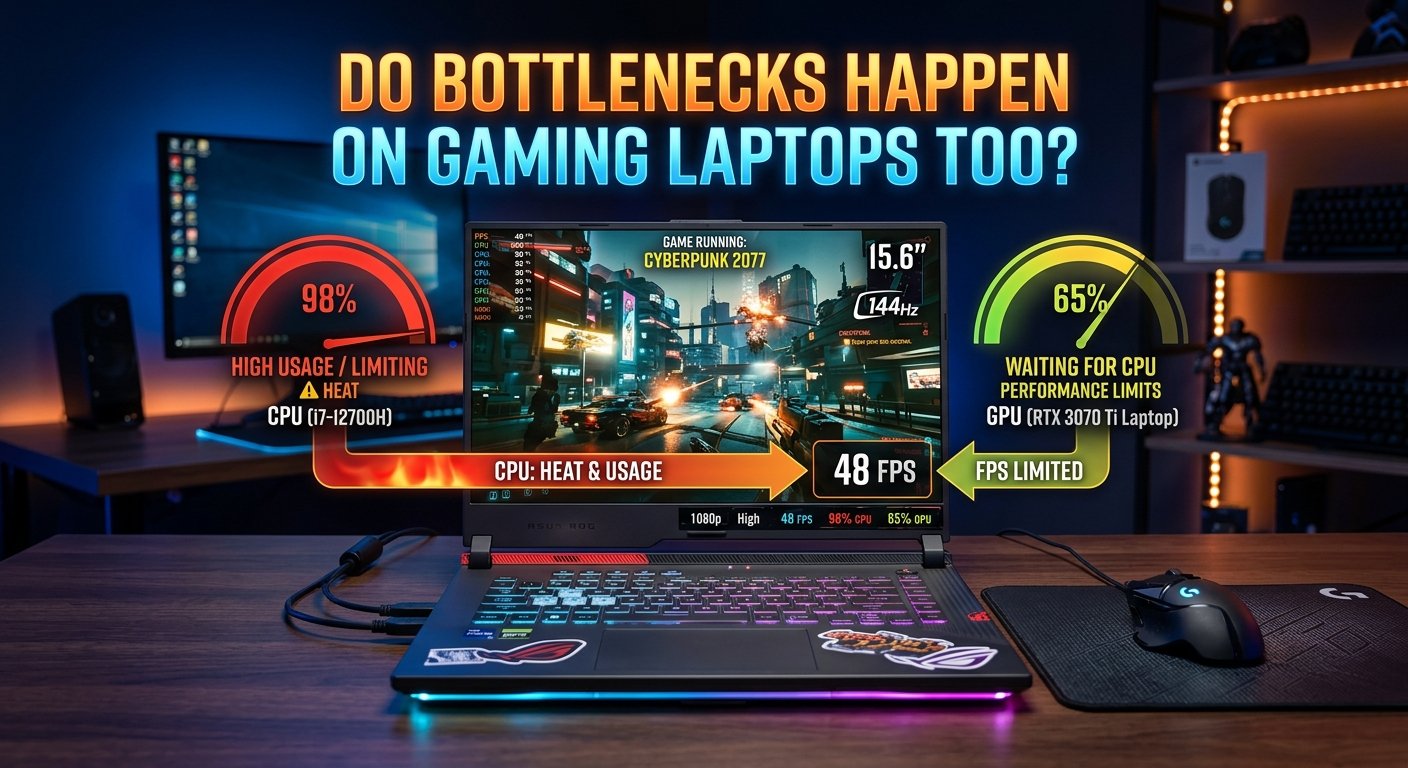
· GPU usage below ~90% with CPU near 100% → CPU bottleneck
· GPU usage near 100% with CPU usage to spare → GPU bottleneck
This is the only "tool" you technically need, and it comes pre-installed on both Windows and most Linux desktop environments.
Common Mistakes When Checking for a Bottleneck
· Judging from a single game some games are far more CPU-dependent than others, so one title's results don't represent your whole system.
· Ignoring resolution checking at a resolution you don't normally play at gives a misleading picture.
· Assuming any stutter is a bottleneck driver issues, background updates, and thermal throttling can cause similar symptoms and should be ruled out separately.
· Skipping the calculator entirely behavioral signs are useful clues, but only a calculator or monitoring tool gives you an actual percentage to act on.
Key Takeaways
· You can spot bottleneck symptoms stutter, fan imbalance, low FPS gains after upgrades — without installing any software.
· Low GPU usage with high CPU usage signals a CPU bottleneck; the reverse signals a GPU bottleneck.
· Your operating system's built-in task manager is the only "tool" you actually need for manual confirmation.
· For an exact percentage and limiting component, a bottleneck calculator is faster and more precise than monitoring software.
· Rule out drivers, background apps, and thermal throttling before concluding the issue is a hardware bottleneck.