What Is a CPU Bottleneck and How to Fix It
What Is a CPU Bottleneck and How to Fix It
If your PC stutters during gaming or your frame rates are lower than expected, you might be dealing with a CPU bottleneck. It's one of the most common performance issues builders and gamers face and the good news is that it's completely diagnosable and fixable. This guide explains exactly what a CPU bottleneck is, how to detect one, and the practical steps you can take to resolve it.
What Is a CPU Bottleneck?
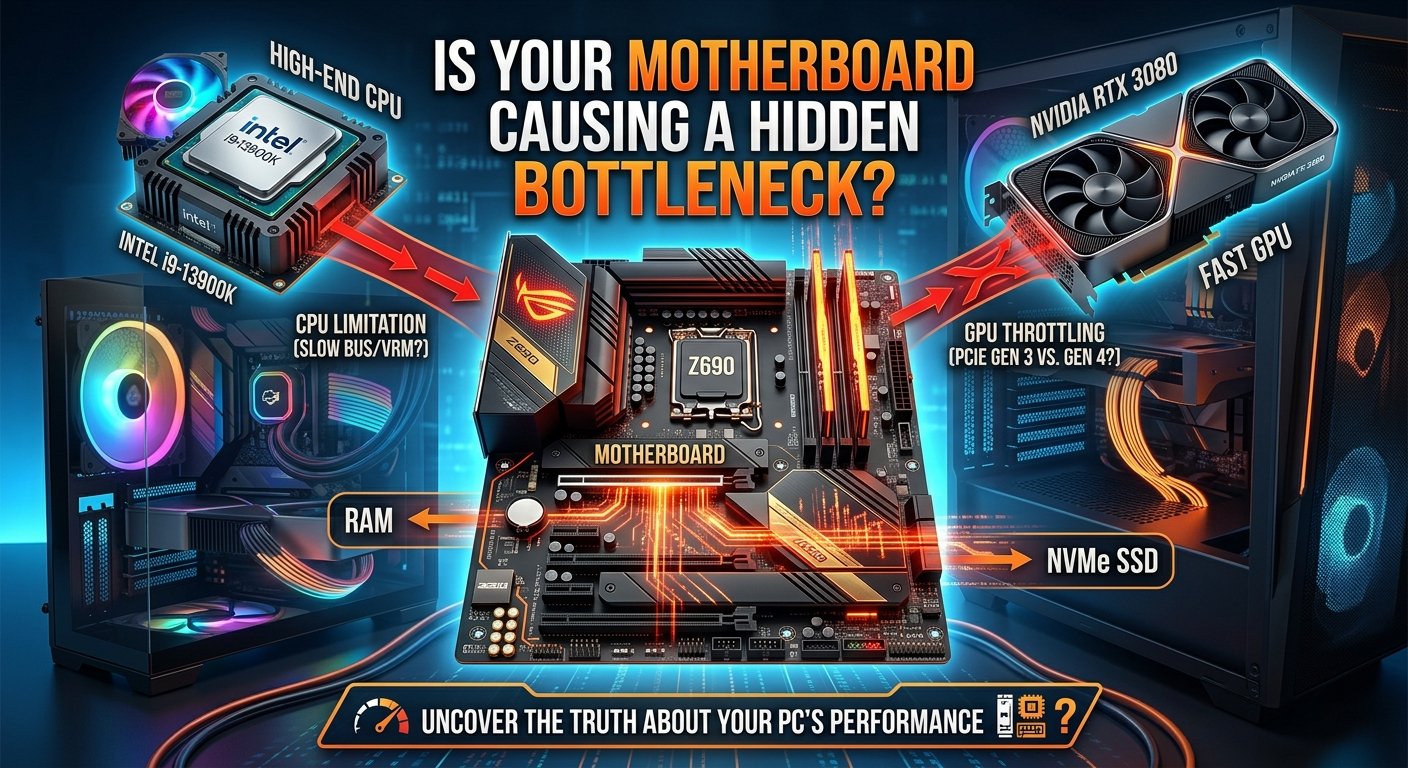
A CPU bottleneck occurs when your processor cannot feed data to your GPU fast enough to keep it fully utilized. In other words, your graphics card is sitting idle, waiting for the CPU to catch up and that wasted GPU headroom translates directly into lower frame rates, inconsistent frame pacing, and a frustrating gaming experience.
Think of it like a highway with two lanes merging into one. Your GPU is the wide highway, capable of handling enormous throughput. Your CPU is the bottleneck the narrow merge point that restricts how fast data can flow through.
Every PC build will have some level of CPU-GPU imbalance. The goal isn't to eliminate it entirely, but to keep it within an acceptable range typically below 10–15%.
CPU Bottleneck vs. GPU Bottleneck: What's the Difference?
Understanding both types of bottleneck is key to diagnosing your system correctly.
|
Bottleneck Type Table of Contents
|
What's Happening |
Common Symptom |
|
CPU Bottleneck |
CPU is maxed out; GPU is underutilized |
Low GPU usage, inconsistent frame times |
|
GPU Bottleneck |
GPU is maxed out; CPU has headroom |
High GPU usage, smooth but capped performance |
A GPU bottleneck is actually normal and desirable in most gaming scenarios it means your GPU is being fully utilized. A severe CPU bottleneck, however, means you're wasting GPU performance you paid for.
Common Causes of a CPU Bottleneck
Mismatched Hardware
Pairing a high-end GPU with a weak or aging CPU is the most frequent cause. For example, running an RTX 4090 with an older Intel Core i5-6600K will almost certainly create a serious bottleneck. The CPU simply can't process game logic, physics, AI, and rendering instructions fast enough to feed a GPU of that caliber.
Low Core/Thread Count
Many modern games are increasingly multi-threaded, taking advantage of 8, 12, or even 16 cores. Running a dual-core or quad-core CPU in a CPU-heavy title like Microsoft Flight Simulator or Cyberpunk 2077 will throttle performance noticeably.
Low Clock Speed
Beyond core count, raw clock speed matters especially in games that rely heavily on single-threaded performance. Older CPUs with clock speeds under 3.5 GHz may struggle to keep pace with modern GPUs in many titles.
High CPU-Intensive Game Settings
Some in-game settings put disproportionate load on the CPU rather than the GPU. Draw distance, NPC density, physics simulation, and AI complexity are CPU-driven settings that can push your processor to its limits regardless of your GPU tier.
How to Detect a CPU Bottleneck
Use a Bottleneck Calculator
The fastest way to check if your CPU and GPU are well-matched is to use an online bottleneck calculator. These tools compare your CPU and GPU model and estimate the percentage bottleneck at different resolutions. Simply input your processor and graphics card model to see a pairing score and recommendations.
Monitor Usage in Real Time
For real-time confirmation, use monitoring tools like MSI Afterburner, HWiNFO64, or the Windows Task Manager while gaming:
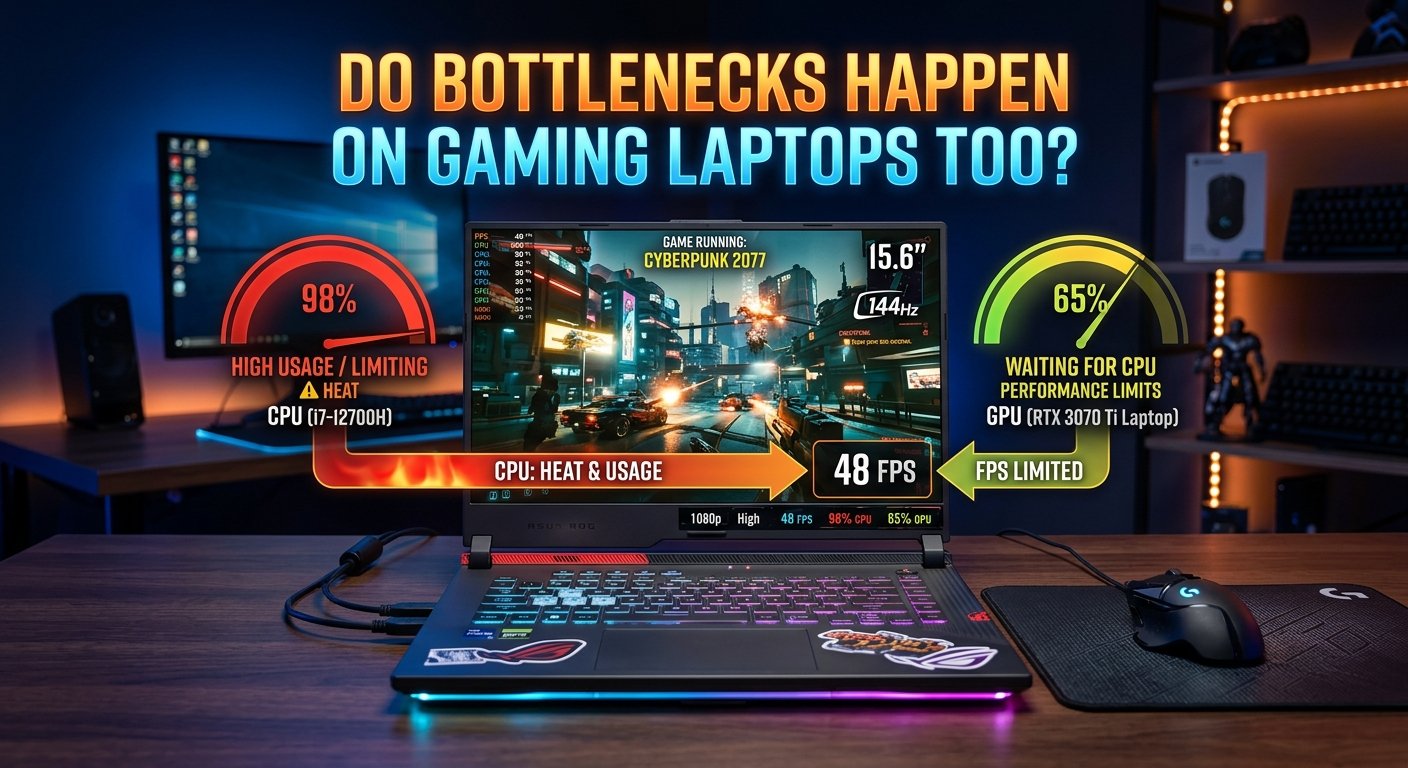
· If CPU usage is at 95 100% and GPU usage is at 60–70% or lower → CPU bottleneck confirmed.
· If GPU usage is at 95 100% and CPU usage is moderate → GPU-limited (the healthier scenario).
Check Frame Times, Not Just FPS
Raw FPS numbers can be misleading. Use a tool like CapFrameX or FCAT-VR to monitor frame times. Erratic frame time spikes even when average FPS looks decent are a telltale sign of a CPU struggling to keep up.
How to Fix a CPU Bottleneck
Increase Your In-Game Resolution
This is one of the simplest and most effective workarounds. At higher resolutions (1440p, 4K), the GPU takes on more workload, shifting the burden away from the CPU. If you're gaming at 1080p and hitting a CPU bottleneck, bumping up to 1440p often reduces the imbalance significantly without upgrading any hardware.
Practical example: A system with an i5-9600K and RTX 3080 running at 1080p might show 75% GPU usage and 98% CPU usage. Switching to 4K can push GPU utilization to 98% while CPU load drops to a manageable 80%.
Overclock Your CPU
If your CPU and motherboard support overclocking, pushing your clock speed up by 10–20% can meaningfully reduce bottlenecking especially in single-threaded scenarios. Use tools like Intel XTU or AMD Ryzen Master to apply a stable overclock safely.
⚠️ Always monitor temperatures during overclocking. Keep CPU temps below 85°C under load.
Reduce CPU-Heavy In-Game Settings
Lower settings that are processed by the CPU rather than the GPU:
· NPC/crowd density (big in open-world games like GTA V)
· Draw distance / view distance
· Physics quality and simulation depth
· AI behavior complexity
Reducing these frees up CPU cycles without dramatically affecting visual quality in most scenarios.
Enable XMP/EXPO for Your RAM
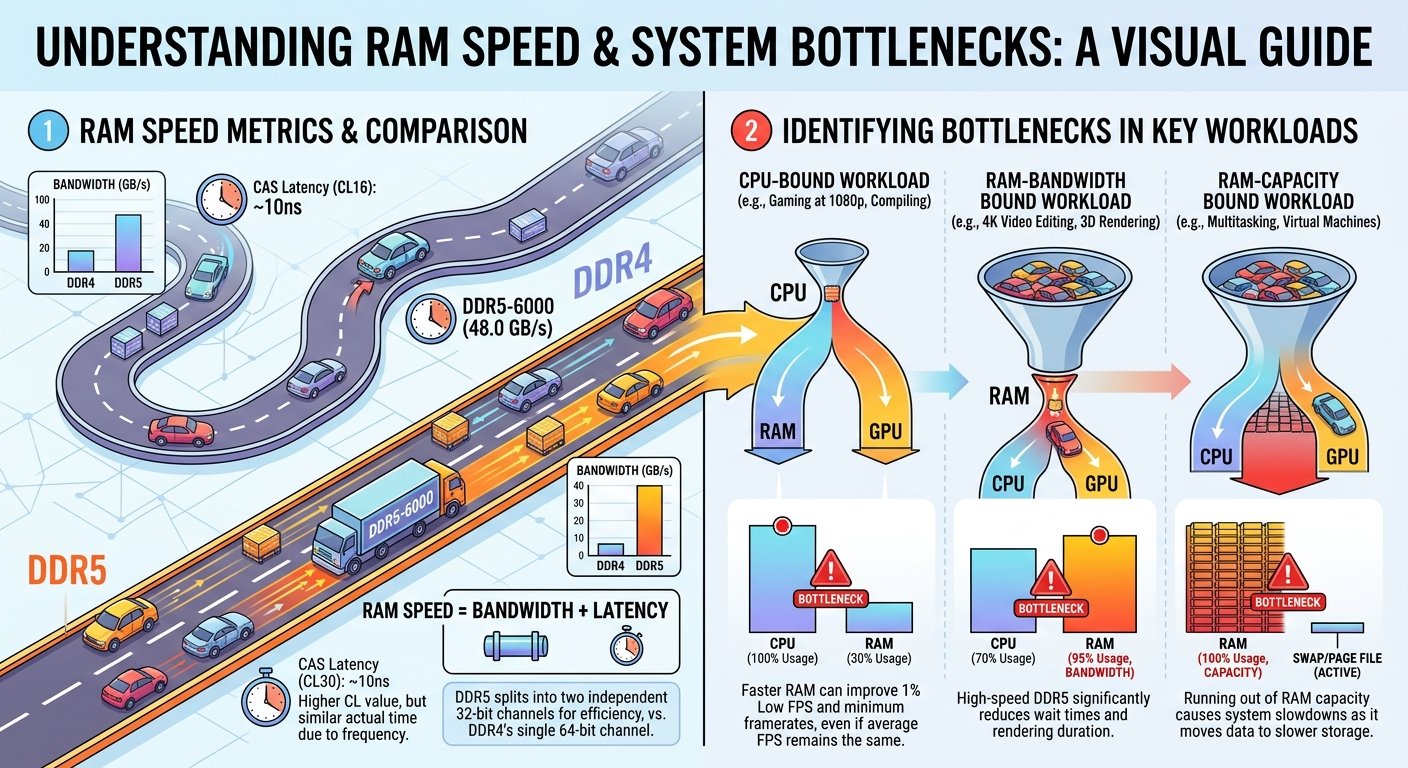
Slow RAM is a hidden bottleneck contributor. If your RAM is running below its rated speed, enable XMP (Intel) or EXPO (AMD) in your BIOS. Faster RAM means the CPU can access data more quickly, reducing latency and improving throughput especially on AMD Ryzen builds where the CPU-RAM interface is critical.
Upgrade Your CPU
If the bottleneck is severe and persistent across all games and settings, it may be time to upgrade. When choosing a new CPU:
Match it to your GPU tier (use a bottleneck calculator to verify)
Prioritize higher clock speed CPUs for competitive/esports gaming
Prioritize higher core count CPUs for open-world and simulation games
Consider whether a platform upgrade (new motherboard + CPU) is more cost-effective
Gaming Tips to Minimize CPU Bottleneck Impact
Play at 1440p or 4K when possible higher resolution shifts load to the GPU
Disable background apps before gaming (browsers, Discord video, streaming software add CPU overhead)
Update your CPU drivers and chipset outdated drivers can cause unnecessary CPU overhead
Use DirectX 12 or Vulkan when available these APIs are better at distributing CPU workload across multiple cores
Set CPU priority for your game in Task Manager Details tab Right-click your game Set Priority High
Ensure your CPU cooler is adequate thermal throttling causes performance drops that mimic bottlenecking
How Much Bottleneck Is Acceptable?
As a general rule:
0–10% bottleneck Excellent pairing, negligible impact
10–20% bottleneck Good pairing, minor impact in demanding titles
20–40% bottleneck Noticeable in CPU-heavy games; worth optimizing
40%+ bottleneck Significant mismatch; hardware upgrade recommended
Use a bottleneck calculator to find your pairing score, then apply the in-game and software fixes above before committing to a hardware upgrade. In many cases, simple settings adjustments and BIOS tweaks can bring an out-of-balance system back into a playable range.
Final Thoughts
A CPU bottleneck doesn't have to mean an expensive hardware upgrade. Start by measuring your actual CPU and GPU usage during gaming, check your system with a bottleneck calculator, and apply the resolution, settings, and BIOS optimizations covered above. Most users find that targeted tweaks close the gap considerably and when the time does come to upgrade, you'll have a clear picture of exactly what your system needs.