PC Part Picker
PC Part Picker The Ultimate Guide to Building Your Perfect PC in 2026
Meta Description: Discover how PC Part Picker helps you plan budget and build the perfect custom PC. Learn expert tips compatibility tricks and step by step guidance for beginners and pros alike.
What Is PC Part Picker?
If you've ever wanted to build a custom PC chances are someone has already pointed you to PC Part Picker (PCPartPicker.com). And for good reason it's the most powerful user friendly tool available for planning a PC build from scratch.
PC Part Picker is a free online platform that lets you browse compare and select computer components from CPUs and motherboards to RAM storage graphics cards and cases while automatically checking for compatibility issues between parts. It also aggregates real time pricing from major retailers like Amazon Newegg and B&H Photo so you always know where to get the best deal.
Whether you're a first time builder putting together a budget gaming rig or a seasoned enthusiast assembling a workstation powerhouse PC Part Picker is an indispensable part of the process.
Why Use PC Part Picker? Key Benefits Explained
Automatic Compatibility Checking
One of the biggest fears for new PC builders is buying parts that don't work together. PC Part Picker eliminates that anxiety by running real time compatibility checks as you add parts to your list. It will alert you if:
Your CPU socket doesn't match your motherbo
- What Is PC Part Picker?
- Why Use PC Part Picker? Key Benefits Explained
- Automatic Compatibility Checking
- RealTime Price Comparison
- Massive Component Database
- Community Builds and Inspiration
- Power Consumption Estimator
- How to Use PC Part Picker: Step by Step
- Define Your Build Goals
- Step 2: Start a New Build
- Choose Your CPU First
- Select a Compatible Motherboard
- Pick Your RAM
- Choose Storage
- Select Your GPU
- Add a Case PSU and Cooling
- Review Compatibility Warnings
- Export or Share Your Build
- PC Part Picker for Different Types of Builders
- Budget Gaming PC ($400 $700)
- Mid Range Gaming PC ($700 $1 500)
- High End Gaming 4K Build ($1500 $3000+)
- Workstation and Content Creation PC
- Small Form Factor (Mini ITX) Builds
- PC Part Picker Tips and Tricks You Should Know
- Common Mistakes to Avoid When Using PC Part Picker
- PC Part Picker vs Other PC Building Tools
Your RAM type or speed is incompatible
Your power supply doesn't provide enough wattage
This feature alone has saved thousands of builders from costly mistakes and painful return shipping.
RealTime Price Comparison
PC Part Picker pulls live pricing data from dozens of retailers and displays them side by side. Instead of spending hours visiting multiple websites you can see at a glance who has the cheapest price for a specific GPU or SSD on any given day. Over time this can save you a significant amount of money on a full build.
Massive Component Database
The platform maintains an enormous regularly updated database of PC components. You can filter by brand price range performance metrics and more. Whether you're looking for a specific form factor motherboard or a power supply with an 80+ Gold efficiency rating the search and filter tools make finding the right part fast and intuitive.
Community Builds and Inspiration
Not sure where to start? PC Part Picker has a thriving community section where builders share their completed and planned builds. You can browse thousands of real builds filtered by use case (gaming video editing streaming) budget and more. Each community build includes photos benchmarks and commentary invaluable for getting inspiration or validating your own parts list.
Power Consumption Estimator
PC Part Picker estimates the total power draw of your system based on the components you've selected. This helps you choose an appropriately rated power supply not too weak to be unsafe and not so oversized that you're wasting money.
How to Use PC Part Picker: Step by Step
Define Your Build Goals
Before you open PC Part Picker ask yourself a few key questions:
What will you use this PC for? Gaming content creation general productivity or all of the above?
What is your budget? Having a hard budget limit will guide every decision.
Do you have any existing parts? An old SSD a monitor or peripherals you're reusing can free up budget.
Step 2: Start a New Build
Go to pc part ticker and click "Start a System Build." You'll be presented with a parts list template covering all major component categories.
Choose Your CPU First
Brand: AMD (Ryzen) or Intel (Core)
Core count: More cores matter for content creation and multitasking
Clock speed: Higher GHz generally means better gaming performance
TDP Thermal Design Power affects cooling requirements
Select a Compatible Motherboard
Once you've chosen a CPU PC Part Picker will filter the motherboard list to show only compatible options. Key things to look for include:
Form factor (ATX Micro ATX Mini ITX) based on your case preference
VRM quality for overclocking headroom
Number of M.2 slots for NVMe SSDs
PCIe version for your GPU
Pick Your RAM
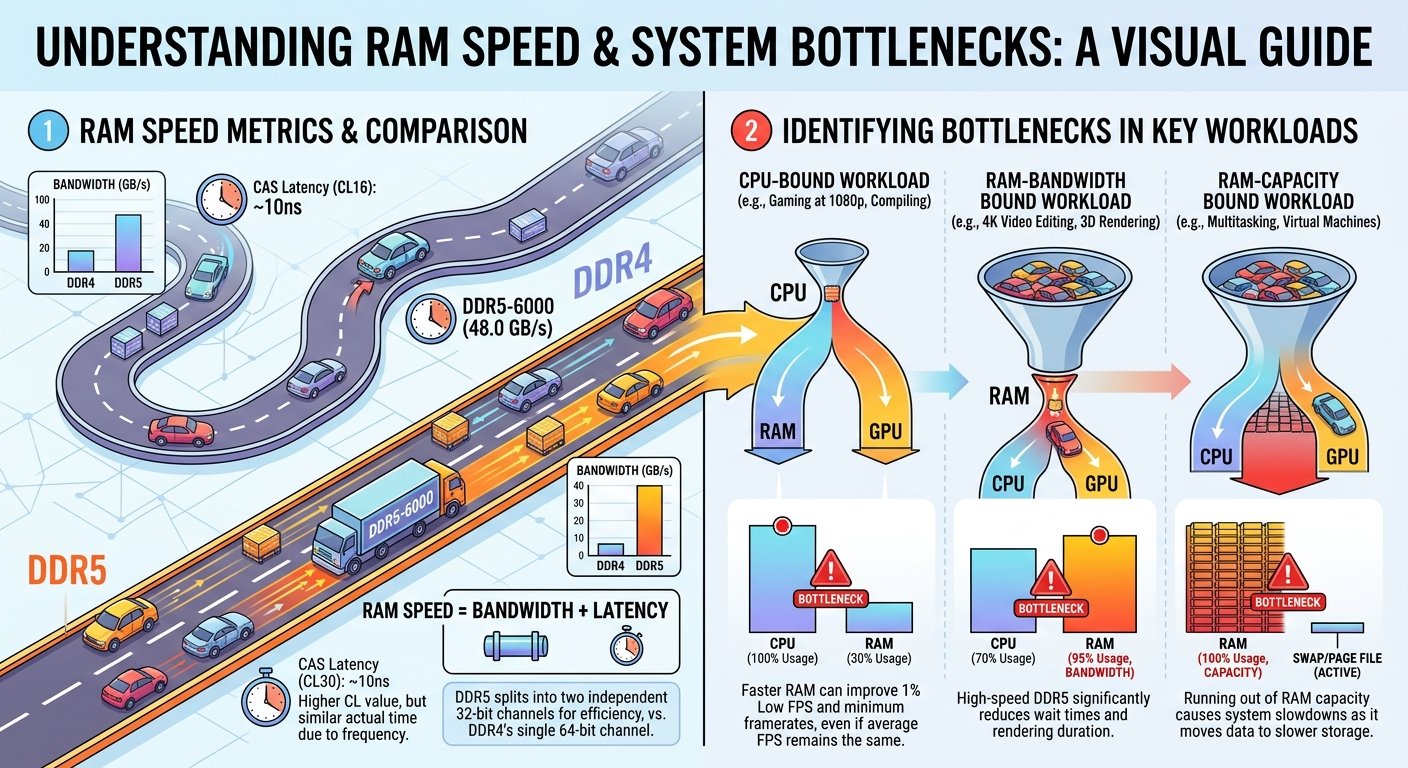
Modern systems generally benefit from DDR5 RAM for newer platforms. For most gaming builds 16GB is the sweet spot in 2026 while creators and streamers should aim for 32GB. Pay attention to speed (MHz) and latency (CL rating).
Choose Storage
A fast NVMe SSD as your primary drive is essential for quick boot times and snappy application loading. Many builders pair a 1TB NVMe for the OS and applications with a larger 2TB or 4TB SATA SSD or HDD for bulk storage and games.
Select Your GPU
For gaming builds the GPU is often the most important component. PC Part Picker lets you compare cards by VRAM performance tier and price. Use the community builds section to see how cards perform in real world gaming scenarios similar to yours.
Add a Case PSU and Cooling
Make sure it supports your motherboard form factor and has adequate airflow
Aim for at least 80+ Gold efficiency and leave 20–30% headroom over your estimated power draw
Stock coolers are fine for non overclocked builds; aftermarket coolers are recommended for performance or quiet operation
Review Compatibility Warnings
Before finalizing your list review all warnings and notes PC Part Picker has flagged. Some warnings are informational (e.g. "This RAM runs at XMP speed") while others are critical blockers (e.g. incompatible socket).
Export or Share Your Build
PC Part Picker lets you share your build via a unique URL export it as a spreadsheet or use it to purchase parts directly through affiliate links. Sharing your build on forums like Reddit's r buildapc for community feedback before buying is a great habit.
PC Part Picker for Different Types of Builders
Budget Gaming PC ($400 $700)
For entry level gaming at 1080p PC Part Picker is perfect for finding the best value in the sub $700 range. Popular combinations include AMD Ryzen 5 processors paired with mid range GPUs and B series motherboards. The platform's price tracking ensures you buy at the right time.
Mid Range Gaming PC ($700 $1 500)
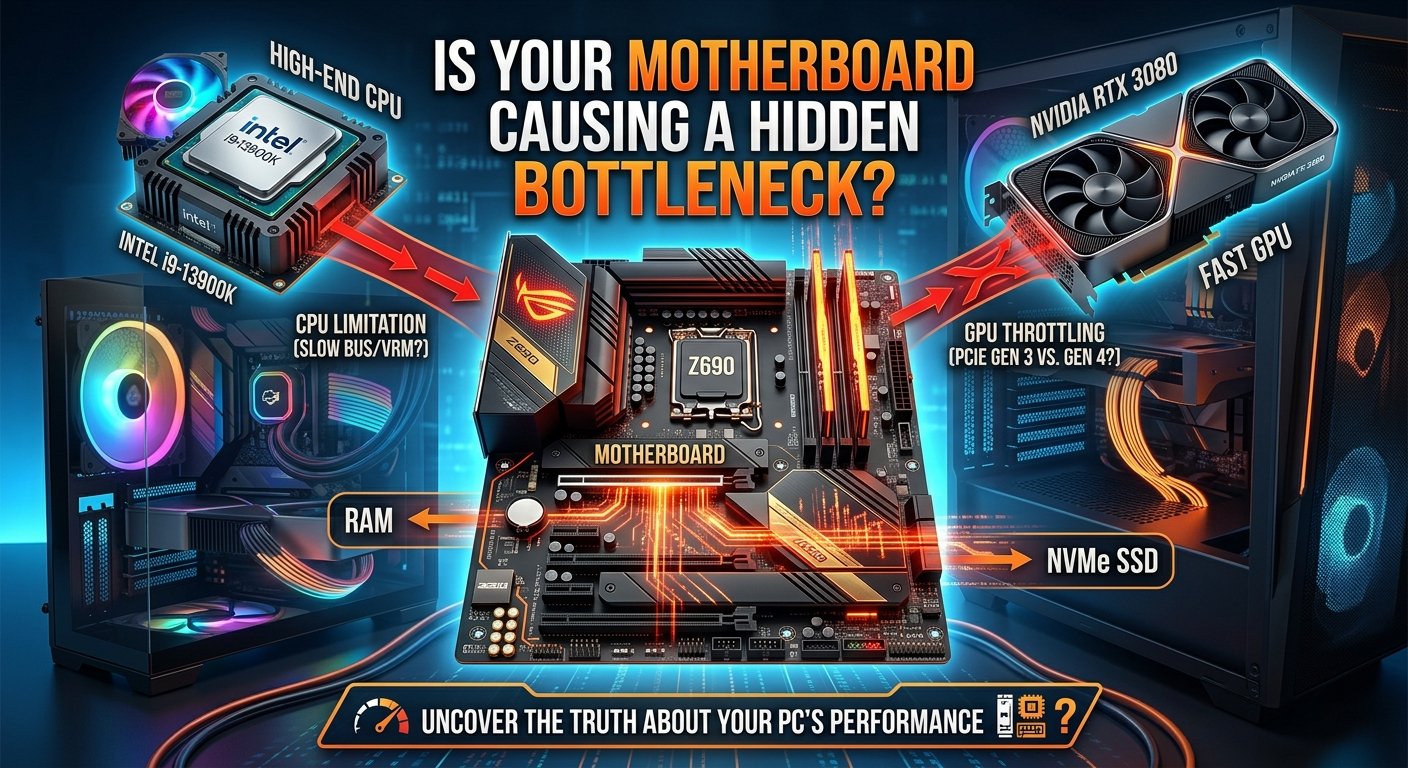
This is the sweet spot where PC Part Picker truly shines. You can balance CPU GPU and memory perfectly for 1440p gaming. The compatibility checker ensures you don't accidentally bottleneck your build.
High End Gaming 4K Build ($1500 $3000+)
Enthusiast builders spending serious money benefit enormously from PC Part Picker's detailed specs and community reviews. At this tier small details like PCIe lane allocation or memory bandwidth matter and the platform surfaces that information clearly.
Workstation and Content Creation PC
For video editors 3D artists and streamers PC Part Picker helps you prioritize core count RAM capacity and storage bandwidth over raw gaming performance. Filtering by ECC RAM support HEDT platforms and professional GPU options is straightforward.
Small Form Factor (Mini ITX) Builds
Building in a compact case is notoriously tricky. PC Part Picker's size filters and compatibility notes are critical for Mini ITX builds where GPU length cooler height and PSU form factor must all align precisely.
PC Part Picker Tips and Tricks You Should Know
Use the Saved Parts Lists feature to maintain multiple build variations at different budget levels so you can easily compare them.
Check the price history graph for each component before buying. PC Part Picker tracks historical pricing making it easy to spot when a GPU or SSD has dropped to an all time low.
Read user reviews on the product pages. PC Part Picker aggregates user reviews from multiple sources giving you a quick snapshot of reliability and real world issues.
Use the Wattage Filter on PSUs to automatically show only power supplies sufficient for your current build's estimated power draw.
Enable notifications on specific parts you're watching to get alerted when prices drop below your target threshold.
Look at completed builds in the community section with the same CPU or GPU you're considering. Real photos and build notes are far more informative than spec sheets alone.
Common Mistakes to Avoid When Using PC Part Picker
Ignoring warnings PC Part Picker flags compatibility issues for a reason. Even "minor" warnings about RAM running below advertised speed can affect performance.
Only looking at the cheapest option: Price matters but so does quality. A cheap no name power supply can damage your entire system. Use PC Part Picker's filters to find value without sacrificing reliability.
Forgetting peripherals and OS: Your parts list total doesn't include a monitor keyboard mouse or a Windows license. Factor these into your overall budget from the start.
Not accounting for shipping and taxes: The listed prices may not reflect final checkout costs. Always verify at the retailer before purchasing.
Overlooking case airflow: PC Part Picker can flag size incompatibilities but it can't tell you whether a case has good airflow. Always cross reference with independent case reviews.
PC Part Picker vs Other PC Building Tools
While PC Part Picker is the industry standard a few alternatives exist:
Logical Increments offers pre built tier recommendations for different budgets but lacks the granular customization of PC Part Picker. It's great for beginners who feel overwhelmed by choice.
UserBenchmark focuses on benchmarking and comparing performance but doesn't offer a parts list or compatibility checker.
Toms Hardware and Linus Tech Tips forums provide community advice but aren't interactive tools.
None of these alternatives match PC Part Picker's combination of real time pricing compatibility checking and community builds. For serious builders PCPartPicker remains the definitive choice.