How to Get 144 FPS Without Bottleneck: The Complete Gaming Guide
If you've ever stared at a 144Hz monitor and wondered why your gameplay still feels choppy or why upgrading one component made almost no difference you've already bumped into the bottleneck problem. Achieving a rock-solid 144 FPS isn't just about spending money on hardware. It's about balance, configuration, and knowing exactly where your performance ceiling is hiding.
This guide walks you through everything: what causes a bottleneck, which hardware combinations unlock 144 FPS, and how to squeeze every last frame out of your existing setup all without creating a new bottleneck in the process.
What Is a Bottleneck and Why It Matters
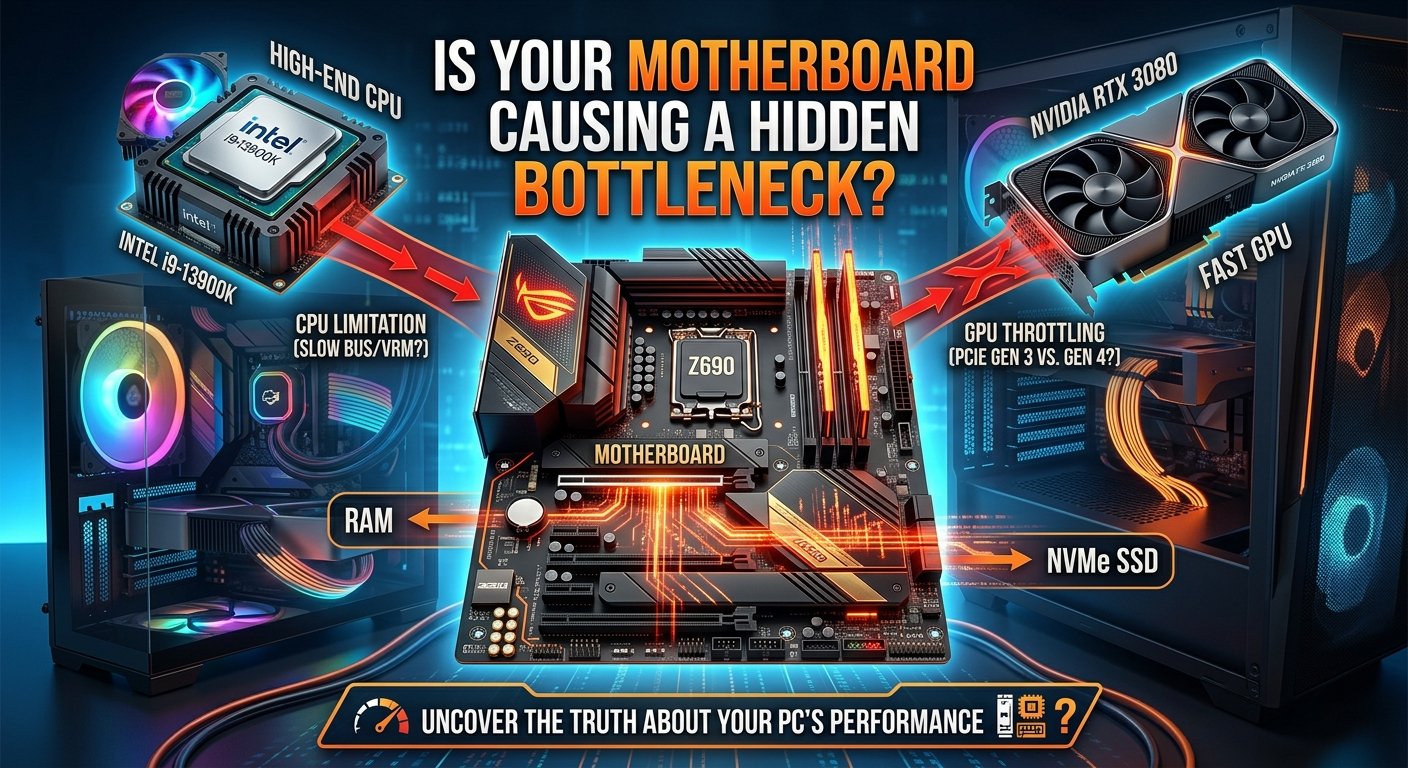
A bottleneck occurs when one component in your PC is working at or near 100% capacity while another sits underutilized. The slower component forces the faster one to wait, dragging overall performance down to its level. In gaming, this typically shows up as one of two problems
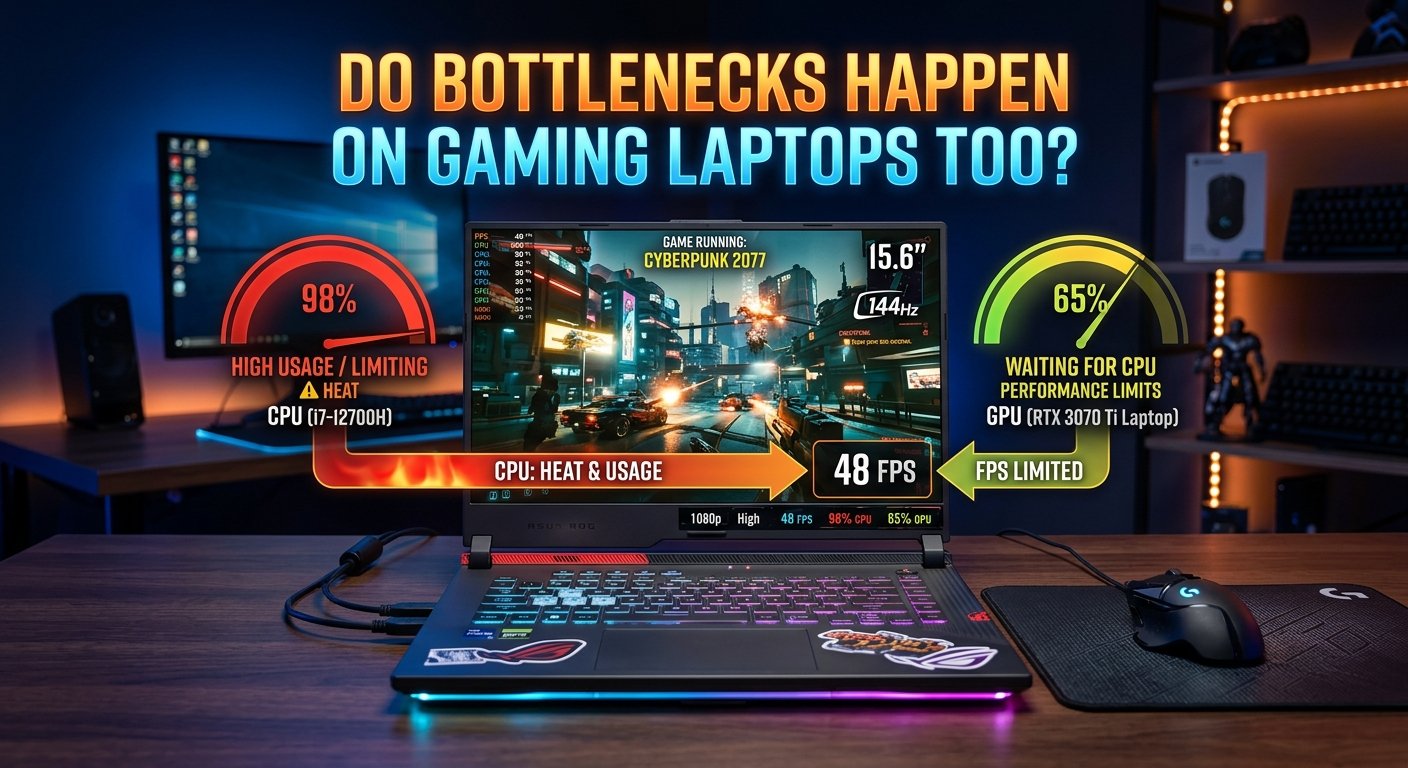
CPU bottleneck: Your processor can't prepare game data (physics, AI, frame logic) fast enough for your GPU to render, leaving your GPU idle and FPS stuck below potential.
GPU bottleneck: Your graphics card can't render frames fast enough, regardless of how powerful your CPU is. This is actually acceptable you want your GPU near 99% usage since it's doing the intended work.
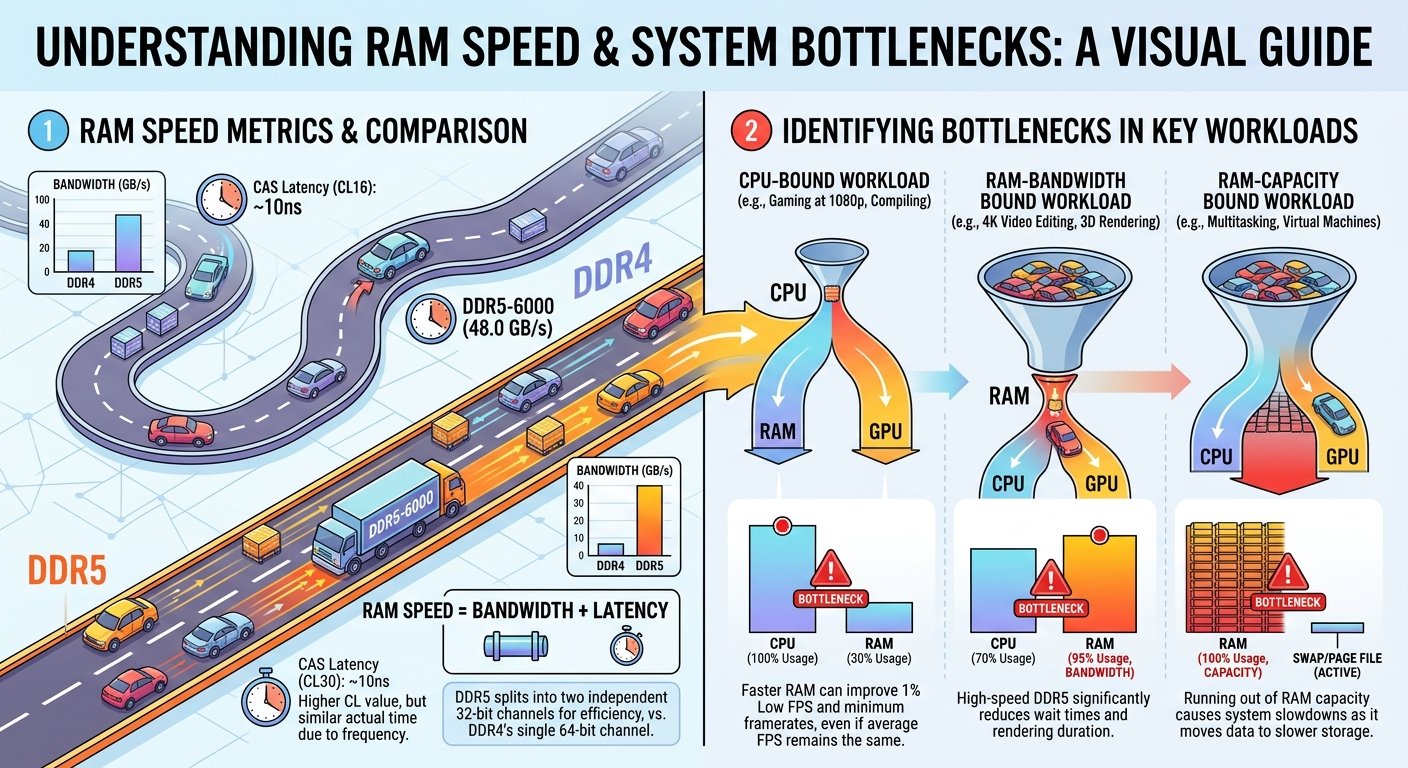
RAM bottleneck: Insufficient speed or capacity stalls both CPU and GPU, quietly killing FPS with no clear error message.
Storage bottleneck: Slow drives cause stutters during asset streaming in open-world or multiplayer games.
The goal is to eliminate CPU and RAM bottlenecks while keeping your GPU working hard. A GPU running at 95–99% with 144+ FPS is the ideal scenario.
Choose a Balanced CPU and GPU Combination
The most common mistake gamers make is pairing a top-tier GPU with a mid-tier CPU (or vice versa). At 1080p the resolution most conducive to 144+ FPS the CPU carries a heavier load because the GPU finishes rendering tasks faster, putting more pressure on the processor to keep feeding it work.
|
GPU Table of Contents
|
Recommended CPU |
Target FPS |
Balance |
|
RTX 4060 / RX 7600 |
i5-13600K / Ryzen 5 7600X |
144–200+ FPS |
Good |
|
RTX 4070 / RX 7700 XT |
i7-13700K / Ryzen 7 7700X |
144–240+ FPS |
Great |
|
RTX 4080 / RX 7900 GRE |
i9-14900K / Ryzen 9 7900X |
200–300+ FPS |
Best |
Pro tip: At 1080p resolution, CPU performance is more critical than at 1440p or 4K. If you're targeting 144 FPS at 1080p, don't skimp on the processor. At higher resolutions, the GPU becomes the dominant factor and the bottleneck shifts naturally.
Optimize Your RAM for Gaming
RAM is one of the most overlooked performance factors. Modern games and game engines are heavily multi-threaded, meaning they feed data across multiple CPU cores simultaneously. Slow or inadequate RAM can throttle this pipeline entirely.
Use at least 16GB of RAM 32GB is recommended for 2026 titles and future-proofing.
Enable XMP (Intel) or EXPO (AMD) in your BIOS to run RAM at its advertised speed, not the default 2133MHz.
Dual-channel configuration is mandatory two sticks always outperform one stick of the same total capacity.
Aim for DDR4-3600 CL16 or DDR5-6000 CL30 for optimal latency-to-speed balance on modern platforms.
Mismatched sticks or single-channel setups can cost you 10–20% of potential FPS with zero hardware upgrade required to fix it.
Tune In-Game and Driver Settings
Hardware alone won't deliver 144 FPS if your settings are fighting against you. The right balance of visual fidelity versus performance is game-specific, but the following changes apply universally.
In-game settings that impact FPS most
Shadow quality: Drop from Ultra to High or Medium. Shadows are GPU-expensive with minimal visual payoff at high FPS.
Anti-aliasing: Switch from MSAA/SSAA to TAA or use DLSS/FSR upscaling massive FPS gain with acceptable quality at 144Hz speeds.
Ray tracing: Disable entirely if targeting 144 FPS. RT cuts FPS by 30–50% even on high-end cards.
View distance: Keep at High. Ultra rarely improves gameplay but costs significantly in open-world titles.
Motion blur: Disable. It adds GPU workload and makes high-FPS gameplay look worse, not better.
Driver and OS-level optimizations
Enable 'High Performance' power plan in Windows plugged-in mode doesn't always default to max CPU clocks.
Set your GPU's preferred refresh rate to 144Hz in Display Settings, not just in-game.
Disable Xbox Game Bar and full-screen optimizations for competitive titles via right-click Properties.
Use NVIDIA Reflex or AMD's Anti-Lag to reduce system latency without sacrificing FPS.
Keep GPU drivers updated Nvidia and AMD regularly push performance patches for new titles.
DLSS and FSR are your secret weapons. NVIDIA DLSS 3.5 and AMD FSR 3.1 both use upscaling and frame generation to deliver visual quality close to native resolution at a fraction of the rendering cost. Enabling these in supported titles can push you from 90 FPS to 144+ with virtually no image quality compromise.
Eliminate Background CPU Load
One of the sneakiest FPS killers is CPU load from background processes. Discord, browsers, streaming software, and antivirus programs all compete for CPU cycles your game desperately needs. Even a powerful i9 can bottleneck if it's simultaneously encoding video, running Windows updates, and handling a 50-tab browser session.
Close all non-essential applications before launching games.
Set your game's process priority to 'High' in Task Manager (not Realtime that can cause system instability).
Disable startup programs via Task Manager > Startup tab.
If streaming, use hardware encoding (NVENC/AMF) instead of x264 to move encoding load off the CPU entirely.
Monitor Your Actual Bottleneck with Data
Don't guess measure. Running your game with an overlay showing CPU and GPU usage simultaneously tells you exactly where the bottleneck lives. MSI Afterburner with the RivaTuner overlay is the standard tool for this and it's free.
During gameplay, you want to see:
GPU usage: 95–99% healthy, this means your GPU is the rendering limiter (ideal).
CPU usage: below 80% across all cores if any single core is pegged at 100%, you have a CPU bottleneck.
RAM usage: below 90% of total installed if you're near the ceiling, performance degrades sharply.
FPS counter: stable at or above 144 with minimal 1% lows deviation (less than 20% drop from average).
What 1% lows tell you that averages don't: A game averaging 160 FPS with 1% lows of 60 FPS still feels unplayable. Stutter comes from frame delivery variance, not average framerate. Fixing 1% lows usually means addressing RAM latency, storage speed, or CPU single-core performance.
Enable Freesync or G-Sync
Variable refresh rate technology (AMD Freesync or NVIDIA G-Sync) doesn't increase your FPS ceiling, but it makes every frame feel smoother by synchronizing your monitor's refresh rate to your GPU's output. This means that even if you dip to 120 FPS momentarily during an intense scene, you won't experience tearing or the jarring sensation of frame drops the monitor simply adapts.
Enable your monitor's Freesync or G-Sync support in both the GPU's control panel and the monitor's OSD. This is a free, hardware-level upgrade that makes the journey to 144 FPS feel more like 144 FPS regardless of minor variance.
Final Checklist Before You Game
CPU and GPU are appropriately paired for your target resolution.
RAM is running at XMP/EXPO speeds in dual-channel configuration.
In-game settings eliminate unnecessary GPU load (shadows, AA, RT off).
DLSS or FSR is enabled if the game supports it.
Background processes are closed and power plan is set to High Performance.
GPU drivers are up to date.
Freesync or G-Sync is active on your 144Hz monitor.
MSI Afterburner confirms GPU at 95%+ and CPU below 80%.